CodeSafe 5 Application Authentication
Introduction
CodeSafe on Solo XC, Connect XC, and earlier HSMs allowed any operator with access to the nCore API to load executable code onto the HSM. The CodeSafe functionality uses the signature on this code to control access to other Security World keys, but there is no other significance attached to these signatures. So, simply loading code onto these HSMs does not require access to any particular signing key.
CodeSafe 5 aims to improve deployment security by ensuring that every CodeSafe application is cryptographically linked to a developer with a real-world identity, and by allowing the administrator of each HSM to choose which developer identities are permitted to run CodeSafe applications on that HSM. nShield 5s and 5c HSMs will not run applications which have not been signed by an authenticated developer.
CodeSafe 5 signing keys
The developer of a CodeSafe 5 application (the "Developer") uses the following keys:
-
A Developer ID key
-
One or more Application Signing Keys ("ASK"s)
The Developer ID key belongs to a company or other organization, and that organization has an active nShield support contract or similar relationship with Entrust. Entrust issues a Developer ID Certificate, which is an X.509 certificate binding the Developer ID key to an organization name, location, and DNS domain name ("Common Name").
Application Signing Keys are owned by the Developer’s organization, and should be distinct for each CodeSafe 5 application they produce.
An ASK is associated with a 'Package Name', which is a short name for the application, assigned by the Developer. Taken together, the Package Name and Common Name form a unique identifier for that application, which is cryptographically assured through the authentication mechanism.
Application Authentication chain of trust
This is shown in the diagram below:
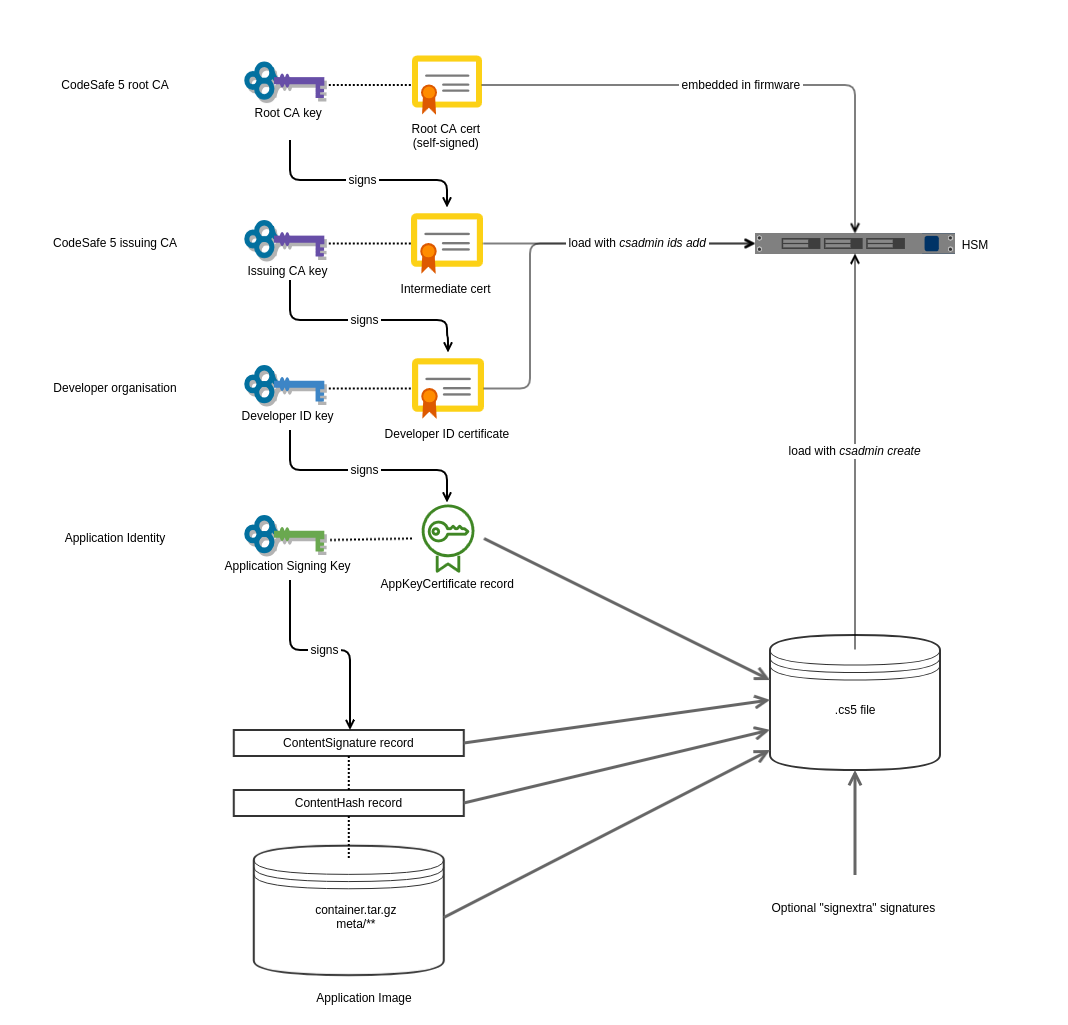
The CodeSafe 5 root CA is owned by Entrust; it has a corresponding X.509 root certificate which is embedded in the HSM firmware. This certificate is the root of trust for the application authentication mechanism.
The CodeSafe 5 issuing CA is also owned by Entrust; it is an online CA operated by nShield
Technical Support. This creates a Developer ID Certificate in response to a CSR generated
by the csadmin ids create command.
The Developer ID Key here is responsible for authenticating Application Signing Keys as belonging
to the Developer’s organization. It does this by creating a certificate (an AppKeyCertificate
record) binding that ASK to a Package Name.
The Application Signing key is used to generate the signature on the CodeSafe 5 application
itself. This signature, and the AppKeyCertificate record which describes the ASK, are
embedded in the .cs5 file for delivery to the HSM. This is done with the csadmin image sign
command.
Application signatures and ACLs
A central feature of CodeSafe is the ability to restrict use of Security World keys to specific
CodeSafe images. For Solo XC and earlier HSMs, this was done by signing the machine image
(actually, signing the userdata associated with the machine) using a seeinteg key,
and then referring to the key-hash of that seeinteg key in the Access Control List (ACL)
of another Security World key. For instance, this can be done by using generatekey with
the seeintegname or --trusted-certifier options (see
Working with keys).
When the CodeSafe machine wishes to use a key which is restricted in this way, it adds a
CertType_SEECert certificate to the nCore API command, as described in the
Command Certificates documentation.
In CodeSafe 5, the Application Signing Key’s identity is available to authorize actions. When creating
keys with generatekey, the ASK’s name can be used for the seeintegname parameter,
or its hash passed as the --trusted-certifier value. The ASK hash can then be used in
CertType_SEECert command certificates.
However, in some situations it is desirable to use existing Security World keys created for CodeSafe XC
applications, i.e. to use an existing seeinteg key’s identity for command authorization rather than
a new ASK. To do this, the existing seeinteg key can be used to add an additional signature on the
CodeSafe 5 machine image. For details see the
csadmin image signextra command.
Handling of Developer ID certificates
As the diagram above shows, X.509 certificates (the Developer ID and Issuing CA certificates) are not placed in the .cs5 file itself. Instead, the HSM maintains a certificate database, separate from the CodeSafe 5 machine image itself. The following commands access that database:
-
csadmin ids addis used to upload a Developer ID or Issuing CA certificate to the HSM. -
csadmin ids listlists the current contents of the certificate database. -
csadmin ids removedeletes a given certificate from the database.
These are described in detail at Developer Identity management.
It is possible to have more than one certificate for the same Developer ID key (e.g. with different validity dates) loaded. The validation procedure (described below) will accept any such certificate that is currently valid.
The csadmin ids add command will therefore set which Developer(s) are authorized to run
applications on that HSM. An organization deploying CodeSafe 5 will normally use this to lock
down each HSM to a single identified Developer.
|
Offline signing using the Developer ID key
The diagram above shows that the Developer ID key signs an AppKeyCertificate record,
but it is not involved in creating a signature on the application itself. This allows
the Developer ID key to be kept in a separate environment to the ASK; it is only
necessary to use the Developer ID key when an ASK is first created. After that,
the AppKeyCertificate can be stored and reused repeatedly. Only the ASK needs to be
available when creating the signed .cs5 file.
The workflow for using the Developer ID key in a separate (e.g. offline) environment is as follows:
-
Use
generatekeyto create a new ASK -
In the same Security World, run
csadmin image presignask. This will generate a small file containing data to be signed. -
Transfer this file to the environment hosting the Developer ID key (this can be a different Security World).
-
In this environment, run
csadmin image signask. This accepts the file above and signs it. The output is another file containing anAppKeyCertificaterecord. -
Transfer this output file back to the ASK’s environment.
-
When the ASK is signing an application, use
csadmin image signwith the--signedaskoption to pass in theAppKeyCertificatefile from the previous step.
These operations need a Developer ID certificate file to be available in both environments, but note this is just used to identify the Developer ID key; it does not form part of the signed .cs5 file.
Validation of CodeSafe 5 images
The contents of a .cs5 file are validated when it is first loaded onto the HSM (using csadmin load), and when the machine is started (using csadmin start, or when the HSM boots if configured to start automatically).
Validation of a .cs5 file consists of the following steps:
-
Check that the file has at least one signature (a
ContentSignaturerecord, and aContentHashrecord of the appropriate type). -
Check that the verification (public) key for each signature can be located.
-
If the key is an ASK, it needs to have a matching
AppKeyCertificaterecord. -
If the key is a "signextra" key, it needs a matching
KeyDatarecord.
-
-
Check that the signature can be verified with the public key data, and that the
ContentHashrecord matches the hash of the file’s payload. -
For each
AppKeyCertificaterecord:-
Locate a matching Developer ID certificate in the Certificate Store. Certificates are matched by the X.509 Subject Key ID field, which is set from the key hash of the Developer ID key.
-
Check that the Developer ID certificate is valid (including a check for expired certificates, and a check that a valid Issuing CA certificate has been loaded). If not, the database is searched for another Developer ID certificate with a matching Subject Key ID. If any valid certificate is found, the key is accepted.
-
Check that the public key in the Developer ID certificate can be used to verify the signature in the
AppKeyCertificaterecord. -
If the
AppKeyCertificatesigned message includes a start date or expiry date, check that the current date is within the allowed range.
-
-
Check that there is at least one complete chain from a
ContentSignaturethrough an ASK back to the CodeSafe 5 root CA.
You can use the npkgtool inspect command to view the records in a .cs5 file.
|