Test the integration
Add a signature line to a document
-
Open a Microsoft 365 Word document or create one.
-
Select the location in the document where you want to add the signature line.
-
On the ribbon, select the Insert tab and locate the Text group.
-
Select the arrow next to Signature Line, and then select Microsoft Office Signature Line. For example:

-
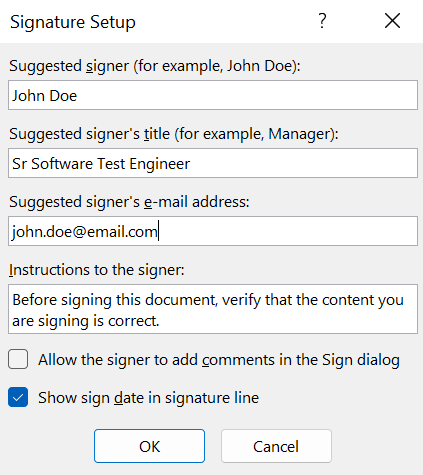
The Signature Setup dialog appears. Enter your information.
For example:
-
Select OK.
Sign the signature line
When you sign the signature line in an Microsoft 365 document, you add both a visible representation of your signature and a digital signature. The digital signature contains the time stamp information.
-
Open the document above.
-
Double-select the signature line where a signature is requested.
-
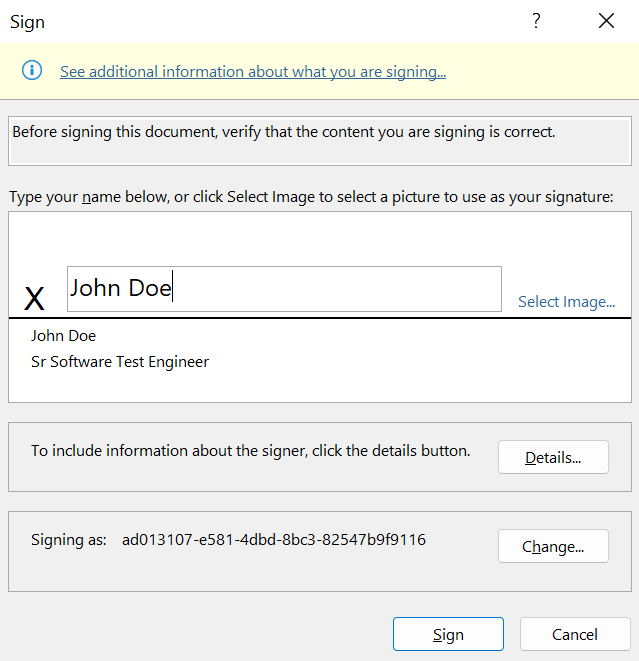
In the Sign dialog window, add the required information. Then select Sign.
For example:
-
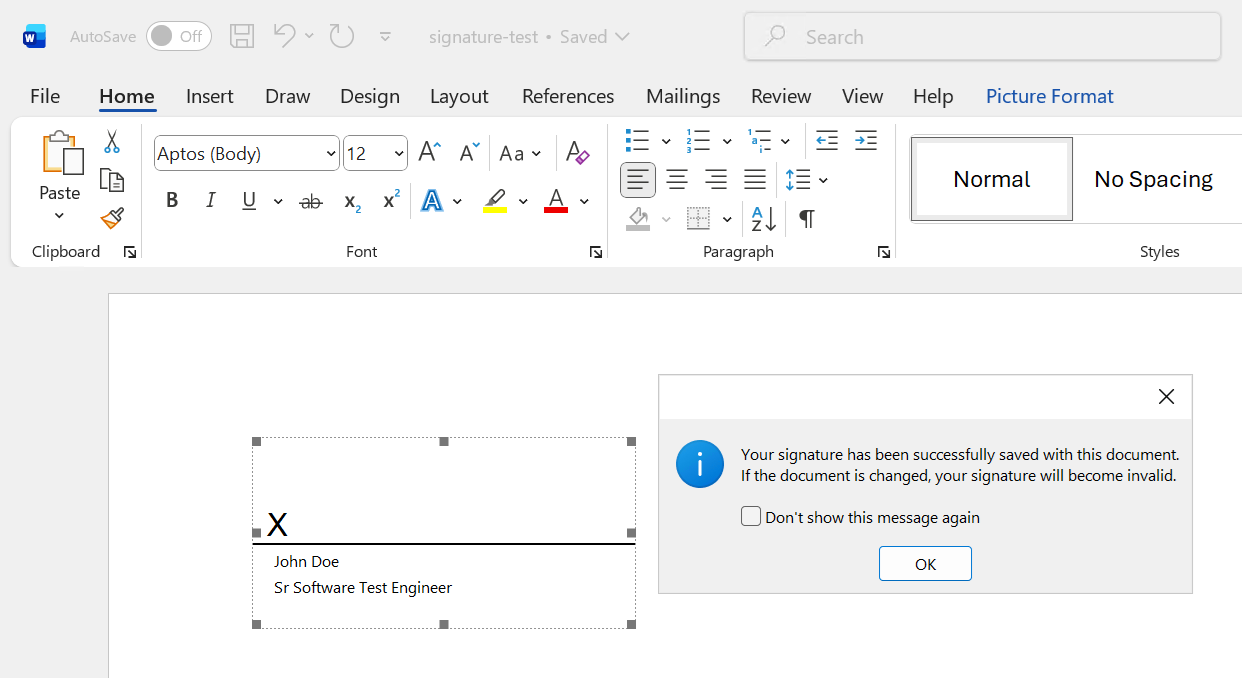
The document is signed.
For example:
-
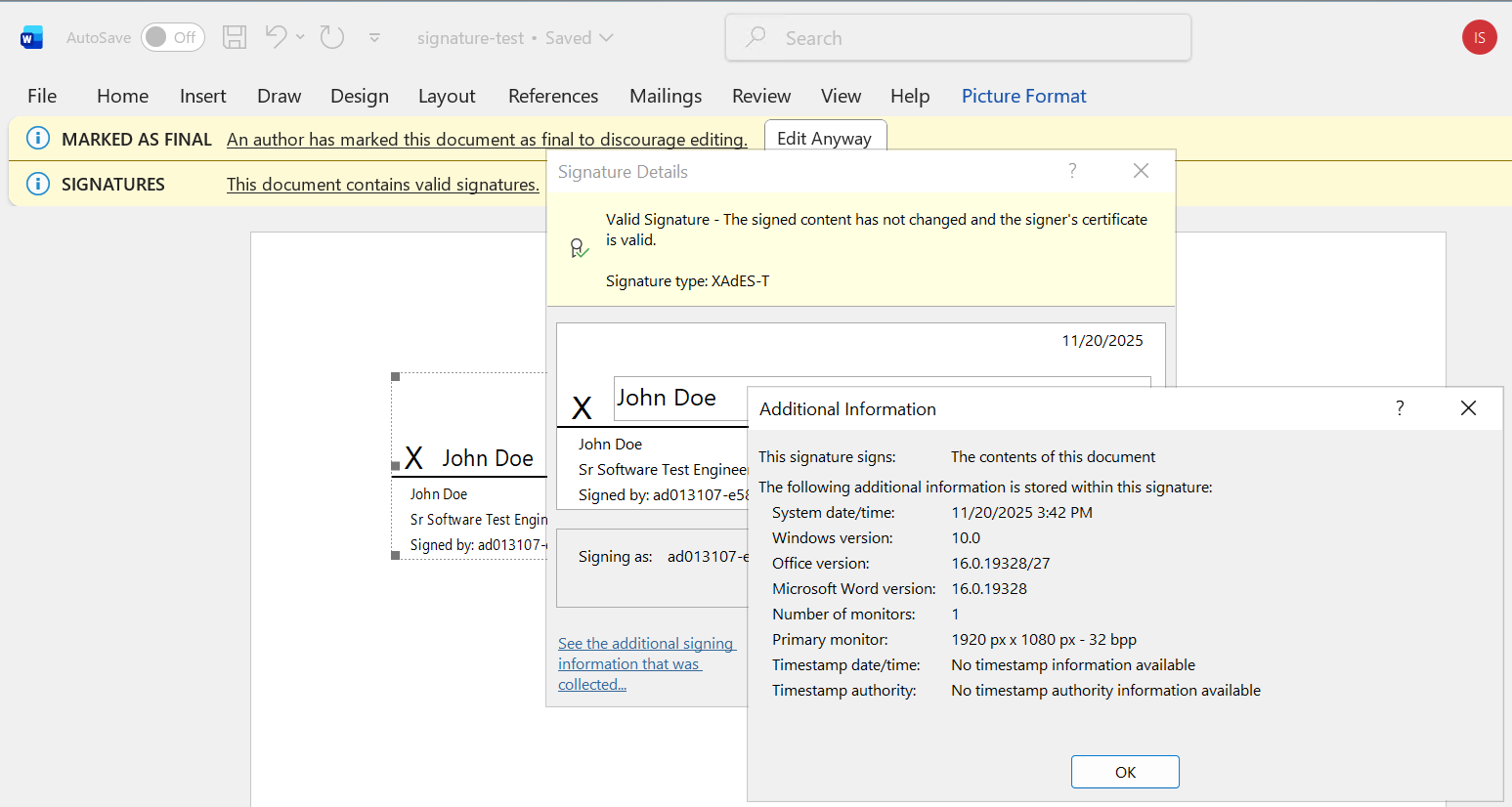
Select the signature in the document to confirm it is valid. The signature type should be XAdES-T.
For example:
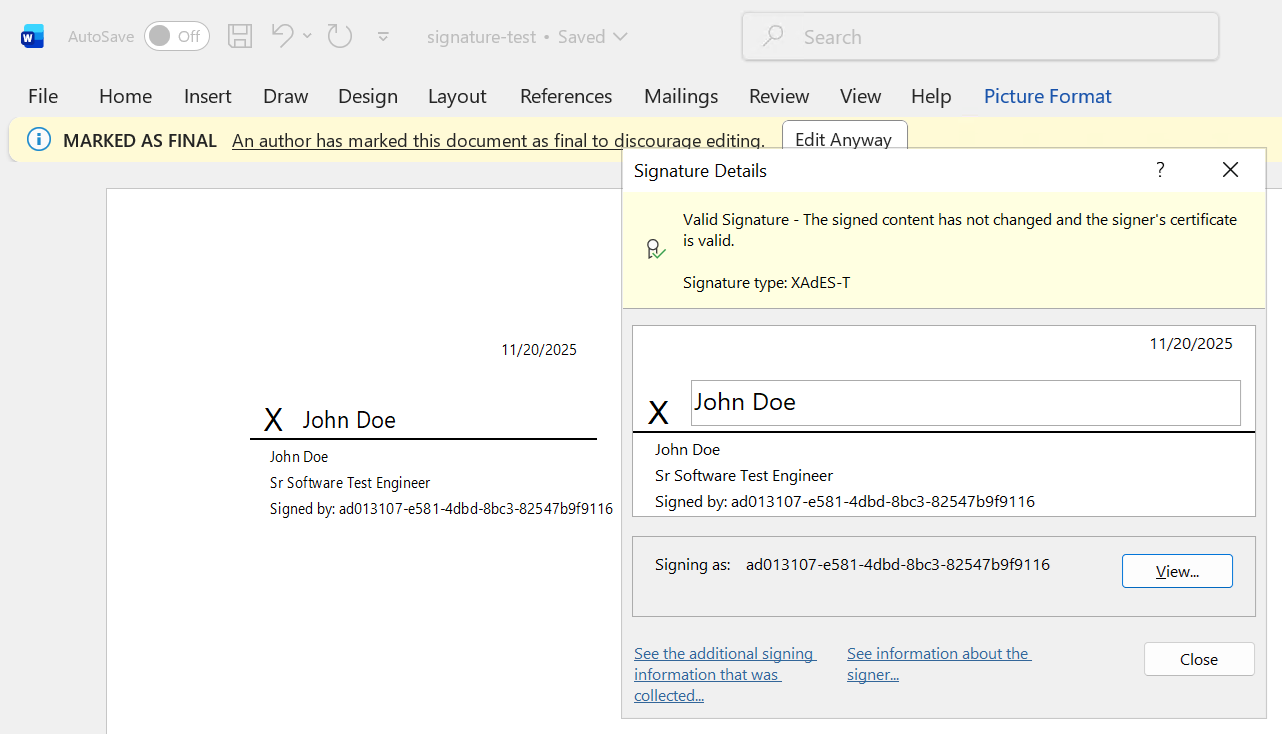
-
Select See additional signing information that was collected… to view the time stamp information.
For example: