Create an external key store and keys
Create an external key store
-
Sign in to the AWS management console and navigate to Key Management Service (KMS).
-
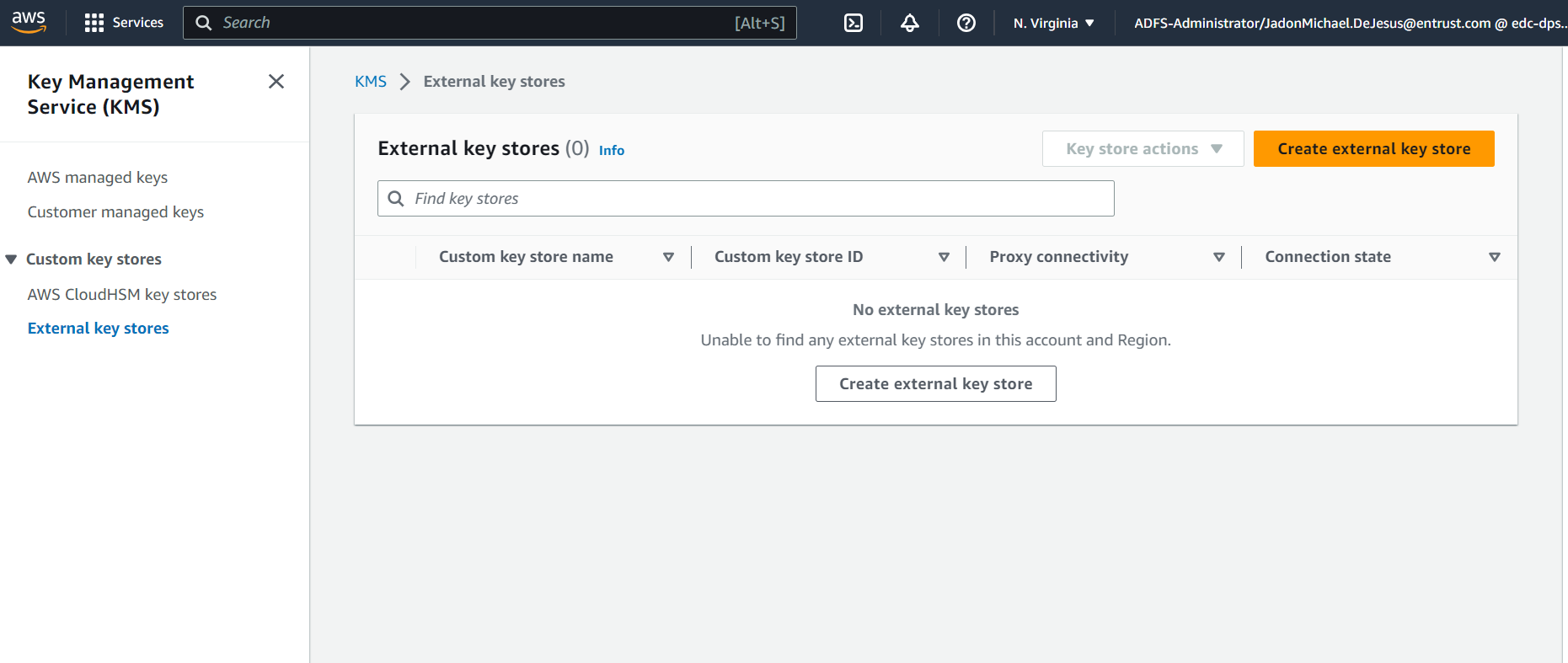
In KMS, go to Custom key stores > External key stores.
-
Select Create external key store.
-
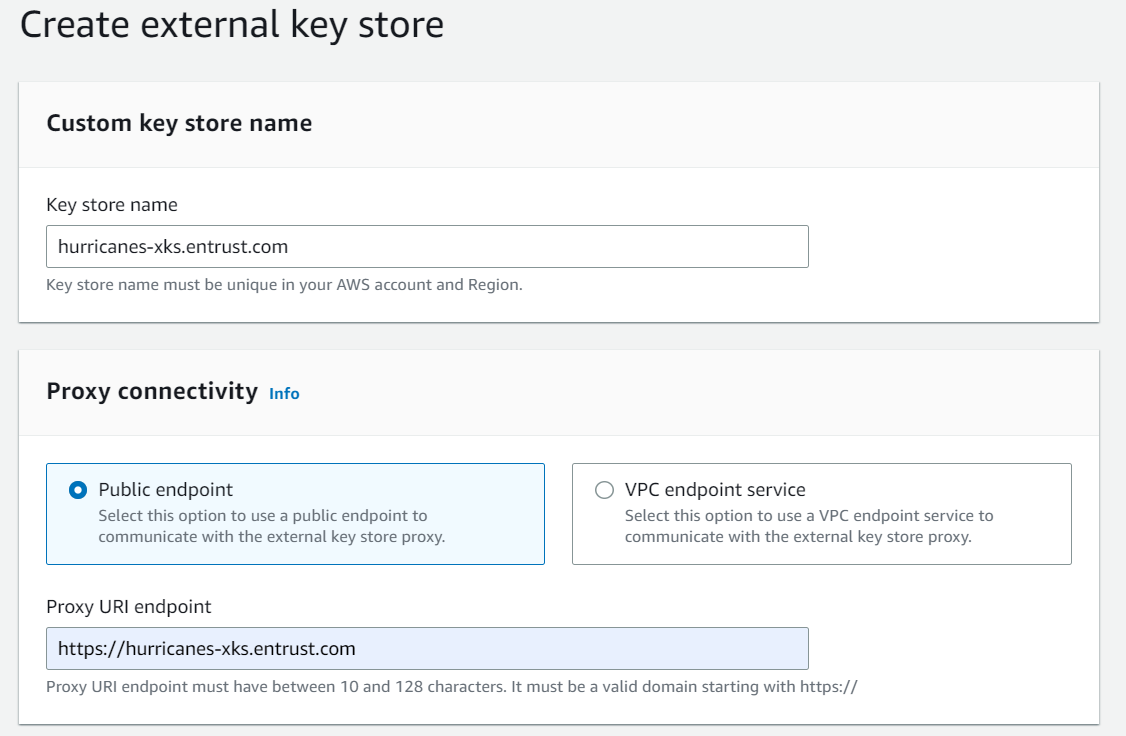
Enter the information as shown below, then select Create external key store.
Parameter Value Proxy connectivity
VPC endpoint serviceVPC endpoint service name
Name from VPC Endpoint Service
Proxy URL endpoint
URL containing the FQDN, for example,
https://nshield-xks.entrust.comProxy URI path prefix
/nshield/xksProxy credential: Access key ID
sigv4_access_key_id from Configure XKS PRoxy
Proxy credential: Secret access key
sigv4_secret_access_key from Configure XKS Proxy
The following example shows a newly created external key store. Notice the Connection state is Disconnected.
-
Connect the newly created external key store. From the Key store actions menu, select Connect. After the connection process completes, verify the updated Connection state.
After you create the External key store, you can use it to securely manage and store keys in your AWS environment.
Create a key in an external key store
-
Sign in to the AWS management console and navigate to Key Management Service (KMS).
-
In KMS, select the key store created in section Create an external key store.
-
Select Create a KMS key in this key store.
-
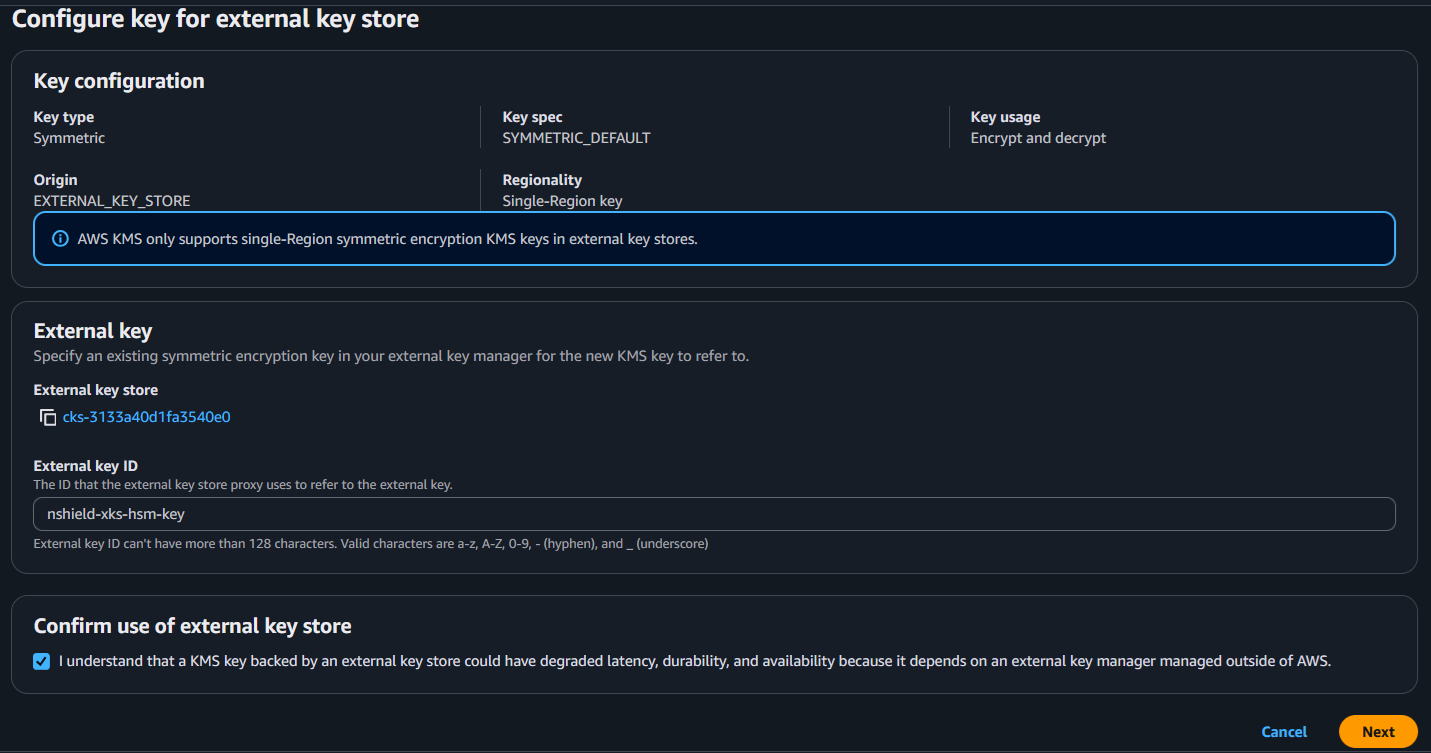
In the Configure key for external key store window, complete the following fields and then select Next:
-
In the External key ID field, enter the name of the HSM key generated in section Generate a PKCS #11 key in the nShield HSM.
-
Select the Confirm use of external key store checkbox.
-
-
In the Add label window, enter a name and description for the KMS key. Select Next to continue.
-
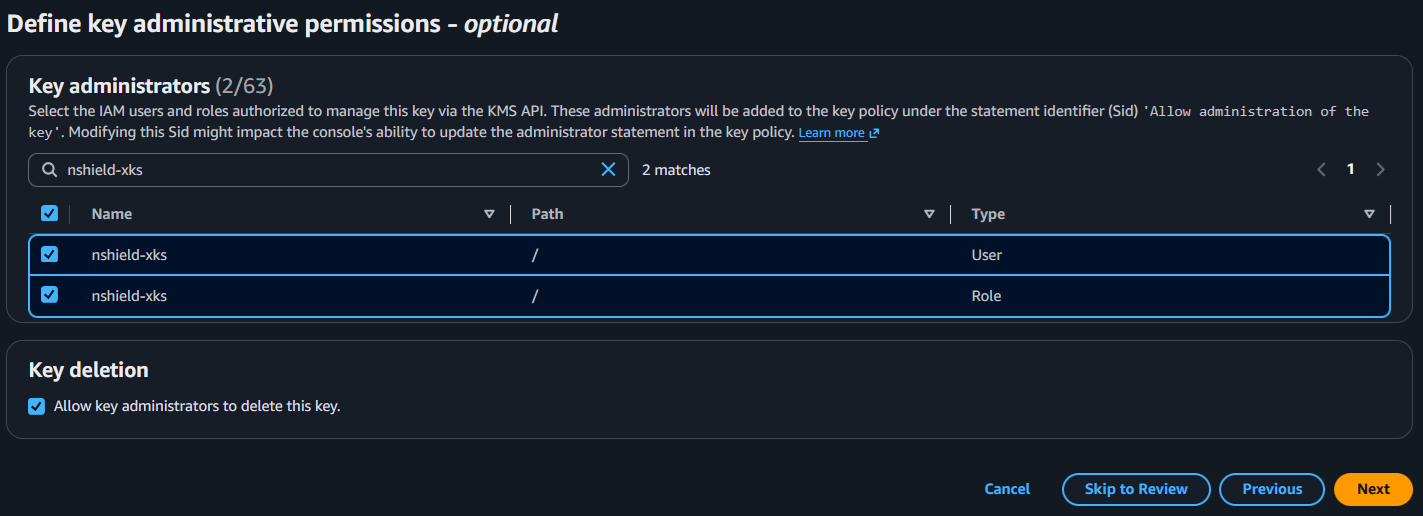
In the Define key administrative permissions window, select the IAM user or users designated as administrators.
In the Define key usage permissions window, select the IAM user or users designated as key users.This example uses a single key administrator and a single key user. However, AWS KMS supports assigning multiple IAM users and roles to each permission set.
Select Next to continue.
For example:
-
In the Edit key policy - optional window, select Next.
-
In the Review window, select Finish.
The key is created and the key information is displayed:
