Connect to the external key store
Clients access AWS KMS keys in an external key store by using IAM user or role credentials (access key ID and secret access key) and specifying the Amazon Resource Name (ARN) of the KMS key.
Therefore, the IAM policy associated with the user or role must grant the permissions required to perform cryptographic operations on the KMS key. Additionally, the KMS key policy must allow the user or role to access the key.
-
Sign in to the AWS Management Console and navigate to Identity and Access Management (IAM).
-
Select your IAM user.
-
Select Add permissions → Create inline policy.
-
Select the JSON tab.
-
Copy the policy shown below and paste it into the field on the JSON tab and then select Next to continue.
-
Replace the ARN in the
"Resource"element with the ARN of your AWS KMS key. -
To grant permissions to multiple keys, add additional key ARNs to the
"Resource"element, separated by commas.
{ "Version": "2012-10-17", "Statement": [ { "Sid": "UseDelineaKmsKey", "Effect": "Allow", "Action": [ "kms:Encrypt", "kms:Decrypt", "kms:GenerateDataKey", "kms:GenerateDataKeyWithoutPlaintext", "kms:DescribeKey" ], "Resource": [ "arn:aws:kms:us-east-1:594663549913:key/1b8b18dd-3dd7-79ef-87c5-8d169d755f02" ] } ] } -
-
Enter a policy name and then select Create policy to continue.
The policy is created and displayed, for example:
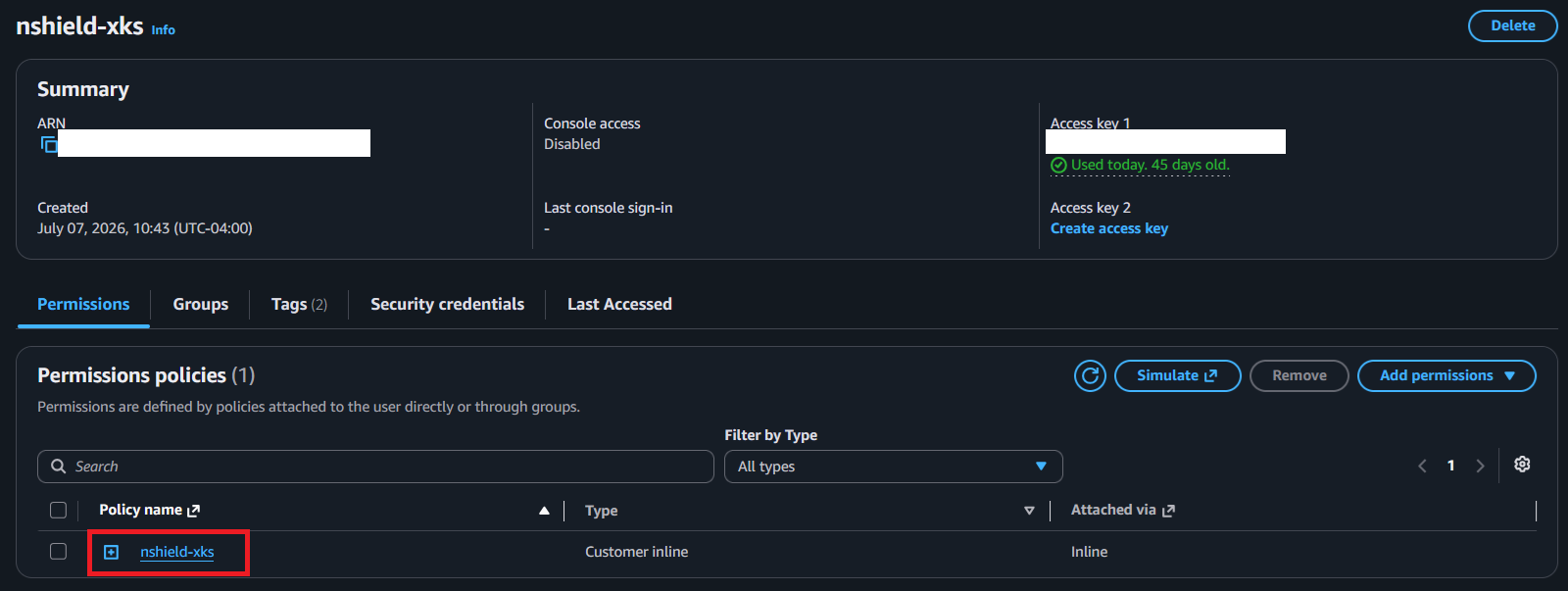
This completes the configuration of Amazon Web Services KMS External Key Store (XKS) nShield® HSM integration. Applications can connect to the external key store by using the IAM user credentials and specifying the ARN of the key in the external key store.