Install and register the CNG provider
-
Select Start > Entrust > CNG configuration wizard.
-
Select Next on the Welcome window.
-
Select Next on the Enable HSM Pool Mode window, leaving Enable HSM Mode for CNG Providers unchecked.
If you intend to use multiple HSMs in a failover and load-sharing capacity, select Enable HSM Pool Mode for CNG Providers. If you do, you can only use module-protected keys. Module protection does not provide traditional single-factor or two-factor authentication. Instead, the keys are encrypted and stored as an application key token, also referred to as a Binary Large Object (blob), in the Key Management Data\localdirectory. -
In the Initial setup window, select Use existing security world. Then select Next.
-
In the Set Module States window, select the HSM (Module) if more than one is available. Then select Next.
-
In the Key Protection Setup window, select Operator Card Set protection. Then select Next.
-
In the Token for Key Protection window, choose from the Current Operator Card Sets list created in deploy-entrust-nshield.adoc#create-ocs. Then select Next and Finish.
-
Verify the provider with the following commands.
>certutil -csplist | findstr nCipher Provider Name: nCipher Security World Key Storage Provider >cnglist.exe --list-providers | findstr nCipher nCipher Primitive Provider nCipher Security World Key Storage Provider -
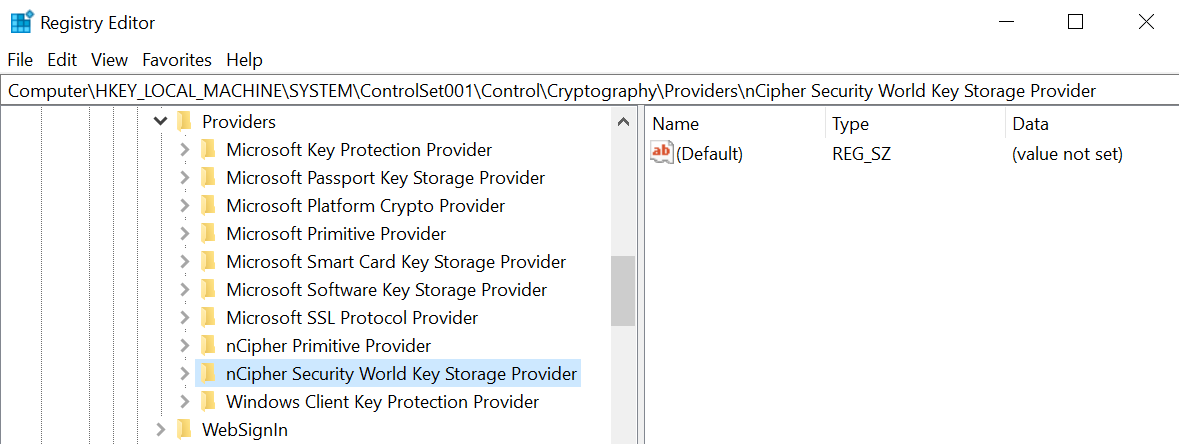
Verify the provider in the Windows Registry.
HKEY_LOCAL_MACHINE\SYSTEM\ControlSet001\Control\Cryptography\Providers\nCipherSecurityWorldKeyStorageProvider