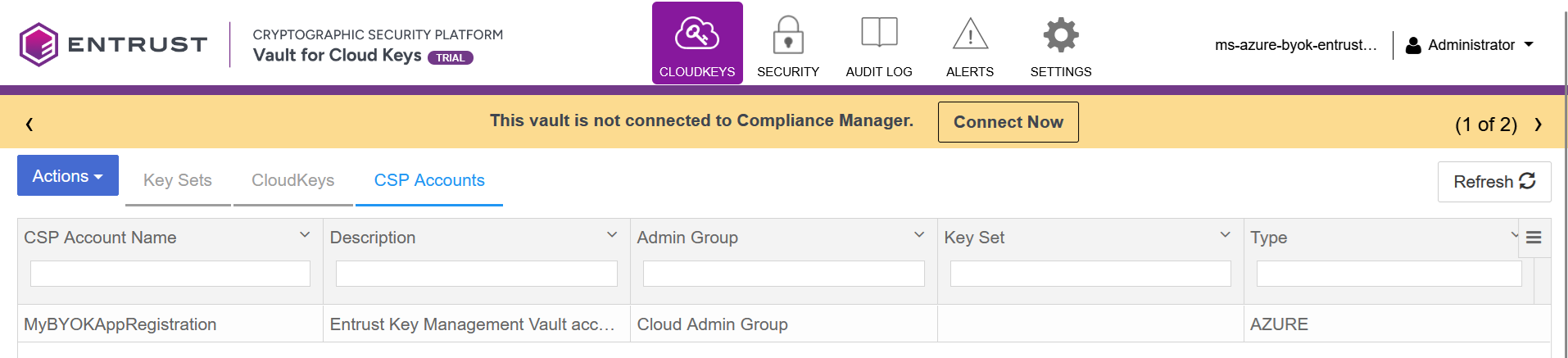
Configure Key Management Vault as a Microsoft Azure cryptographic service provider
Create an Azure client secret
This secret is required to create a CSP account for Azure in Key Management Vault. It expires after a set period. You must create the CSP account for Azure in Key Management Vault before the secret expires.
-
Navigate to App registrations > <my-app-registration> > Certificates & secrets.
-
Select New client secret. The Add a client secret dialog appears.
-
Enter a Description and select the expiration date.
-
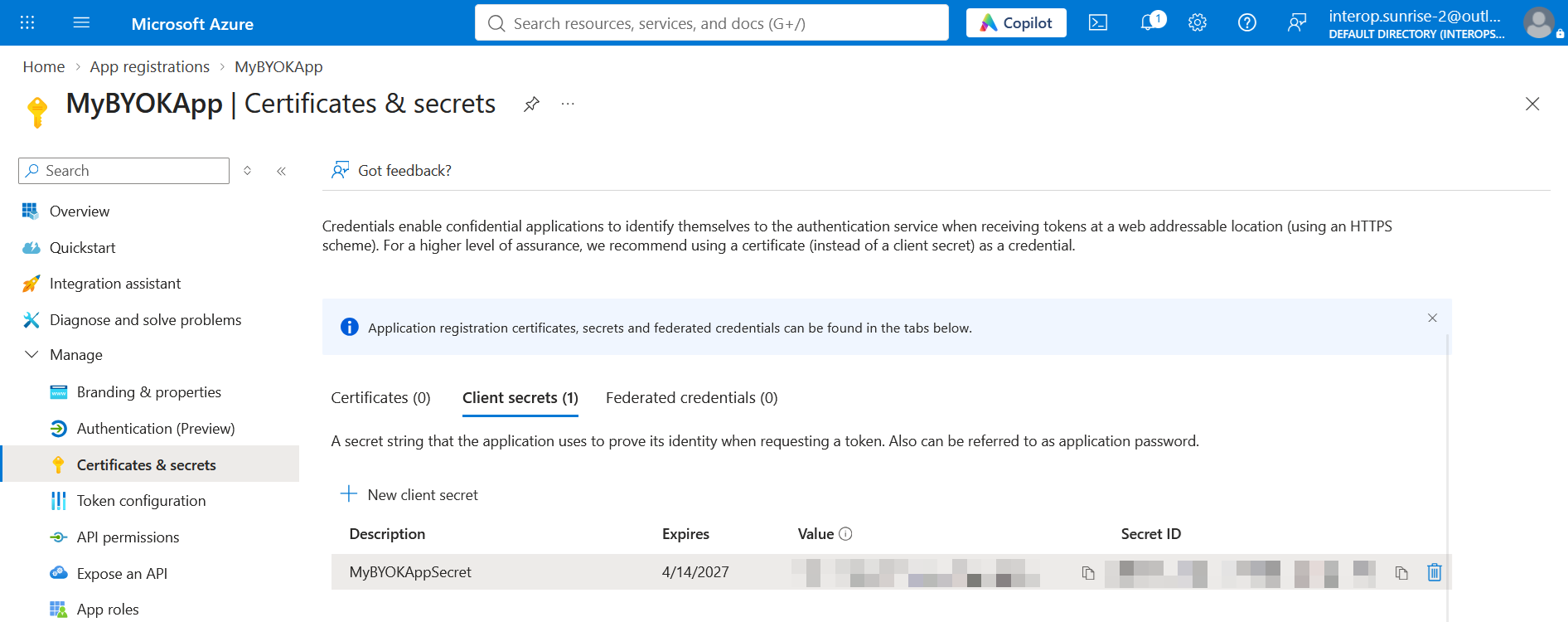
Select Add. The Certificates & secrets window appears.
For example:
-
Copy and save the Value of the new client secret.
This value only temporarily appears in the Azure portal. After the client secret is hidden in the portal, you can no longer retrieve it and must create a new secret if you lose it.
For additional information, see Creating a client secret in Azure Active Directory.
Create a CSP account for Azure in Key Management Vault
The following steps establish a connection between Key Management Vault and Azure, making Key Management Vault the cryptographic service provider of the Azure application.
-
Sign in to the Key Management Vault URL bookmarked from install-configure-csp.adoc#create-csp-vault.
-
Select the CLOUDKEYS icon on the toolbar.
-
Select the CSP Accounts tab.
-
Select the Action icon, and then select Add CSP Account from the drop-down menu. The Add CSP Account dialog appears.
-
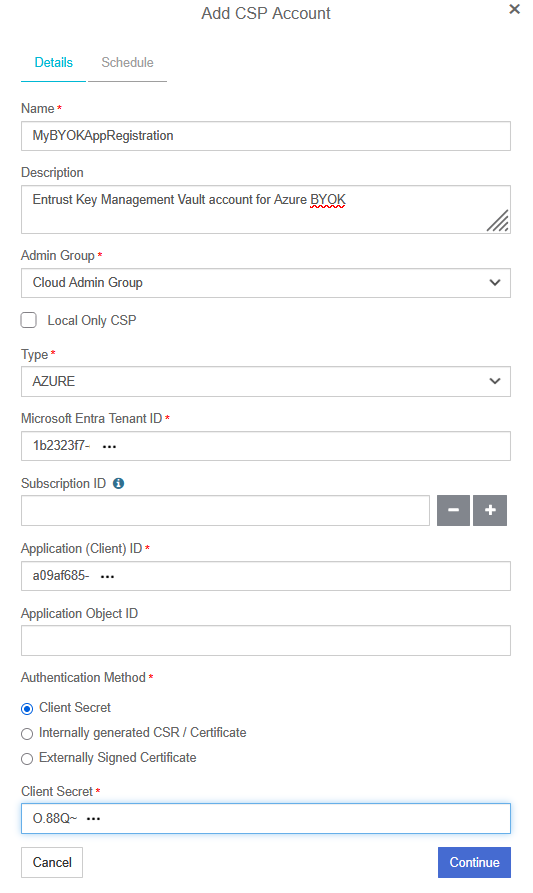
In the Details tab, enter a Name and Description.
-
From the Admin Group drop-down menu, select Cloud Admin Group.
-
From the Type drop-down menu, select Azure.
-
Enter the following values from the Azure account:
Item Value Microsoft Entra Tenant ID
App registrations / <my-app-registration> / Directory (tenant) ID
Application (Client) ID
App registrations / <my-app-registration> / Application (client) ID
Client Secret
Value of the secret created in Create an Azure client secret
For example:
-
Select Continue.
-
In the Schedule tab, define the rotation schedule. Then select Apply.
-
The new CSP account is created.