Test the integration
Testing is done using both the Keyfactor EJBCA Enterprise CLI and the Web GUI.
Create the Crypto Token in the EJBCA GUI
-
If using OCS protection, present the OCS to the HSM.
-
Browse to the Keyfactor EJBCA Enterprise GUI.
-
Select EJBCA Administration Web.
-
In the toolbar, select CA Functions > Crypto Tokens.
-
Select Add.
-
Enter the information as shown and then select Save.
The Authentication Code is the OCS or Softcard passphrase.
PKCS#11 NG is selected for Type because it is exclusive to EJBCA Enterprise and Keyfactor’s commercial offerings like EJBCA Cloud. It is not available in the open-source EJBCA Community Edition, which uses the basic Java PKCS #11 provider. NG has lower-level control over the PKCS #11 API, for example, better session management, session restarting, and handling of non-standard behaviors. NG also has broader algorithm support including PQC ML-DSA and EdDSA, which allows this integration to work. 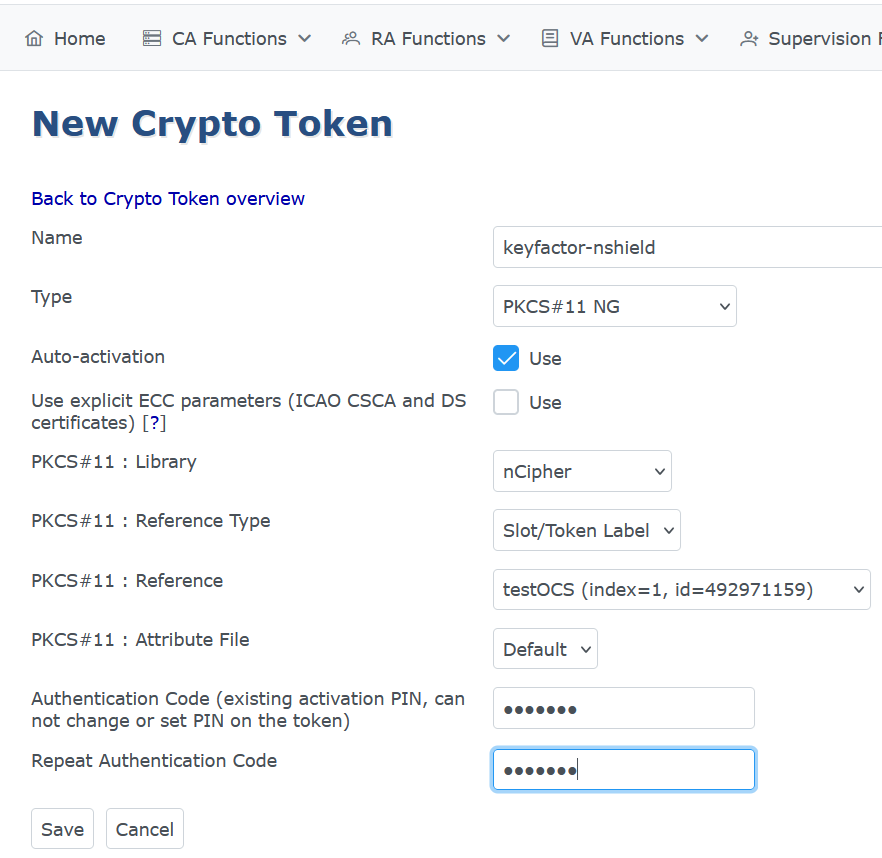 Figure 1. An example using OCS protection:
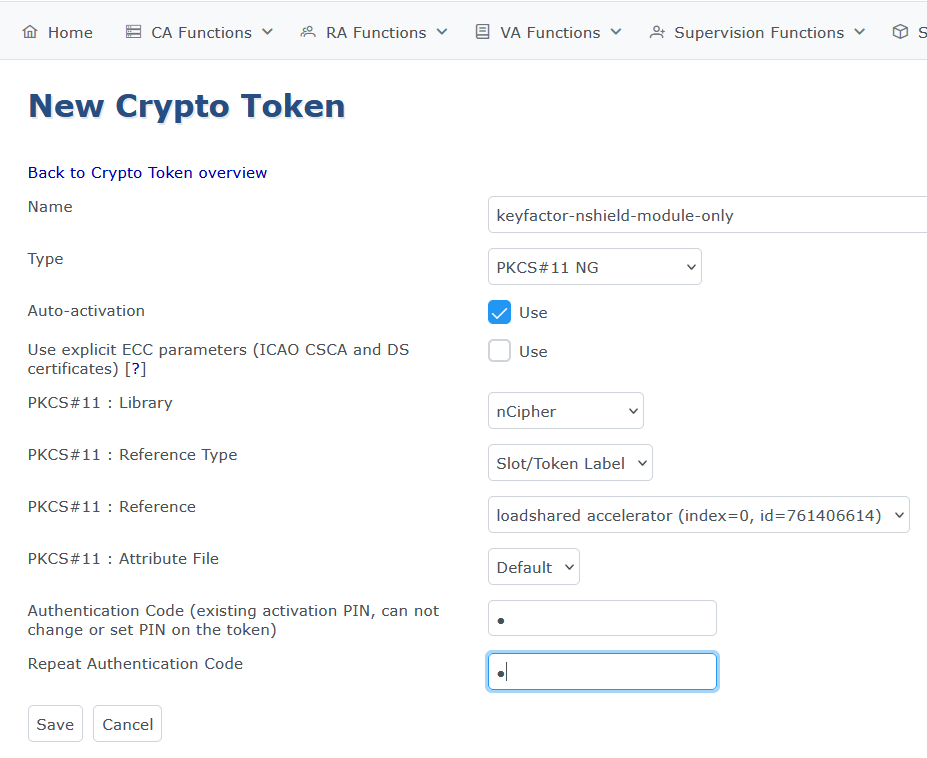 Figure 2. An example using module only protection:
For module only protection, enter any random string for Authentication Code. -
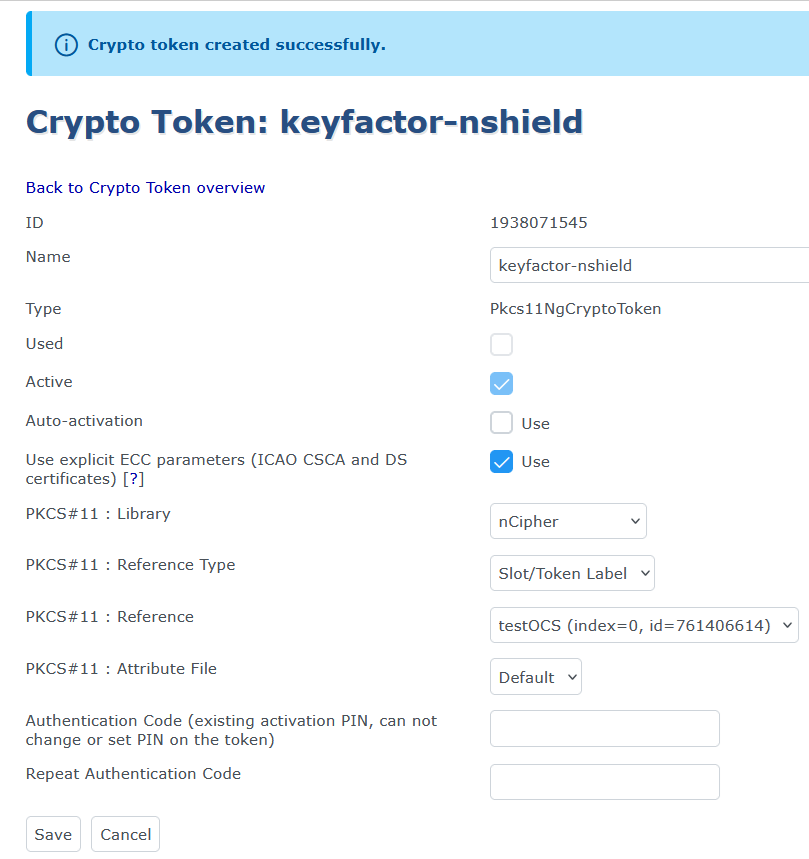
You can now check the crypto token that was created.
For example:
Generate the keys in the EJBCA GUI
-
Navigate to the Keyfactor EJBCA Enterprise GUI.
-
Select EJBCA Administration Web.
-
In the toolbar, select CA Functions > Crypto Tokens.
-
In the List of Crypto Tokens, locate the token to be used to create the keys.
-
Under Actions, select Edit.
-
Scroll down and select Generate new key pair.
-
Generate the following keys:
Name Algorithm Key Usage signKey
ML-DSA-87
Sign / Verify
certSignKey
ML-DSA-87
Sign / Verify
For example:
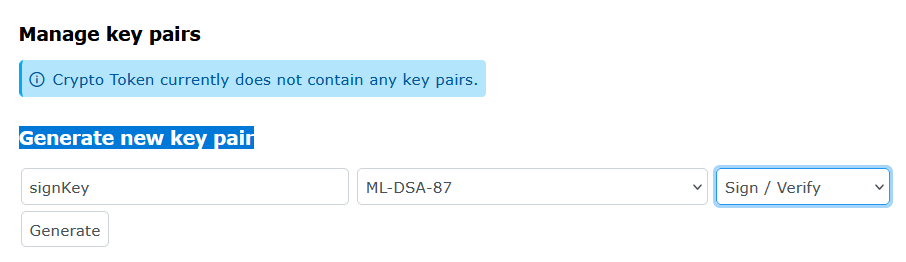 Figure 3. Generate new key pair
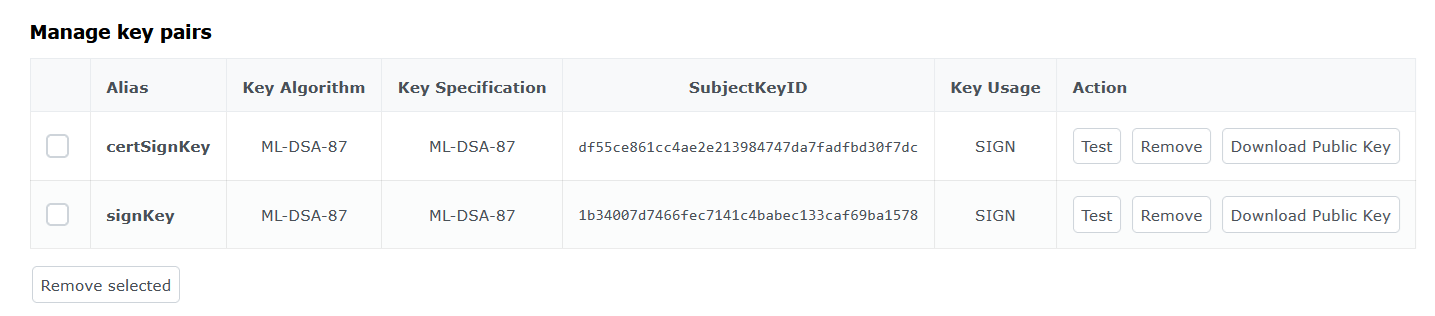 Figure 4. New keys generated
Verify the generated keys using the EJBCA CLI
-
Sign in to the Keyfactor EJBCA Enterprise CLI.
-
Verify the generated keys using the
nfkminfoutility or therocsutility:nfkminfo$ /opt/nfast/bin/nfkminfo -l Keys protected by cardsets: key_pkcs11_uc321b143185fc939504893270ed821ba4ed38319a-879d31d0c3985f6ff552cd6b330f638fccda1ed2 'priv-certSignKey' key_pkcs11_uc321b143185fc939504893270ed821ba4ed38319a-91bf2395ec1a3890a14a6efdb88e3ab568638fde 'priv-signKey'rocs$ /opt/nfast/bin/rocs `rocs' key recovery tool Useful commands: `help', `help intro', `quit'. rocs> list keys No. Name App Protected by 1 priv-signKey pkcs11 testOCS 2 priv-certSignKey pkcs11 testOCS rocs> quit