Procedures
Prerequisites
Before you perform the integration, complete the following tasks:
-
Key Management Vault is deployed and configured.
-
VMware vSphere is deployed and configured using vCenter.
-
You have administrator rights to manage the KMS configuration in vCenter.
Create a KMIP Vault in the Key Management Vault server
-
In your web browser, go to the Key Management Vault server’s IP address and sign in with the secroot credentials.
-
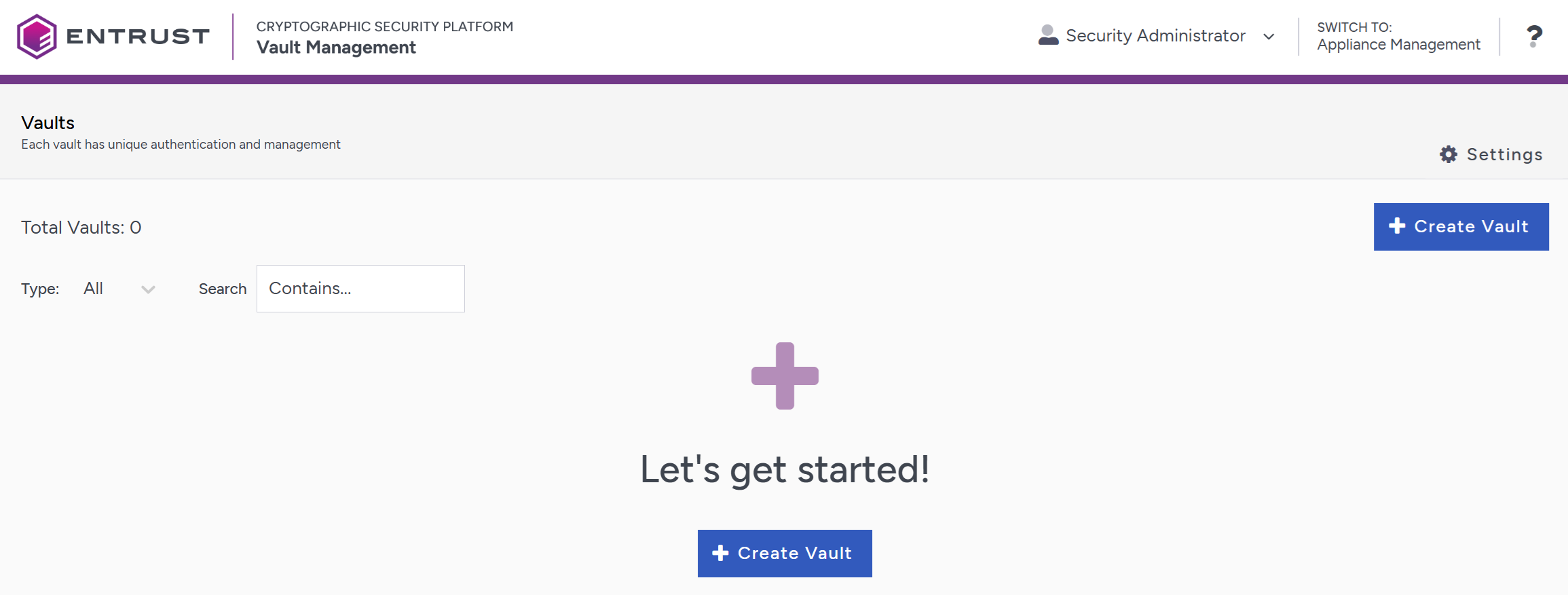
If you are not in the vault Management interface, select SWITCH TO: Manage Vaults in the Menu Header
-
Select Create Vault.
-
Create a KMIP Vault:
-
For Type, select KMIP.
-
For Name, enter the name of the vault.
-
For Description, enter the description of the vault.
-
For Admin Name, enter the name of the administrator of the vault.
-
For Admin Email, enter a valid email for the administrator.
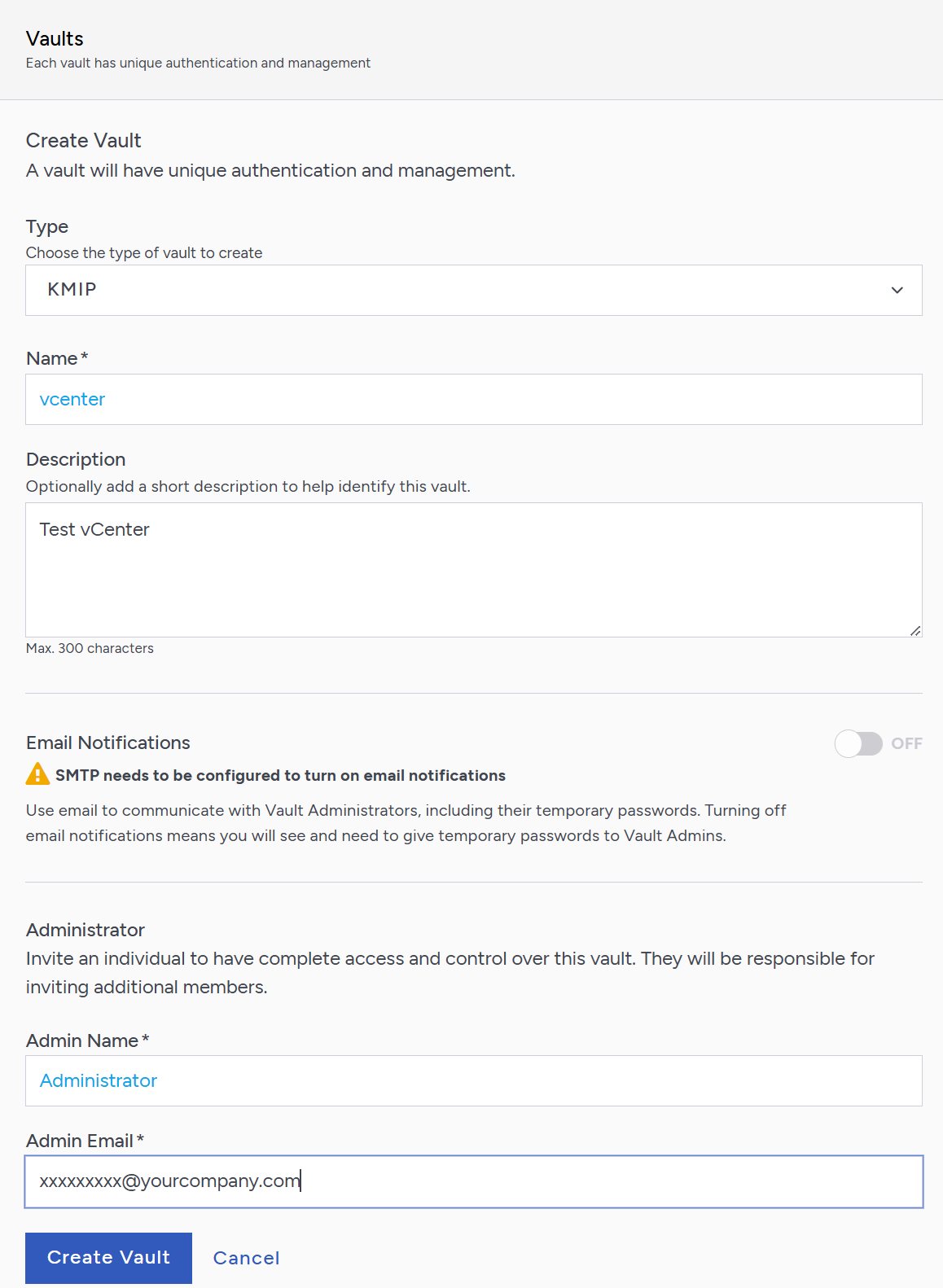
A temporary password is emailed to the administrator. The user uses this password to sign in to the KMIP Vaults space in Key Management Vault for the first time. In a closed-gap environment where email is unavailable, the password is displayed when you create the vault. Copy it and send it to the user.
-
-
Select Create Vault.
-
Select Close when the vault creation completes.
-
The new vault is added to the vault dashboard.
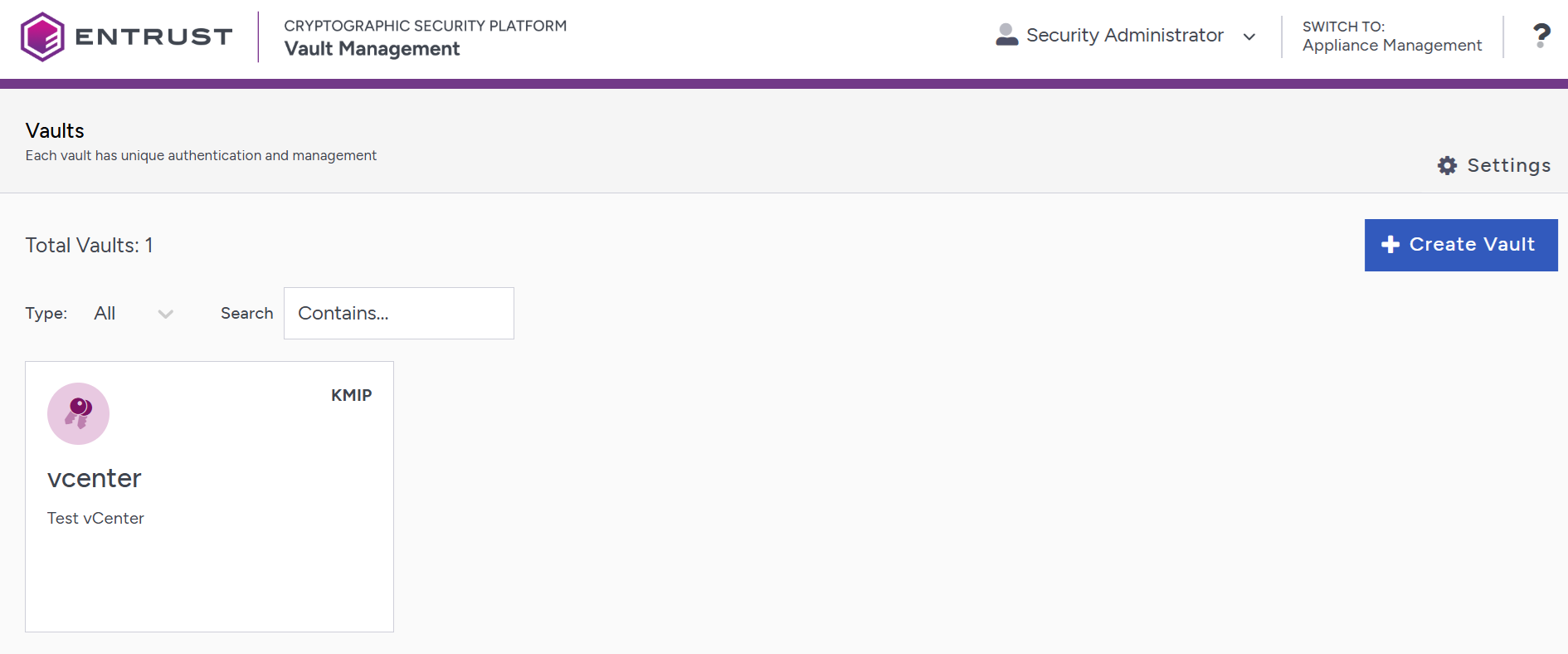
After the vault has been created, the KMIP server settings on the appliance are enabled.
KMIP server settings
The KMIP server settings are configured at the Key Management Vault appliance level and apply to all KMIP Vaults on the appliance. After a KMIP Vault is created, they are automatically set to ENABLED.
To use external key management and configure the Key Management Vault KMIP settings, refer to Configuring a KMIP Server for vSphere KMS.
When you are using external key management, as is the case in this solution, the Key Management Vault server is the KMIP server and the VMware vCenter server is the KMIP client.
-
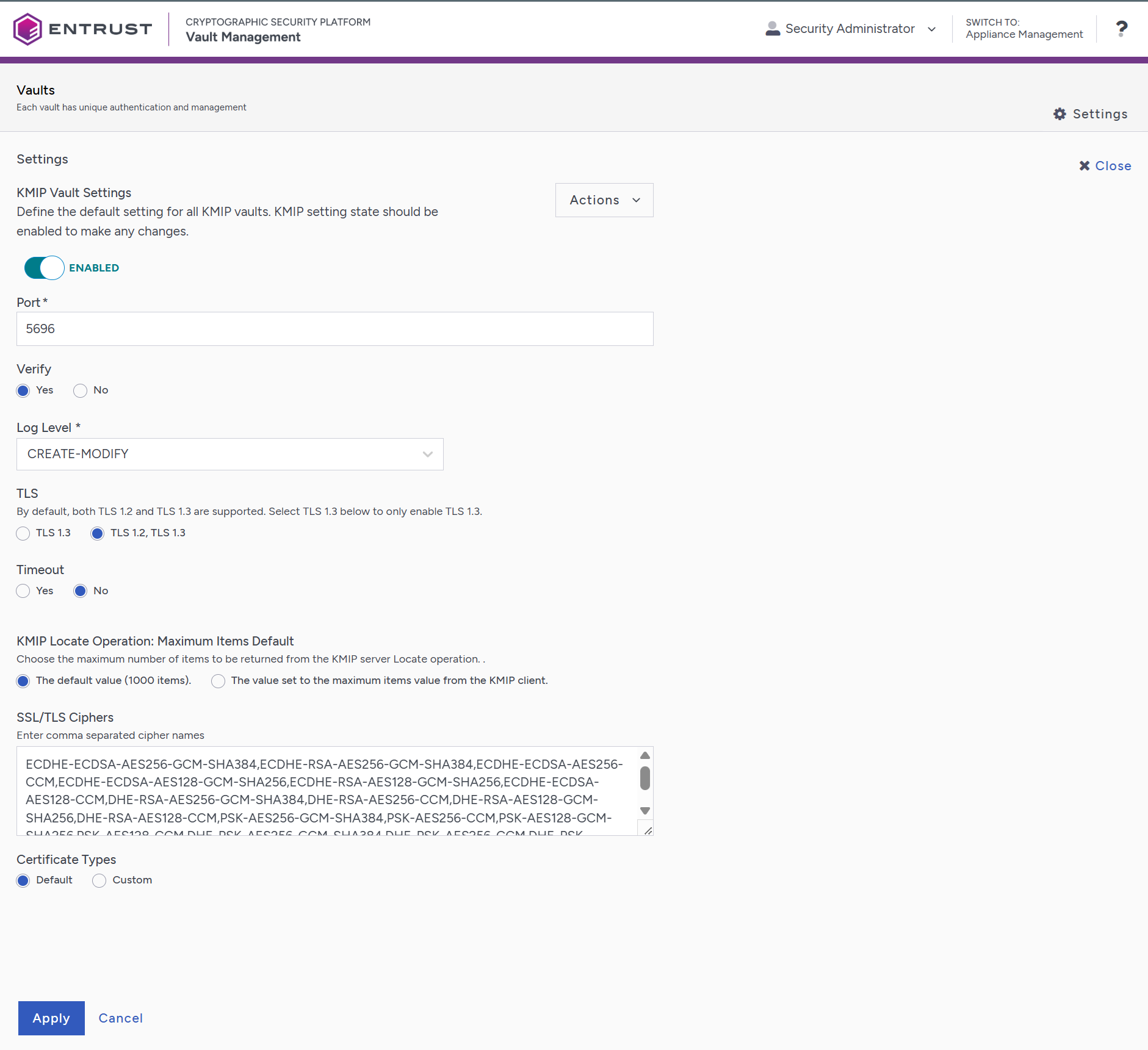
Select the Settings icon at the top right to view or change the KMIP settings.
The default settings are appropriate for most applications. Change them as needed.
-
Select Apply.
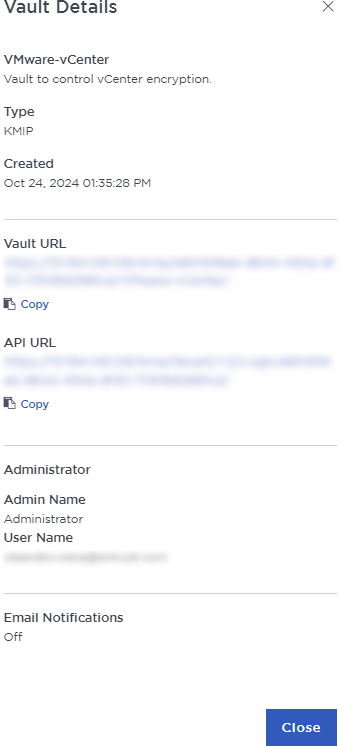
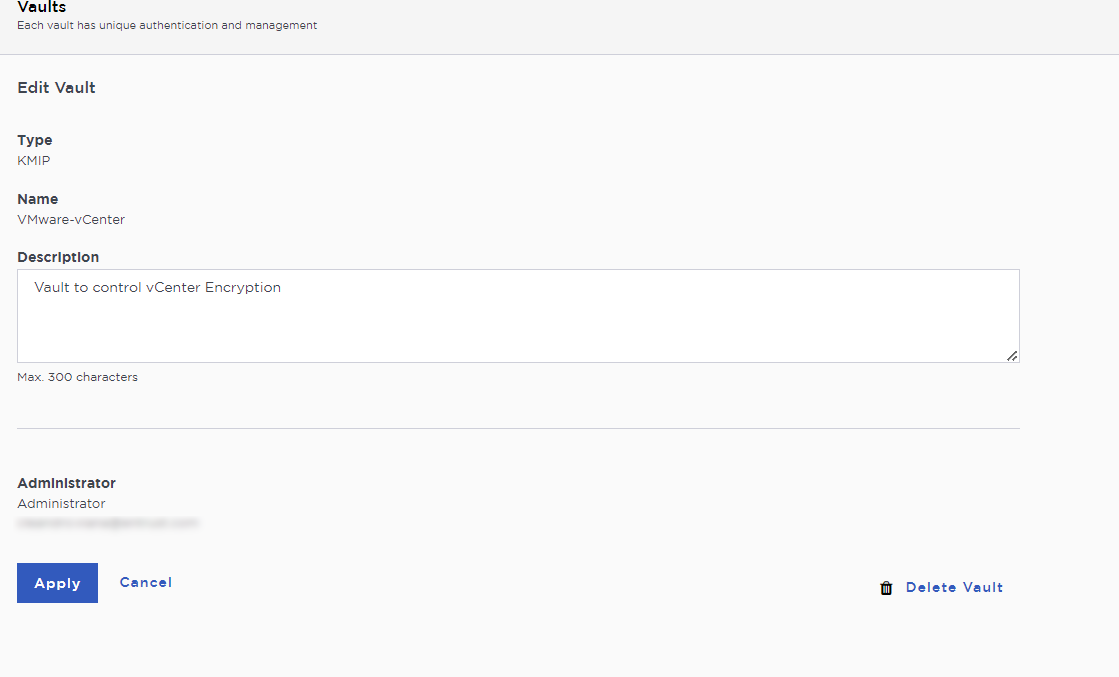
Manage the vault
After creating the vault, check for an email containing its URL and login information. For example:
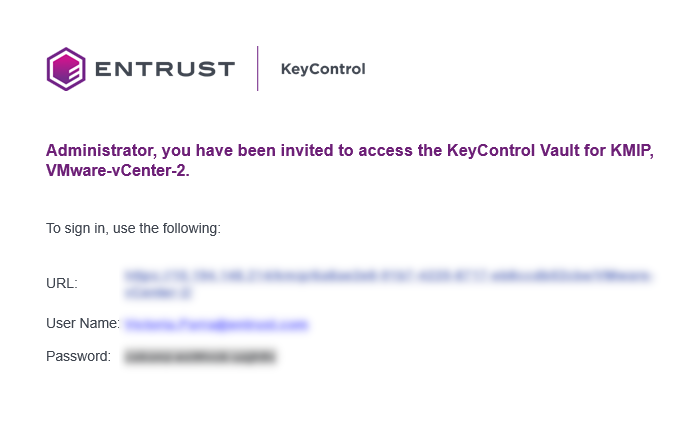
Open the URL and sign in with the credentials provided. The first time you sign in, you need to change the password.
| In a closed-gap environment where email is unavailable, the password is displayed when you create the vault. Copy it and send it to the user. |
Establish trust between the Key Management KMIP Vault and the VMware vCenter
Certificates are required to support KMIP communication between the Key Management Vault KMIP Vault and the vCenter application. Use the built-in capabilities of the Key Management KMIP Vault to create and publish the certificates.
For more information on how to create a certificate bundle, refer to Establishing a Trusted Connection with a CSP Vault-Generated CSR.
The following steps show how to integrate VMware vSphere or VSAN encryption with the Key Management KMIP Vault.
-
Sign in to the KMIP Vault created earlier. Use the login URL and credentials provided to the administrator of the vault.
-
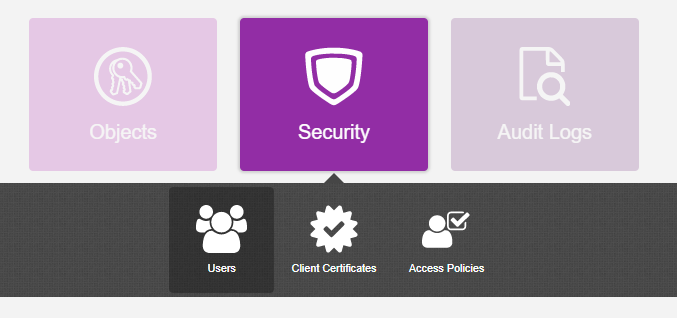
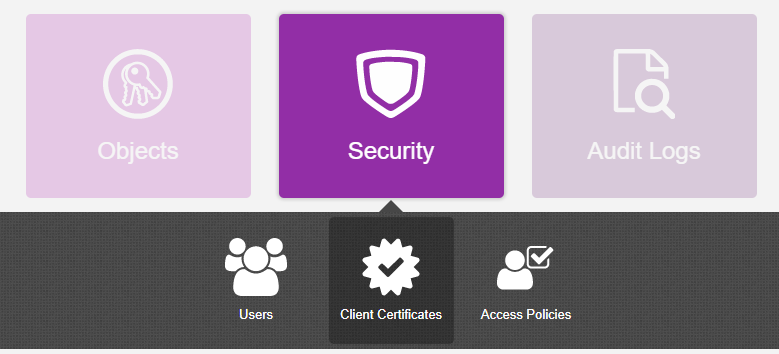
Select Security, then Client Certificates.
-
In the Manage Client Certificate page, select the + icon on the right to create a new certificate.
You can create the following certificate types for vCenter:
-
A certificate with no authentication.
-
A certificate with authentication.
-
-
Create the certificate type that best fits your environment.
-
In the Create Client Certificate dialog box:
-
Enter a name in the Certificate Name field.
-
Set the certificate’s expiration date in the Certificate Expiration field.
If you are creating a certificate with authentication:
-
Select Add Authentication for Certificate.
-
Enter the User Name.
-
Enter the Password.
If you use certificate authentication, enter these credentials in vCenter later.
-
-
Select Create.
The new certificates are added to the Manage Client Certificate pane.
-
Select the certificate and select the Download icon to download the certificate.
The webGUI downloads
certname_datetimestamp.zip, which contains a client certificate and key file namedcertname.pemand a server certificate file namedcacert.pem. -
Unzip the file so that you have the
certname.pemfile available to upload. -
The ZIP file contains the following files:
-
A
certname.pemfile that includes both the client certificate and private key. In this example, this file is calledvCenterKMS.pem.The client certificate section of the
certname.pemfile includes the lines “-----BEGIN CERTIFICATE-----" and “-----END CERTIFICATE-----" and all text between them.The private key section of the
certname.pemfile includes the lines “-----BEGIN PRIVATE KEY-----" and “-----END PRIVATE KEY-----" and all text in between them. -
A
cacert.pemfile, which is the root certificate for the KMS cluster. It is always namedcacert.pem.
Use these files later when you configure the KMS cluster in vCenter.
-
Create the KMS cluster in vCenter
For more details, see Adding a KMS Cluster in vSphere in the Entrust online documentation.
-
Launch the vSphere Web Client and log into the vCenter server that you want to add to Key Management Vault.
-
Select the required vCenter Server in the Global Inventory Lists.
-
Select the Configure tab.
-
In the left-hand pane, select Security > Key Providers.
-
Select Add Standard Key Provider.
-
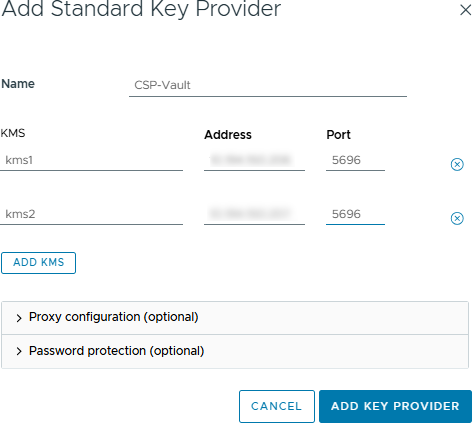
In the Add Standard Key Provider dialog, set the following configuration options:
-
For Name, enter the name of the cluster.
-
For each node in the Key Management Vault cluster, enter the KMS (node name), IP Address and Port. The default port is 5696.
Make sure that the KMIP server resides on a device that is not encrypted using the Key Management Vault server cluster. The KMIP server must be available to provide the keys for the encrypted devices before the encrypted devices can be accessed. To add an extra node line, select Add KMS.
-
-
If you use a proxy, open and configure Proxy Configuration.
Password protection is optional.
-
If the certificate you created in the Key Management KMIP Vault uses authentication, enter the required credentials.
-
Select Add Key Provider.
-
In the Make vCenter Trust Key Provider dialog, review the details for each node, then select Trust.
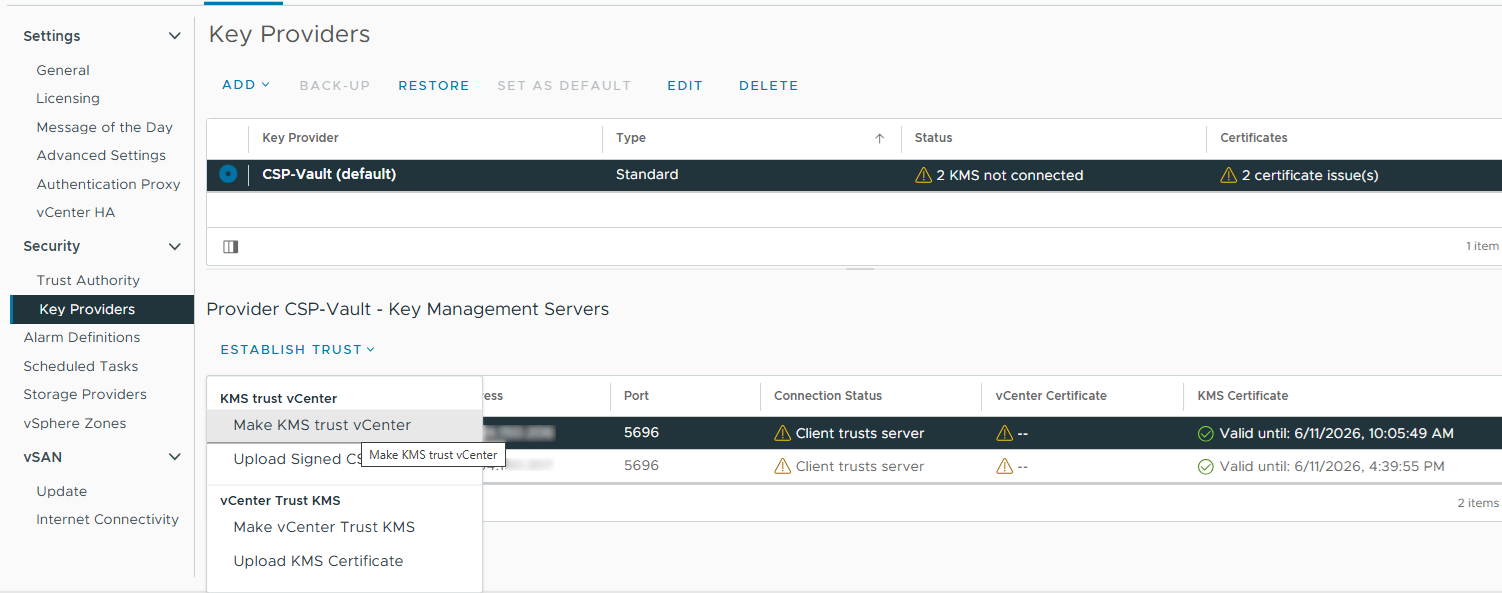
This adds the KMS cluster to vCenter, but its status is KMS not connected because of Certificate issues. For example:

If you see the message "Cannot retrieve the requested certificate", the issue may be related to the TLS Configuration in the Key Management Vault appliances. This can occur with earlier versions of vCenter that do not support TLS Extended Master Secret. To resolve the issue, upgrade to the latest version of vCenter or change Key Management Vault so that it does NOT enforce EMS in the TLS configuration. See Configuring TLS in the Key Management Vault Administration Guide.
Establish a trusted connection between the KMS cluster and the Key Management KMIP vault
To establish a trusted connection between the KMS cluster and the Key Management KMIP Vault:
-
Continuing from the previous section, select the KMS cluster in the list, then scroll down to where the nodes are listed.
-
Select a node, then select Establish Trust > Make KMS trust vCenter. For example:
-
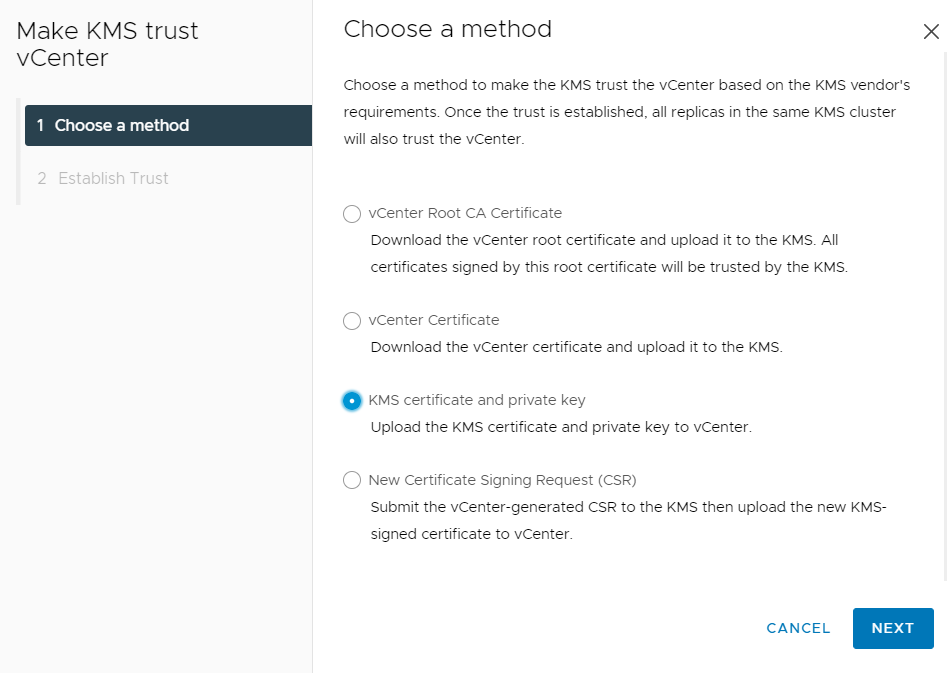
In the Choose method pane of the Make KMS Trust vCenter dialog, select KMS certificate and private key.
-
Select Next.
-
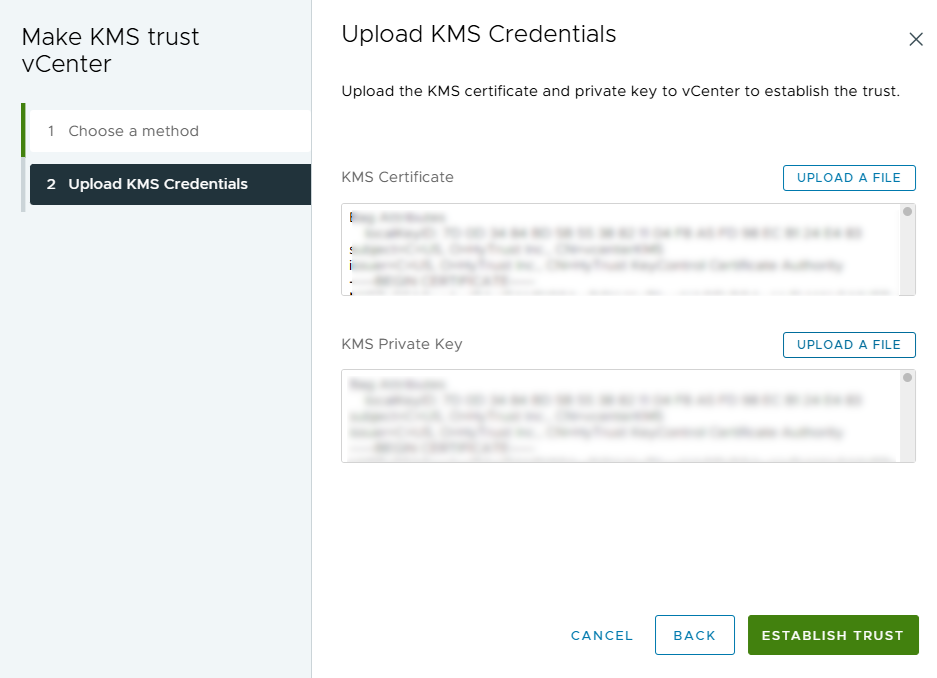
In the Upload KMS Credentials pane of the Make KMS Trust vCenter dialog, upload the
certname.pemfile created earlier. Upload this file as both the KMS certificate and the private key:-
For KMS certificate, select Upload file. Select the
certname.pemfile, then select Open. -
For Private key, select Upload file. Select the
certname.pemfile again, then select Open. -
Select Establish Trust.
-
-
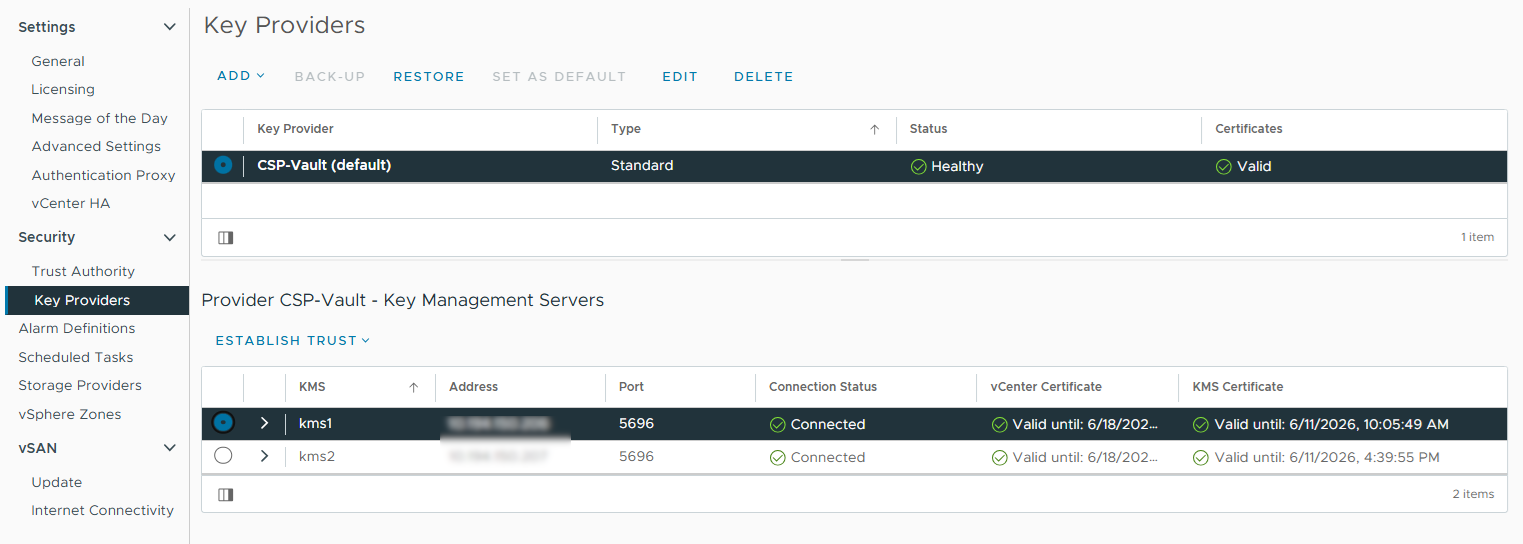
Wait for the KMS cluster’s connection status in vCenter to change to Connected. For example:
Enable Encryption for virtual machines
Use a VMware storage policy to enable encryption:
-
Launch the vSphere Web Client and sign in to the vCenter server.
-
Select the VM to encrypt.
-
Make sure the VM is Powered Off.
-
Right-click the VM for which you would like to enable encryption and select VM Policies > Edit VM Storage Policies.
-
Select the VM Encryption Policy storage policy, then select OK.
This reconfigures the VM. For example:

After the reconfiguration is complete, the disks are encrypted and the keys are managed by the configured KMS.
Check encryption at the VM level
To verify encryption at the VM level:
-
Launch the vSphere Web Client and sign in to the vCenter server.
-
Locate a VM and select it.
-
In VM View, select the Summary tab.
-
Under Virtual Machine Details > Encryption, the status should be:
Encrypted with standard key provider
Check encryption by looking for the keys in the Key Management KMIP Vault
To verify encryption by checking for keys:
-
In a web browser, sign in to the KMIP Vault.
-
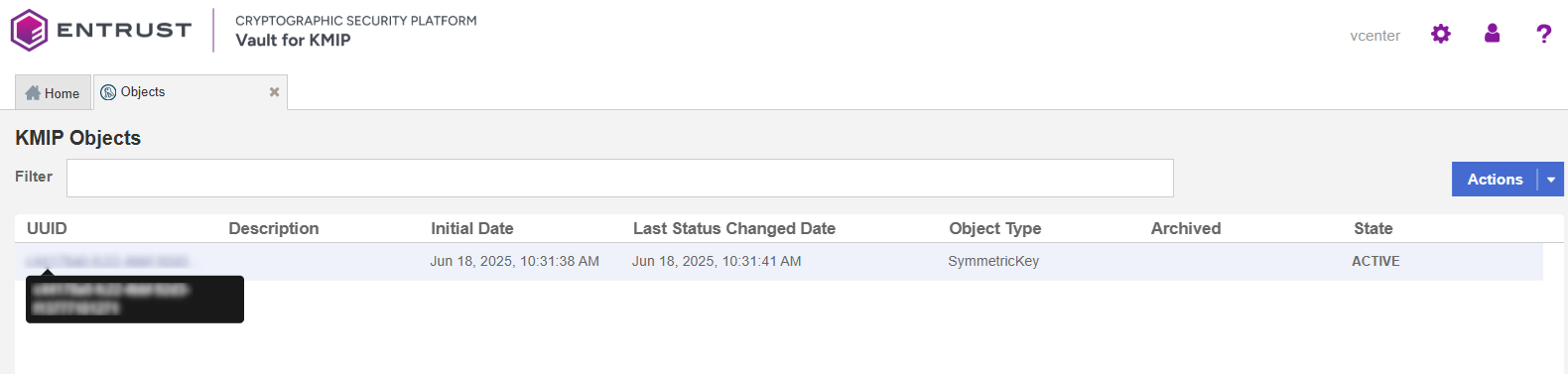
Select the Objects tab to view a list of KMIP Objects. The list includes the newly created keys. For example:
-
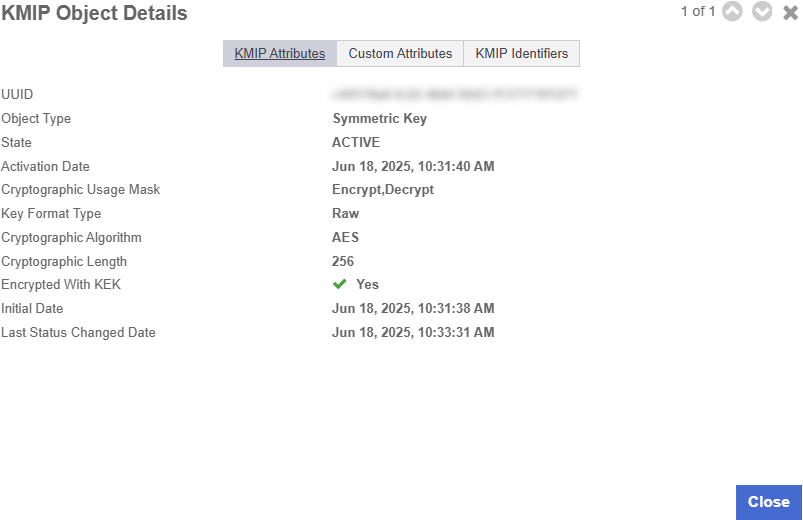
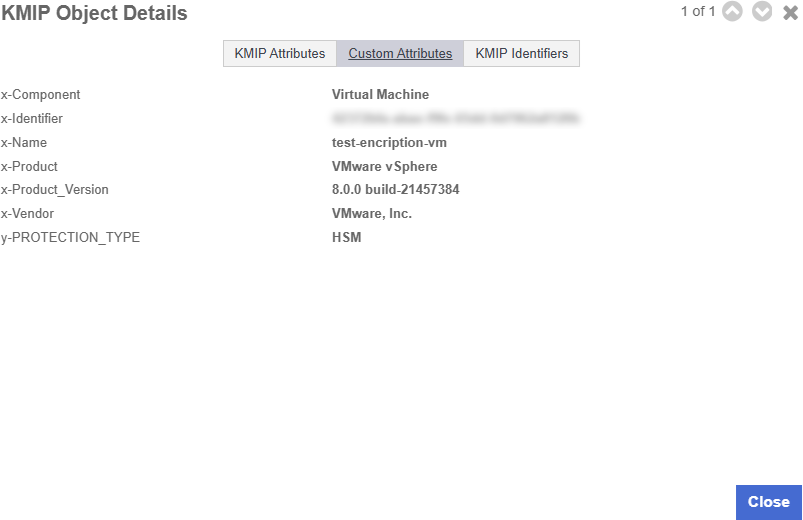
Select a key to display its KMIP Object Details. For example:
-
Select the Custom Attributes tab to confirm that VMware vSphere uses the key.
-
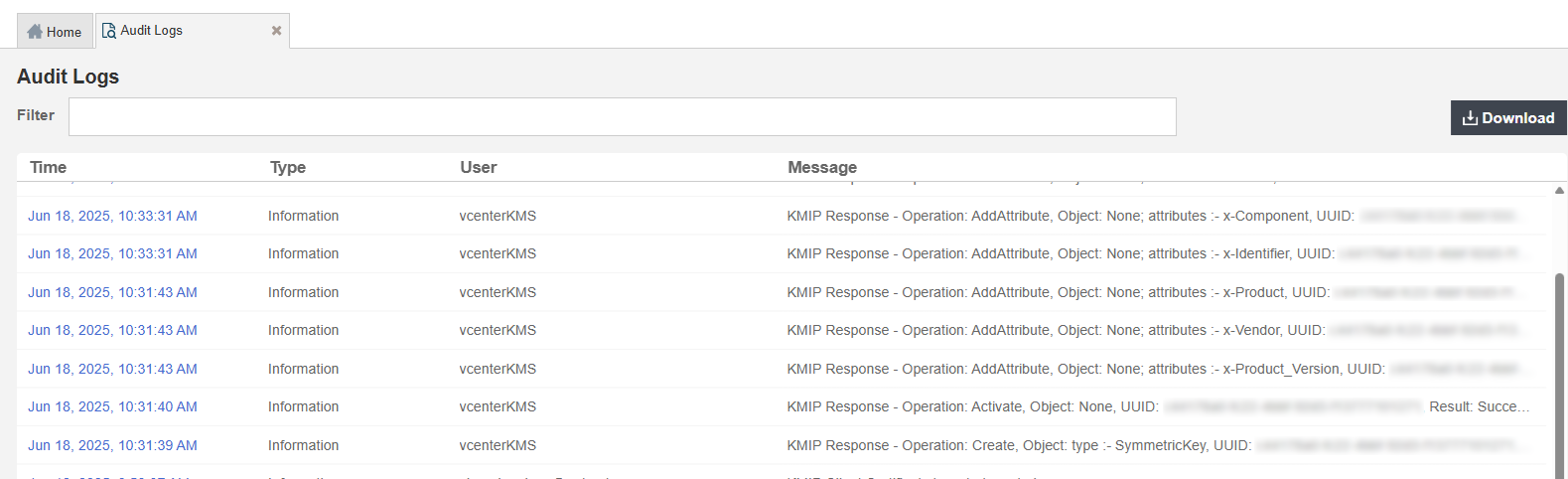
On the main screen, select the Audit Logs tab to view records related to key creation. For example:
For more information on this topic, refer to Virtual Machine Encryption on the Broadcom documentation site.
Enable Data-At-Rest encryption on an existing vSAN cluster
For instructions on enabling Data-At-Rest encryption on an existing vSAN cluster, see Using Encryption in a vSAN Cluster on the Broadcom documentation site.
| Do not encrypt the CSP Vault Appliance with its own keys. This will prevent the vSAN from powering back on after a power cycle because it cannot access the keys. You can add a datastore to ESXi hosts. As long as vSAN does not absorb that storage, you can deploy the appliances on a datastore outside vSAN. Alternatively, you can deploy the appliances in another hypervisor supported by Key Management Vault. |