Integrate the Microsoft SQL Server with the Entrust CSP Vault
For reference on how to manually install and configure the Cryptographic Security Platform Vault and Microsoft SQL Server for TDE, see Microsoft SQL Server Manual Installation and Configuration.
This guide describes the automated setup and configuration of the database CSP Vault with Microsoft SQL Server, and vice versa. Follow the steps below:
Create Mapping
-
Sign in to your Database CSP Vault web GUI.
-
Navigate to Workloads.
-
Select the Mappings tab.
-
From the Actions menu, select Create Mapping.
-
In the Create New Mapping dialog, on the Mapping tab, complete the following fields and then select Next:
-
Name: Enter a name for the mapping.
-
Cloud Admin Group: Select the default option, Cloud Admin Group.
-
Description: Enter a description for the mapping.
For example:
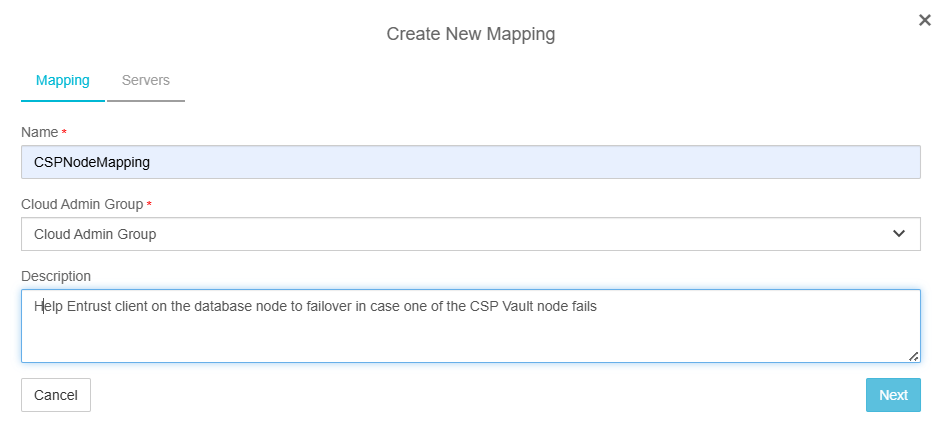
-
-
On the Servers tab, provide the following information for each node in the CSP Vault cluster:
-
External IP: Enter the IP address of the node.
-
Port: Enter
443. -
CSP Server: Select the CSP Vault server.
-
State: Select Enabled.
-
Description: Enter a description for the node.
For example:
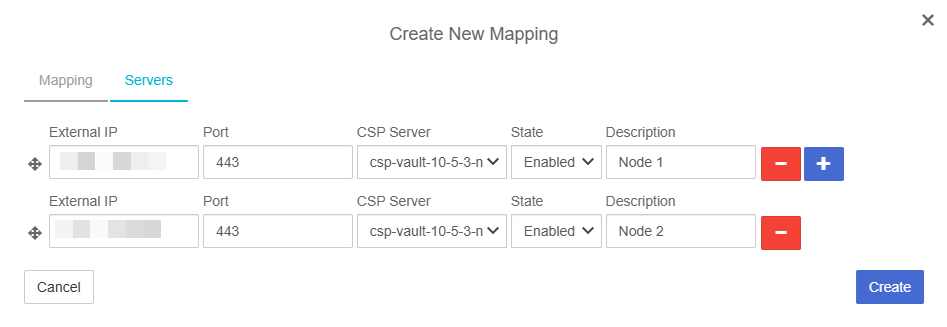
-
-
Select Create, and then select Close. The new mapping appears in the mappings list.
Download TDE Script Bundle
-
Sign in to your Database CSP Vault web GUI.
-
Navigate to Workloads.
-
Select the VM Sets tab.
-
From the Actions menu, select Download TDE script bundle.
For example:
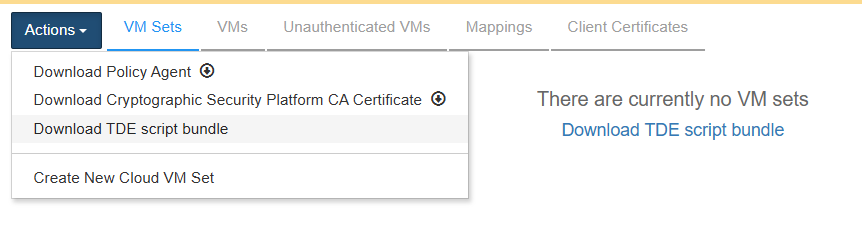
-
In the Download TDE Scripts Bundle dialog, complete the following fields and then select Continue:
-
Name: Enter the prefix to be used for the keyset and CVMset.
For example, enteringmssqlproducesmssql_keysetandmssql_cvmset. -
Database Type: Select Microsoft SQL Server.
-
Enable HSM: Select this checkbox only if an HSM is configured and the TDE master keys are to be protected by it. When enabled, the HSM connection must be verified before continuing.
-
CSP Nodes Mapping: Select the mapping created previously. If no mapping has been created, you can leave the field empty.
For example:
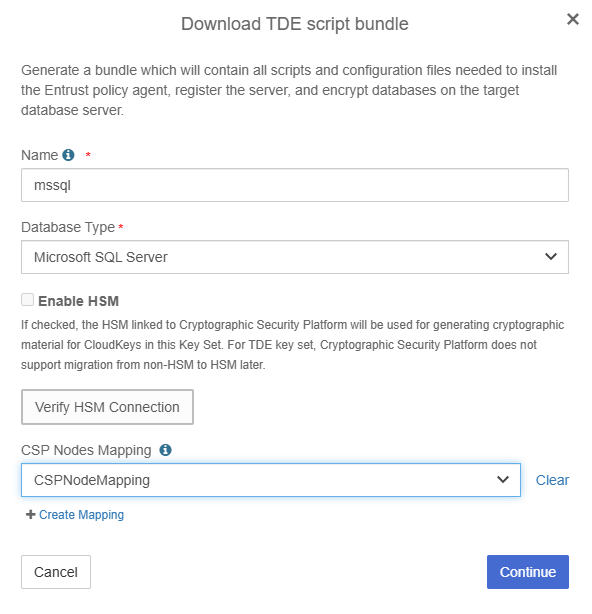
-
-
Review the TDE Scripts Bundle Details and select Download.
For example:
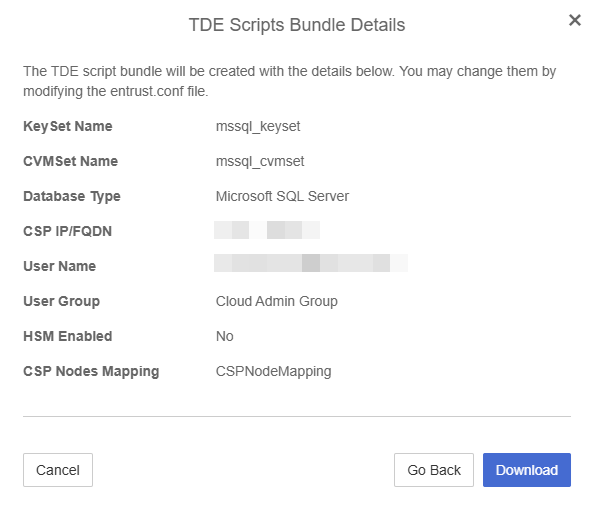
This downloads a ZIP archive named after the value entered in the Download TDE Scripts Bundle dialog, for example,
mssql.zip. -
Save this archive. It will be used on every Microsoft SQL Server instance in the deployment.
-
Transfer the TDE script bundle to the Microsoft SQL Server host and place it in the
Downloadsfolder.
Entrust CSP Vault client setup on the Microsoft SQL server instance
-
Sign in to the Microsoft SQL Server host.
-
Confirm that the TDE bundle is present in the
Downloadsfolder as described in the previous section.The bundle is a ZIP archive named
<name>.zip, where<name>matches the value supplied when the bundle was downloaded (for example,mssql.zip). -
Open a PowerShell session.
-
Extract the bundle.
PS C:\Users\Administrator> cd ~/Downloads PS C:\Users\Administrator\Downloads> mkdir tde Directory: C:\Users\Administrator\Downloads Mode LastWriteTime Length Name ---- ------------- ------ ---- d----- 8/12/2026 9:44 AM tde PS C:\Users\Administrator\Downloads> cd tde PS C:\Users\Administrator\Downloads\tde> mv ..\mssql.zip . PS C:\Users\Administrator\Downloads\tde> Expand-Archive -Path .\mssql.zip -DestinationPath . PS C:\Users\Administrator\Downloads\tde> ls Directory: C:\Users\Administrator\Downloads\tde Mode LastWriteTime Length Name ---- ------------- ------ ---- -a---- 5/9/2026 1:43 PM 72820 encryptclust.ps1 -a---- 8/12/2026 1:29 PM 2748 entrust.conf -a---- 8/12/2026 9:34 AM 56468 mssql.zip -a---- 5/9/2026 1:43 PM 53361 open_db_key.ps1 -a---- 5/9/2026 1:43 PM 45073 setup.ps1 -
Edit
entrust.confto match the target environment.Most values in
entrust.confare pre-populated. Some parameters, however, are specific to the Microsoft SQL Server deployment and must be set by the database administrator:-
db_server_name: The database server name. In this environment, set it toMSSQLCSPW25\MSSQLCSP.
Theentrust.conffile used in this integration# # kind of a cluster or setup name for your MSSQL failover cluster # it should be unique in a vault # script uses this to generate the name of keyset and cvmset # Make sure these same parameters are used from all the nodes in your MSSQL cluster and DR nodes # dbset_name = mssql # # # # -----> DO NOT USE " or ' to quote the string <----- # -----> Lines starting with # are comments, but you cannot comment out only part of a line <----- # # # # KeyControl parameters # --------------------- # kcv_ip_or_fqdn = xx.xxx.xxx.115 # # If KeyControl mapping has been setup on the KC cluster, it can be provided here # kc_mapping = CSPNodeMapping # # # If KeyControl is configured with HSM then it can be enabled using "yes" as value # if not specified here then the default value is yes if KC has hsm enabled # enable_hsm = no # # # Vault parameters # --------------------- # vaultid = 1a6c49fb-45c1-4b97-8e2c-2f3e4c1137bd user_name = xxxx.xxxx@yourcompany.com # # Uncomment the password parameter, if you want to set it here # if you do not provide password for vault admin then setup script will prompt you # # password = password123 # user_group = Cloud Admin Group # # Microsoft SqlServer parameters # ------------------------------ # The script uses "Windows Authentication", so the credentials of the admin running the script will be used # In order to use "SQL server authentication", you can set sysadmin_user and sysadmin_password parameters # # if sysadmin_user is set then script will call SQL query under the context of this user # # For Example # ------------ # db_server_name = MSSQLSERVER1\MSSQLSERVER1 # sysadmin_user = QA\Administrator # sysadmin_password = Password123 # db_server_name = MSSQLCSPW25\MSSQLCSP # # Optional parameters, uncomment if you want to set them # used for --- SQL server authentication # # sysadmin_user = <sysadmin_user> # sysadmin_password = <sysadmin_password> # # # these are the default encryption parameters # tde_algorithm: tde master key algorithm # encryption_algo: algorithm used for data encryption # tde_algorithm = RSA_2048 encryption_algo = AES_256 # # Installation directory # Please do not change as scripts can not handle non default value yet # installation_directory = C:\Program Files\hcs # # TDE config file # this is where the script stores the Access token # same file path is used on all cluster nodes # # By default the script stores the TDE config file here # ${installation_directory}\tde_configs\${dbset_name}.txt # # for example C:\Program Files\hcs\tde_configs\mssql.txt # # Uncomment the following line, if you want to store it in custom path # # tde_config_file = C:\Users\Administrator.QA\sqltde.txt # keyset_name = custom_keyset_name # cvmset_name = custom_cvmset_name # -
-
Save the changes to
entrust.conf.
Set up the client
-
Run the
setup.ps1PowerShell script:Usage: setup.ps1 <first|other> <config file> first -- for first node, keyset/vmset are created with this option other -- for subsequent nodes.For example:
PS C:\Users\Administrator\Downloads\tde> .\setup.ps1 -node first -config entrust.confExample outputLogging debug trace and output to: C:\Users\Administrator\Downloads\tde\trace\setup.log First node configuration in MSSql cluster Enter password for your.name@yourcompany.com: *********** Login to xx.xxx.xxx.115 as your.name@yourcompany.com Successfully logged in to xx.xxx.xxx.115 as your.name@yourcompany.com Downloading installer for Entrust Policy Agent from xx.xxx.xxx.115 Installing Entrust Policy Agent Successfully installed Entrust Policy Agent Create cvmset mssql_cvmset Successfully created cvmset mssql_cvmset Create keyset mssql_keyset Successfully created keyset mssql_keyset with guid 37922644-ecc1-4329-a2f5-50f6b95dc955 Register this VM to vault 1a6c49fb-45c1-4b97-8e2c-2f3e4c1137bd on kcv xx.xxx.xxx.115 vault admin is your.name@yourcompany.com and cvmset name is mssql_cvmset Registered as mssqlcspw25 with KeyControl node(s) xx.xxx.xxx.115 Completing authentication for mssqlcspw25 on KeyControl node(s) xx.xxx.xxx.115 Authentication complete, machine ready to use Getting KeyControl Mapping information KeyControl Mapping: CSPNodeMapping server description: Node 1, ip: xx.xxx.xxx.115, port: 443 server description: Node 2, ip: xx.xxx.xxx.116, port: 443 Updated KeyControl list with KeyControl nodes xx.xxx.xxx.115:443,xx.xxx.xxx.116:443 Enable TDE on this VM Enabling tde will change permissions of some Files. If you are enabling TDE for an Oracle database, follow the steps mentioned below from the Administritor Guide. "Administration Guide > KeyControl Vault for Databases > KeyControl with Oracle TDE > Configuring the Oracle Server Database" Successfully registered VM and enabled TDE Creating TDE connector with name mssql_cvmset.mssqlcspw25.1353bfb3--fd69--4d86--b213--51b7f1a8ca8b Successfully created TDE connector Create Access Token Successfully created access token Saving access token in file C:\Program Files\hcs\tde_configs\mssql.txt Setup complete Please check the connection to KCV using command &'C:\Program Files\hcs\bin\check-connection.exe' 'C:\Program Files\hcs\tde_configs\mssql.txt' Please reboot the VM now, before proceeding with database encryption -
Verify the connection:
PS C:\Users\Administrator\Downloads\tde> &'C:\Program Files\hcs\bin\check-connection.exe' 'C:\Program Files\hcs\tde_configs\mssql.txt'Example outputStarting test Initialize Provider ----- PASS Open Session ----- PASS Get Provider Info: check buf size ----- PASS Get Provider Info: actual operation ----- PASS Provider version 1.1.0.0 Provider name Entrust KeyControl SQLEKM Provider Get Algorithm Info: algId 1: check buf size ----- PASS Get Algorithm Info: algId 1: actual operation ----- PASS Get Algorithm Info: algId 2: check buf size ----- PASS Get Algorithm Info: algId 2: actual operation ----- PASS Get Algorithm Info: algId 3: check buf size ----- PASS Get Algorithm Info: algId 3: actual operation ----- PASS Get Algorithm Info: algId 4: check buf size ----- PASS Get Algorithm Info: algId 4: actual operation ----- PASS Create Key _rsa_2048_test_key_: check buf size ----- PASS Create Key _rsa_2048_test_key_: actual operation ----- PASS Get Key Info by Name _rsa_2048_test_key_: check buf size ----- PASS Get Key Info by Name _rsa_2048_test_key_: actual operation ----- PASS Get Key Info returns same thumbprint as create for _rsa_2048_test_key_ ----- PASS Get Key Info by Thumbprint _rsa_2048_test_key_: check buf size ----- PASS Get Key Info by Thumbprint _rsa_2048_test_key_: actual operation ----- PASS Get Key Info by thumbprint returns same name _rsa_2048_test_key_ ----- PASS Get Key Info by Name: check buf size ----- PASS Get Key Info by Name: actual operation ----- PASS Get Export Key: check buf size ----- PASS Get Export Key: actual operation ----- PASS Encrypt size check ----- PASS Encrypt ----- PASS Decrypt size check ----- PASS Decrypt ----- PASS Drop Key: destroy_object ----- PASS Get Key Info should fail for _rsa_2048_test_key_ after drop key: check buf size ----- PASS Get Key Info should fail for _rsa_2048_test_key_ after drop key: actual operation ----- PASS Get Key Info by Thumbprint _rsa_2048_test_key_ after drop key: check buf size ----- PASS Get Key Info by Thumbprint _rsa_2048_test_key_ after drop key: actual operation ----- PASS Import Key (not supported) ----- PASS Close Session ----- PASS Free Provider ----- PASS Test successfully completed -
Reboot the server.
-
After the server has rebooted, check the client status:
PS C:\WINDOWS\system32> hcl status

Summary
-------------------------------------------------------------------------------
KeyControl: xx.xxx.xxx.115:443
KeyControl list: xx.xxx.xxx..115:443 xx.xxx.xxx..116:443
Vault ID: 1a6c49fb-45c1-4b97-8e2c-2f3e4c1137bd
KeyControl Mapping: CSPNodeMapping
Status: Connected
Last heartbeat: Wed Aug 12 10:48:52 2026 (successful)
Certificate Expiration: Aug 12 14:12:39 2027 GMT
PS C:\WINDOWS\system32>
Encrypt the Database on the SQL Server Node
Run the following steps on the Microsoft SQL Server node that hosts the database to be encrypted.
-
Encrypt the database with the provided script:
PS> .\encryptclust.ps1 -database <my_test_db> -config .\entrust.confWhere
-databasespecifies the target database and-configspecifies the configuration file.The script validates the certificate chain when connecting to the database, so the certificate chain must be trusted. If the chain cannot be validated, pass the -nocheckcertoption to bypass the check.The following example encrypts a database called
TestDatabase.PS C:\Users\Administrator\Downloads\tde>.\encryptclust.ps1 -database TestDatabase -config .\entrust.conf -nocheckcertExample outputLogging debug trace and output to: C:\Users\Administrator\Downloads\tde\trace\encryptclust_3.log Checking Active node: my node name is mssqlcspw25, configured server is MSSQLCSPW25\MSSQLCSP Continuing execution with -nocheckcert flag set, ignoring certificate errors \............... Pass Checking if database TestDatabase is present on server MSSQLCSPW25\MSSQLCSP Changed database context to 'TestDatabase'. \............... Pass ############################################################################## Encrypting database 'TestDatabase' with TDE master key ############################################################################## Database TestDatabase is not part of any Availability Group Using this suffix for all keys, credentials and TDE logins -- 08122026_113419 Database TestDatabase is not encrypted, setting up fresh encryption Creating key, login and credential in node MSSQLCSPW25\MSSQLCSP ------------------------------------------------------------------------- Enabling EKM provider support in MSSql server \............... Done Creating cryptographic provider entrust_ekm_provider \............... Done Check credential entrust_sa_ekm_cred for Admin user Creating credential entrust_sa_ekm_cred for Admin user \............... Done Adding credential entrust_sa_ekm_cred to XXXX\Administrator login \............... Done Create TDE master key tmk_TestDatabase_08122026_113419 Changed database context to 'master'. \............... Done Remove entrust_sa_ekm_cred from Admin login Changed database context to 'master'. \............... Done Creating credential tmk_cred_TestDatabase_08122026_113419 \............... Done Creating login tmk_login_TestDatabase_08122026_113419 \............... Done Adding credential tmk_cred_TestDatabase_08122026_113419 to login tmk_login_TestDatabase_08122026_113419 \............... Done Creating database encryption key on node MSSQLCSPW25\MSSQLCSP ------------------------------------------------------------------------- Encrypting database TestDatabase with tmk_TestDatabase_08122026_113419 Changed database context to 'TestDatabase'. \............... Done Generating temporary report file C:\Program Files\hcs\tde_reports\TestDatabase_08122026_113419.report It will be pushed to KeyControl and removed from local system. \............... Done Encryption of TestDatabase complete -
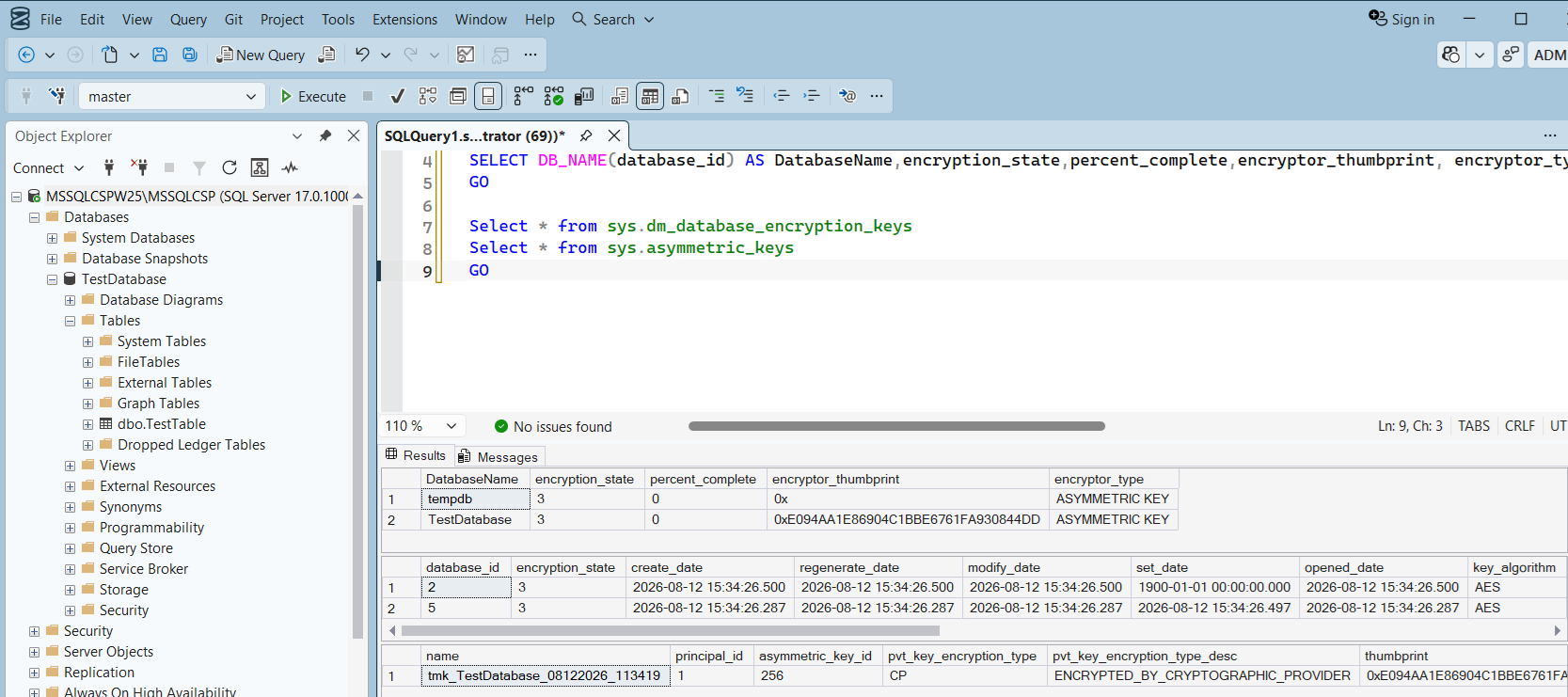
Verify the encryption state and the associated keys in SQL Server Management Studio:
-
Select New Query, paste the following SQL into the query window, and select Execute.
use master
GO

SELECT DB_NAME(database_id) AS DatabaseName,encryption_state,percent_complete,encryptor_thumbprint, encryptor_type FROM sys.dm_database_encryption_keys
GO

Select * from sys.dm_database_encryption_keys
Select * from sys.asymmetric_keys
GO
For example:
-
-
Review the same key in the Database CSP Vault:
-
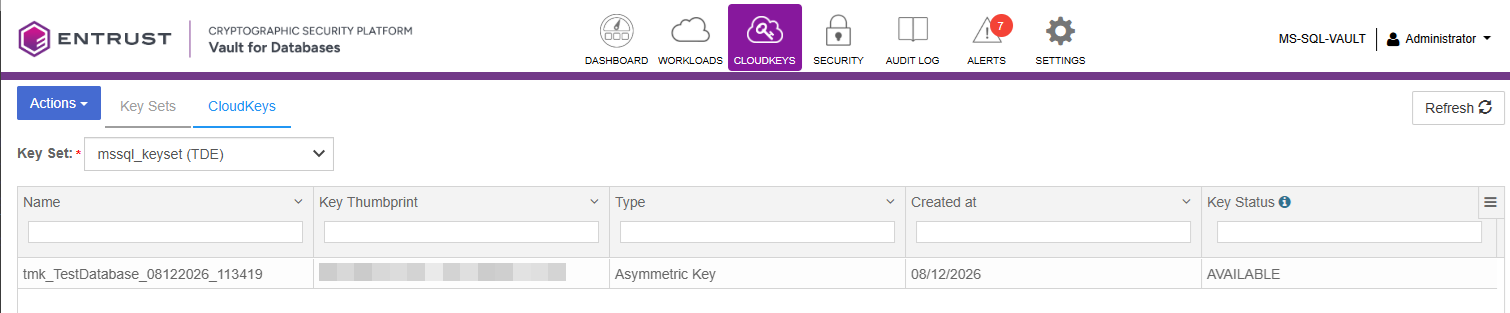
In the Cryptographic Security Platform Vault for Database web UI, navigate to CloudKeys.
-
Select the CloudKeys tab, then select mssql_keyset (TDE) to list the keys in that keyset.
For example:
-
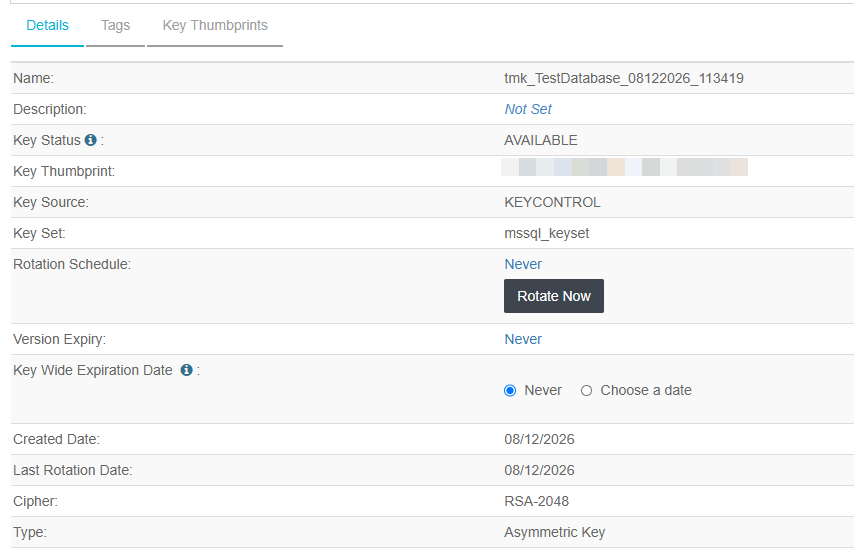
Select the
tmk_xxxxkey, the same key shown in SQL Server Management Studio, to view its details.For example:
-
Rotate the Master Key
Rotate the TDE master key using the same encryptclust.ps1 script.
Run the following steps on the Microsoft SQL Server node that hosts the target database.
-
Rotate the master key with the following command:
PS> .\encryptclust.ps1 -database <my_test_db> -config .\entrust.conf -rotateWhere:
-
-databaseis the name of the database. -
-configis the updated configuration file. -
-rotateindicates that the database is already encrypted and the master key must be rotated.For example:
PS>C:\Users\Administrator\Downloads\tde>.\encryptclust.ps1 -database TestDatabase -config .\entrust.conf -rotate -nocheckcertExample outputLogging debug trace and output to: C:\Users\Administrator\Downloads\tde\trace\encryptclust_5.log Checking Active node: my node name is mssqlcspw25, configured server is MSSQLCSPW25\MSSQLCSP Continuing execution with -nocheckcert flag set, ignoring certificate errors \............... Pass Checking if database TestDatabase is present on server MSSQLCSPW25\MSSQLCSP Changed database context to 'TestDatabase'. \............... Pass ############################################################################## Encrypting database 'TestDatabase' with TDE master key ############################################################################## Database TestDatabase is not part of any Availability Group Using this suffix for all keys, credentials and TDE logins -- 08122026_120120 Database TestDatabase is already encrypted rotating master key Generating temporary report file C:\Program Files\hcs\tde_reports\TestDatabase_08122026_120120_prerotate.report It will be pushed to KeyControl and removed from local system. \............... Done Creating key, login and credential in node MSSQLCSPW25\MSSQLCSP ------------------------------------------------------------------------- Enabling EKM provider support in MSSql server \............... Done Creating cryptographic provider entrust_ekm_provider \............... Done Check credential entrust_sa_ekm_cred for Admin user Creating credential entrust_sa_ekm_cred for Admin user \............... Done Adding credential entrust_sa_ekm_cred to XXXX\Administrator login \............... Done Create TDE master key tmk_TestDatabase_08122026_120120 Changed database context to 'master'. \............... Done Remove entrust_sa_ekm_cred from Admin login Changed database context to 'master'. \............... Done Creating credential tmk_cred_TestDatabase_08122026_120120 \............... Done Creating login tmk_login_TestDatabase_08122026_120120 \............... Done Adding credential tmk_cred_TestDatabase_08122026_120120 to login tmk_login_TestDatabase_08122026_120120 \............... Done Creating database encryption key on node MSSQLCSPW25\MSSQLCSP ------------------------------------------------------------------------- Rotating database TestDatabase encryption key with tmk_TestDatabase_08122026_120120 Changed database context to 'TestDatabase'. \............... Done Generating temporary report file C:\Program Files\hcs\tde_reports\TestDatabase_08122026_120120.report It will be pushed to KeyControl and removed from local system. \............... Done Encryption key rotation for database TestDatabase complete Please take log backup for database TestDatabase as recommended by SQL server documentation. Note that if log backup is not taken then next key rotation will fail
-
-
Take a log backup of the database as recommended by the SQL Server documentation.
-
Review the rotated key in the CSP Vault:
-
In the Cryptographic Security Platform Vault for Database web UI, navigate to CloudKeys.
-
Select the CloudKeys tab and then select mssql_keyset (TDE). The new key is listed alongside the previous one.
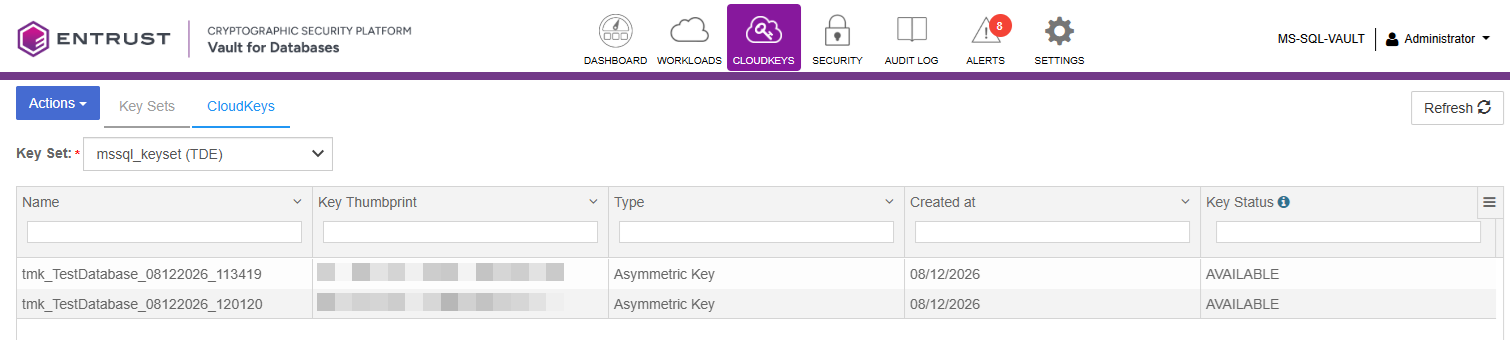
-
Select the new
tmk_xxxxkey to view its details.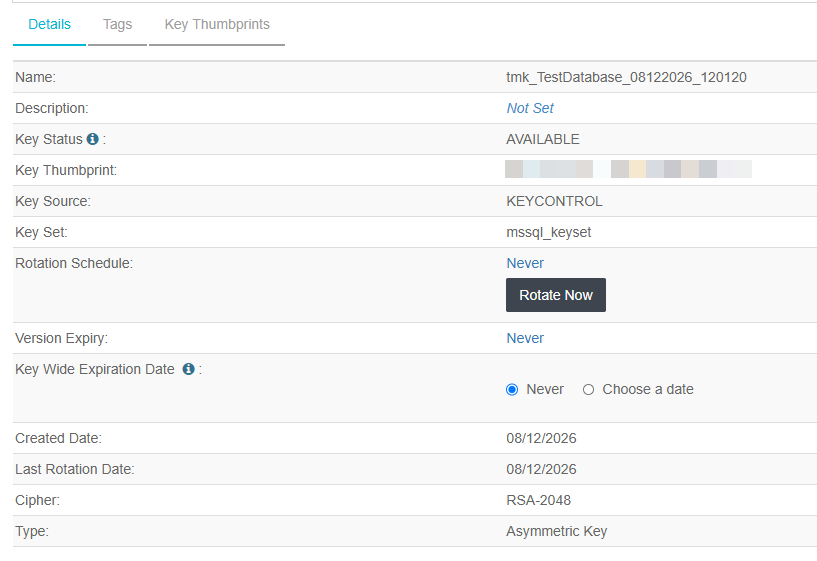
-
Rotating keys by using the web GUI
You can also rotate the Microsoft SQL Server keys by using the Cryptographic Security Platform Vault for Database web UI. For more information, see the online documentation for Rotating Microsoft SQL Server Keys. The documentation also describes how to rotate keys manually in Microsoft SQL Server.