Encrypt or decrypt a column with SSMS
Encrypt a column
-
Log in to the client with the <domain>\dbuser account.
-
Launch Microsoft SQL Server Management Studio.
-
Connect to the database on the remote SQL Server instance using a Connection String in which Column Encryption Setting=Enabled (the default setting).
-
In the Object Explorer, expand Databases > TestDatabase > Tables > dbo.TestTable.
-
Right-select dbo.TestTable and select Always Encrypted Wizard….
-
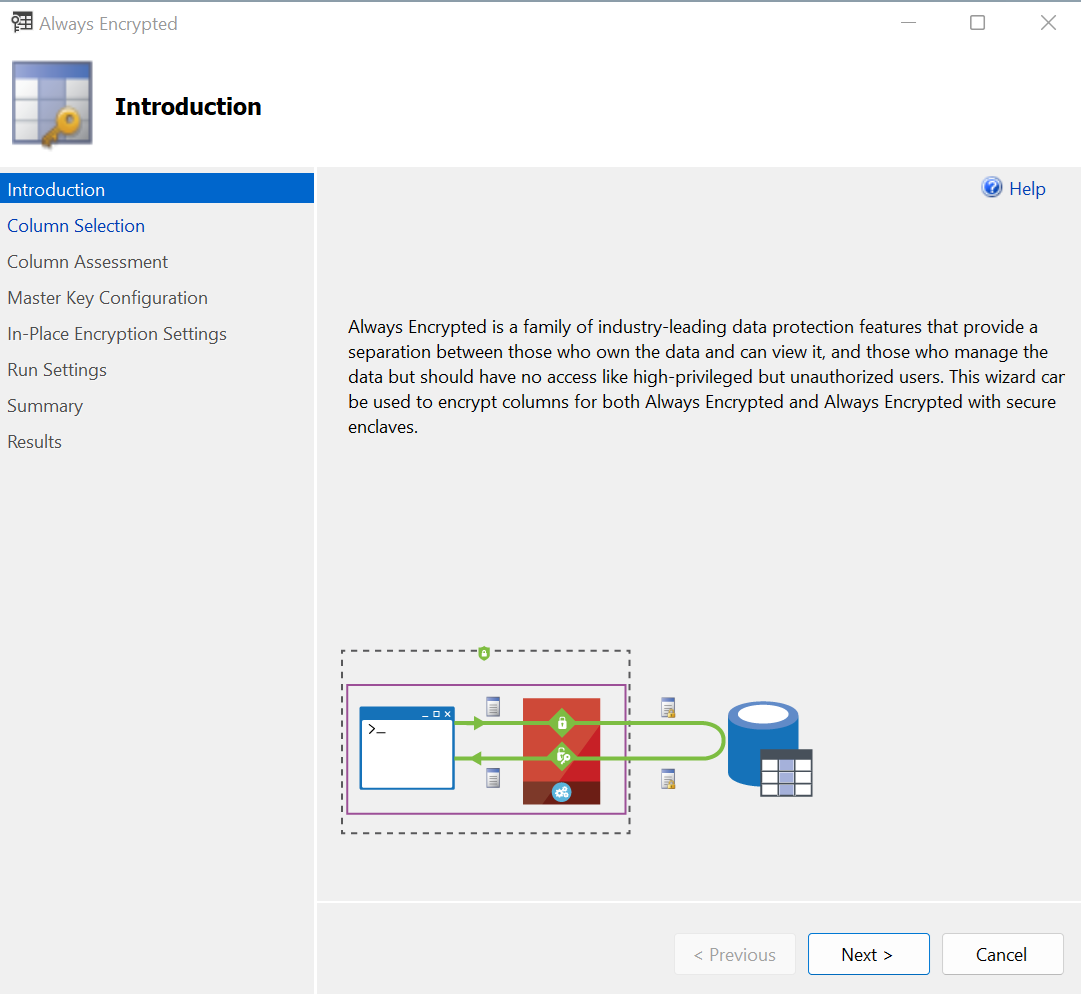
In the Introduction window, select Next.
-
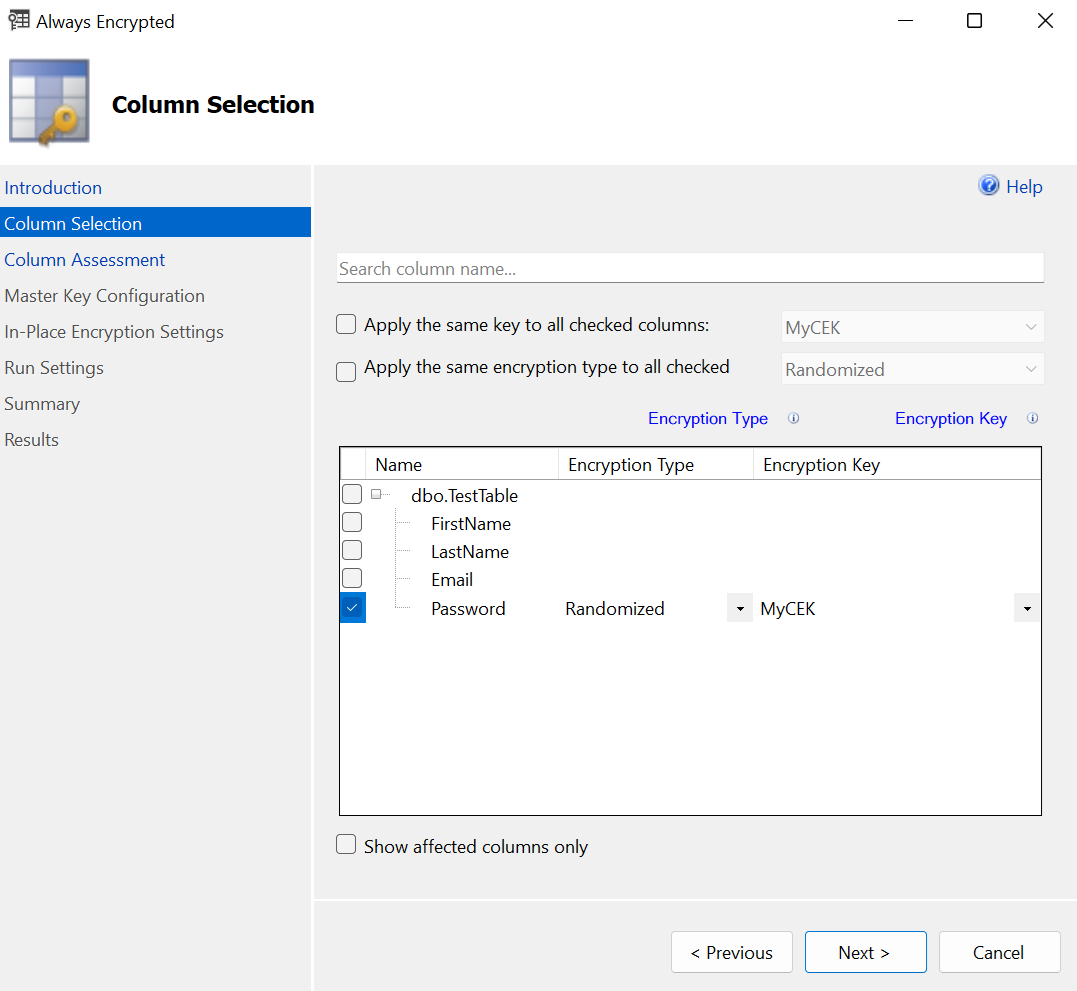
In the Column Selection window, select one or more columns to encrypt, select the Encryption Type, and Encryption Key, and then select Next.
For example:
-
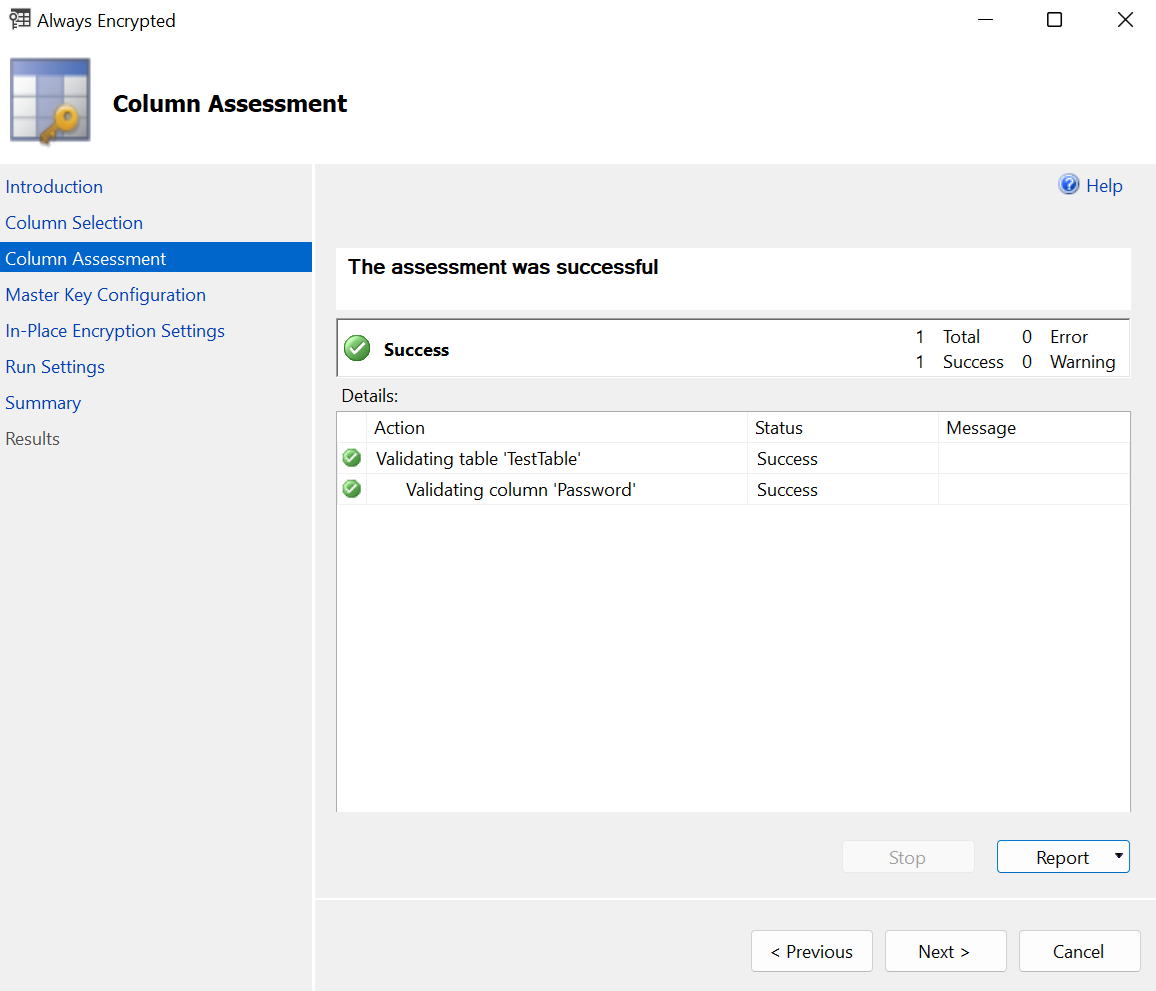
In the Column Assessment window, select Next.
-
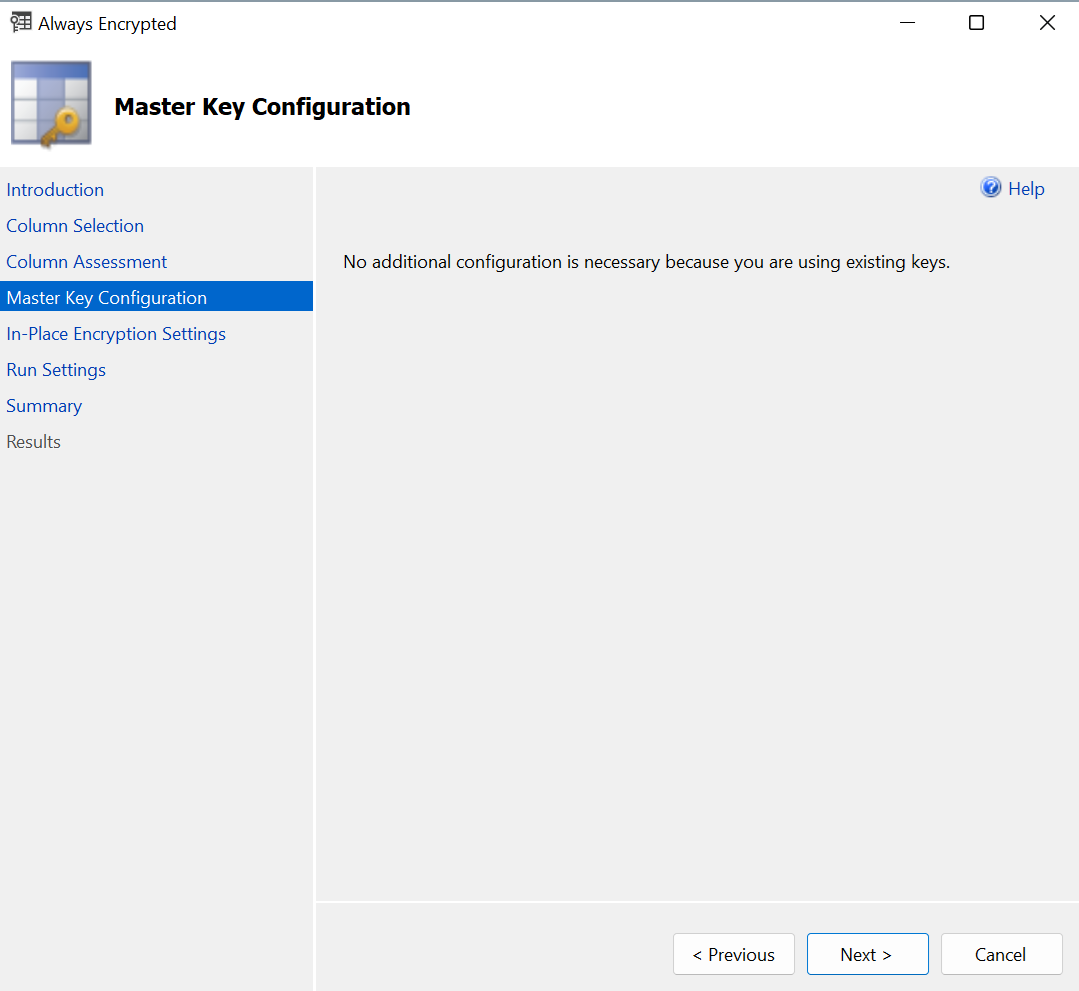
In the Master Key Configuration window, select Next.
-
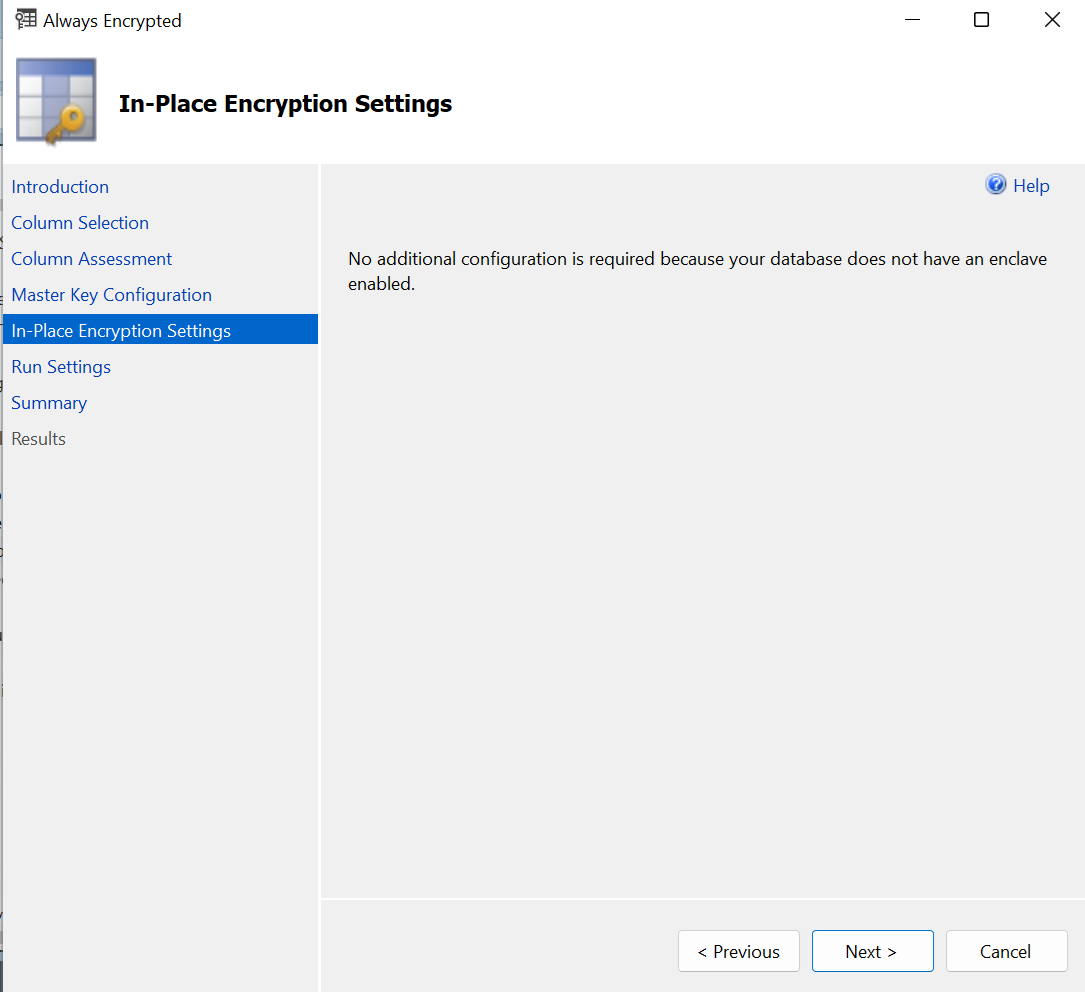
In the In-Place Encryption Settings window, select Next.
-
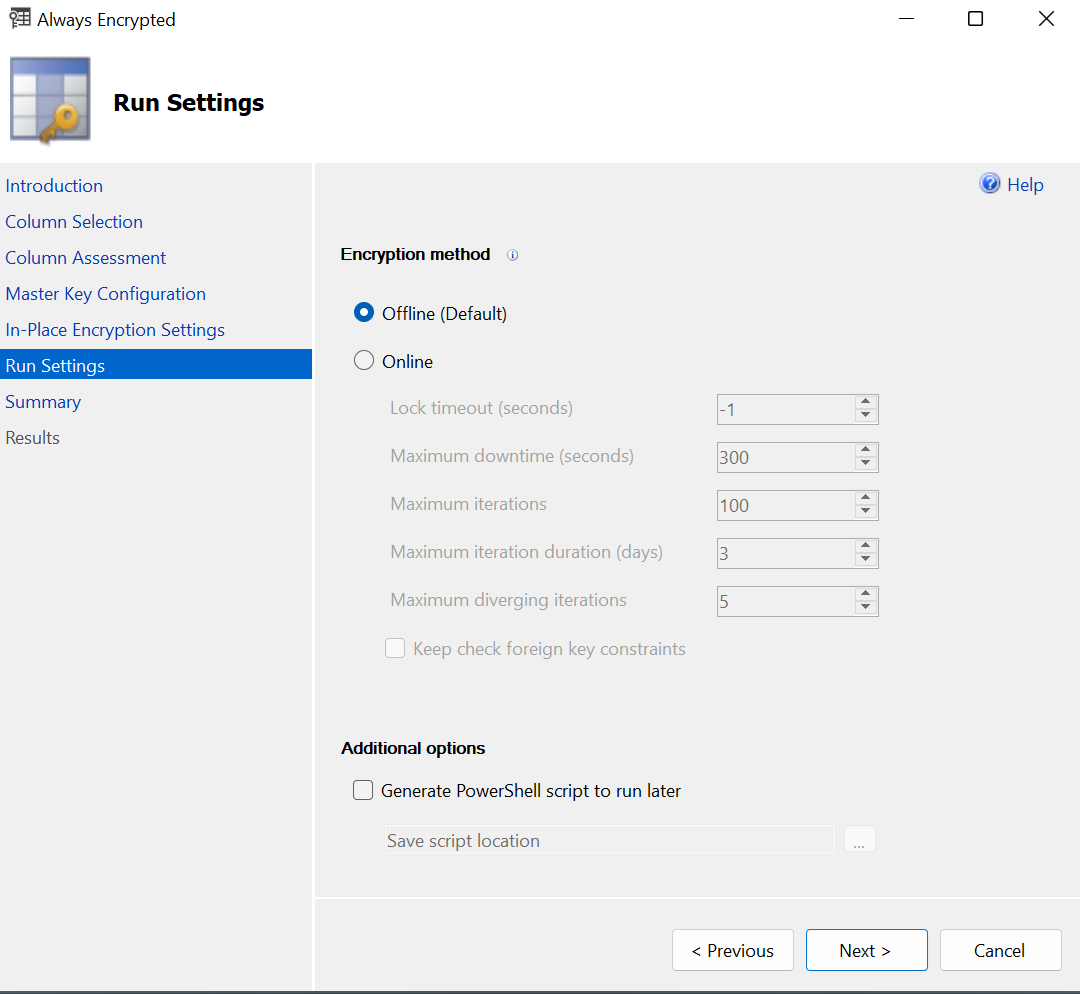
In the Run Settings window, select Next.
-
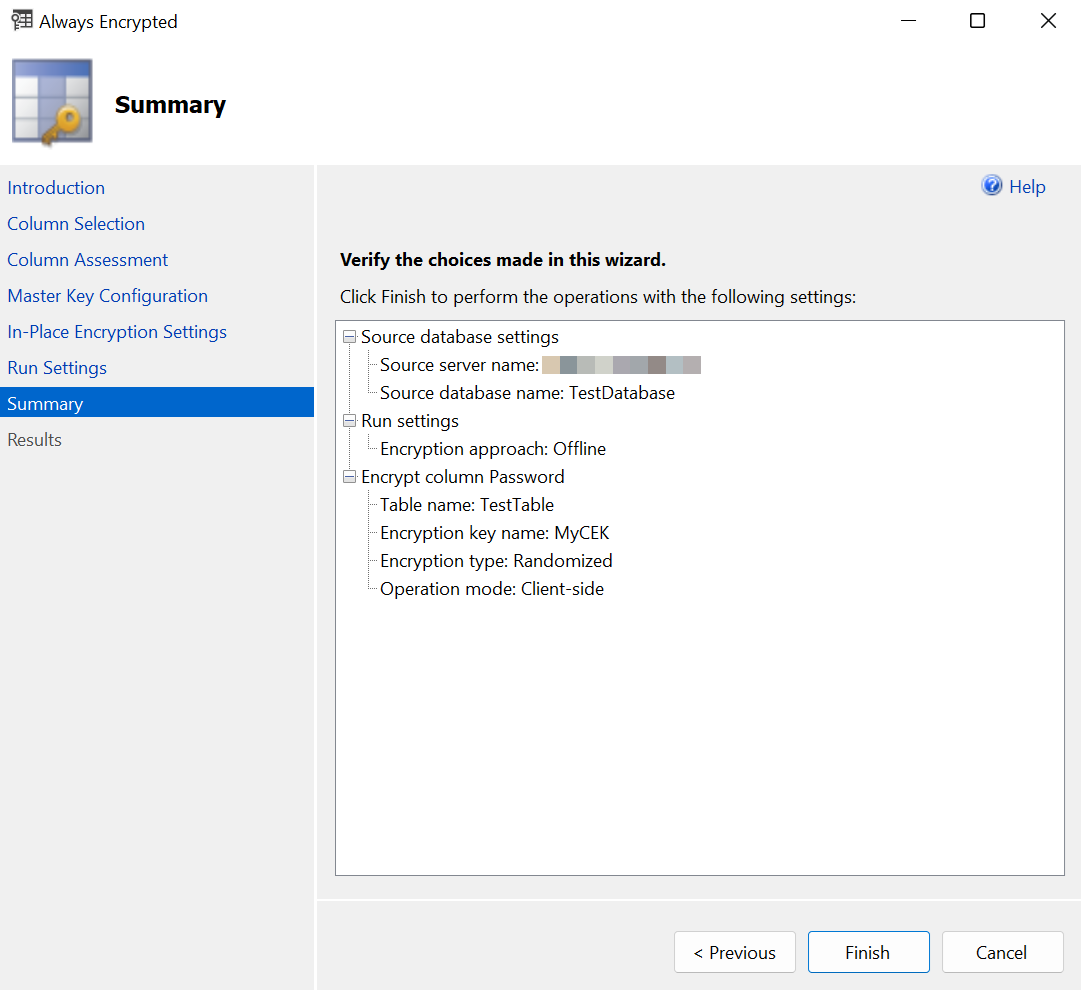
In the Summary window, verify the configuration choices, then select Finish.
-
Present the OCS, select the HSM, and enter the passphrase.
-
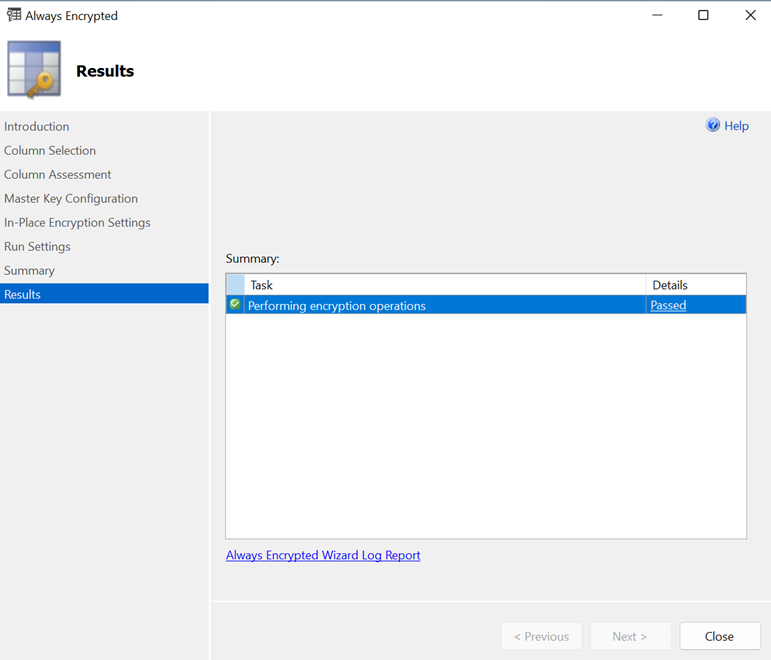
Check that Passed appears in the Details column of the Results window.
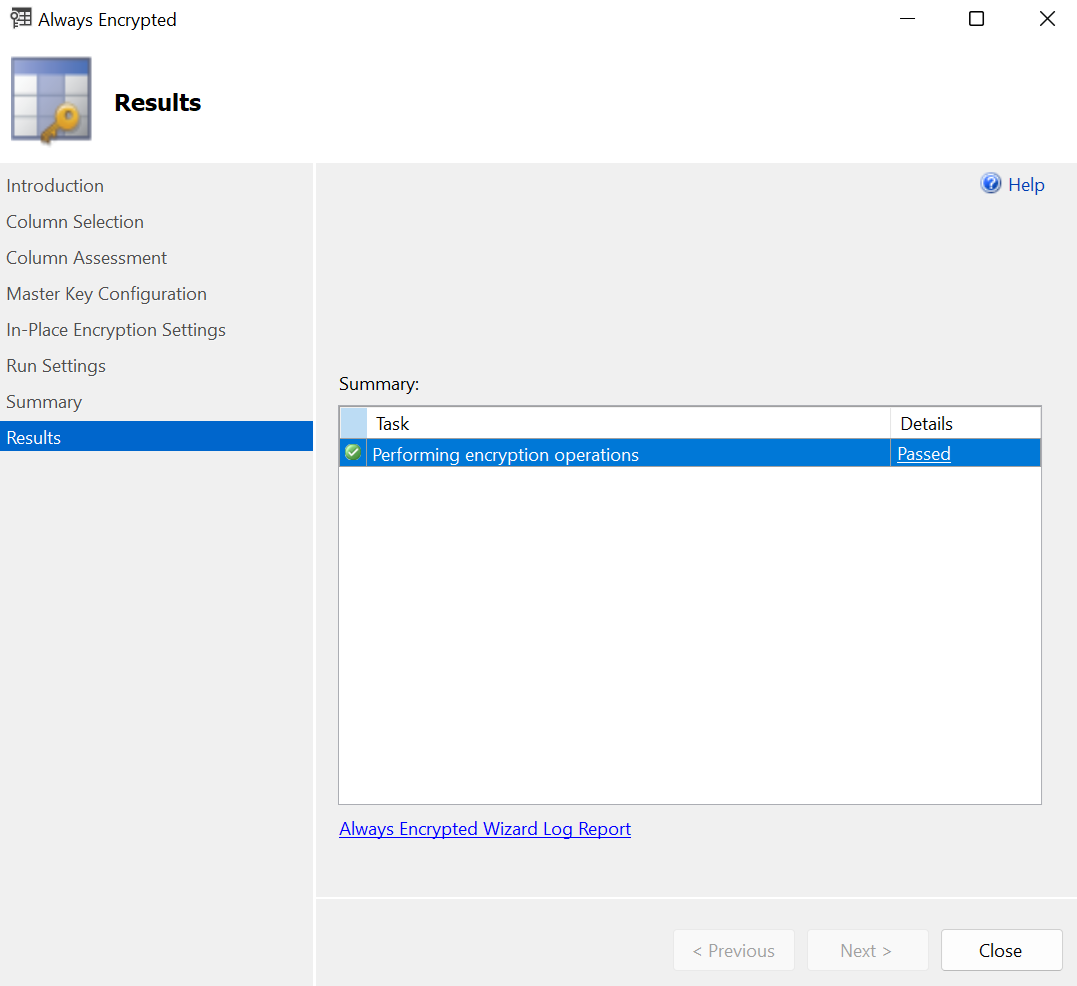
The column is encrypted in the SQL server, but it shows as clear text on the Microsoft SQL Server Management Studio GUI on the client. This is because Always Encrypted is performing the decryption at the client site. -
Select Close.
View an encrypted column
-
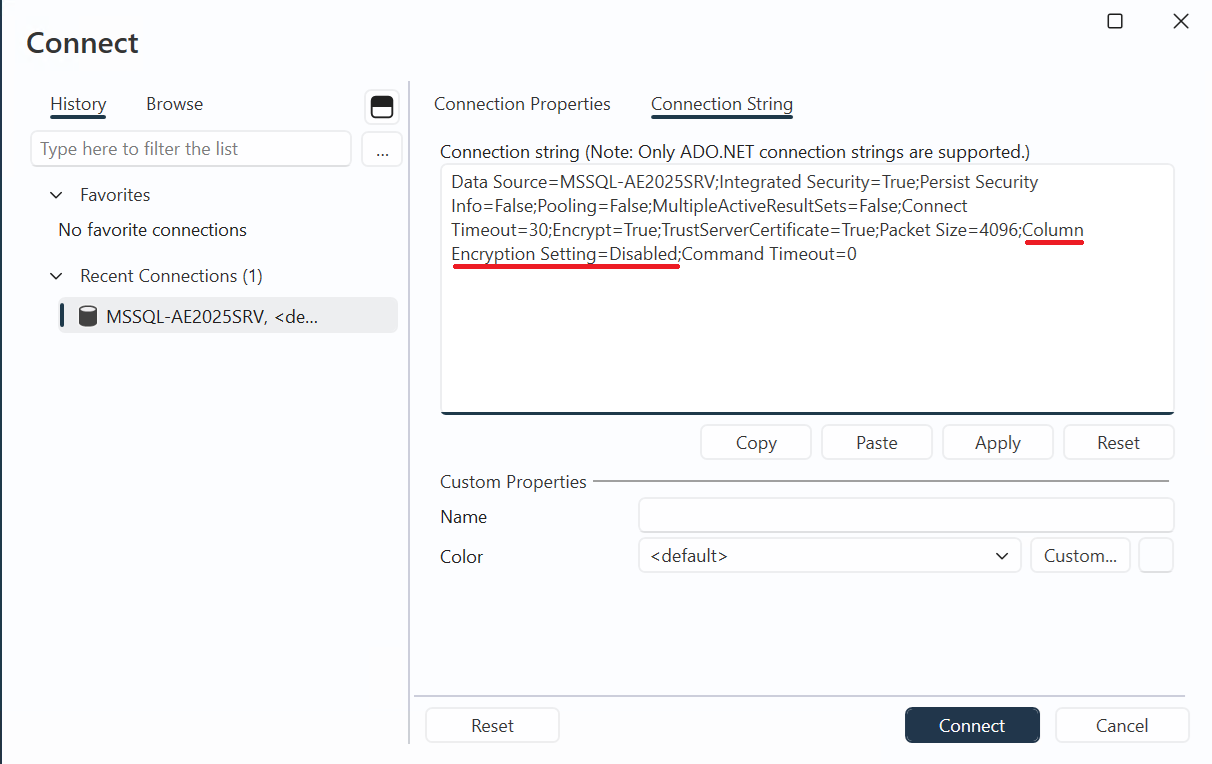
Connect to the SQL server instance with Column Encryption Setting=Disabled to view the encrypted data stored on the server.
-
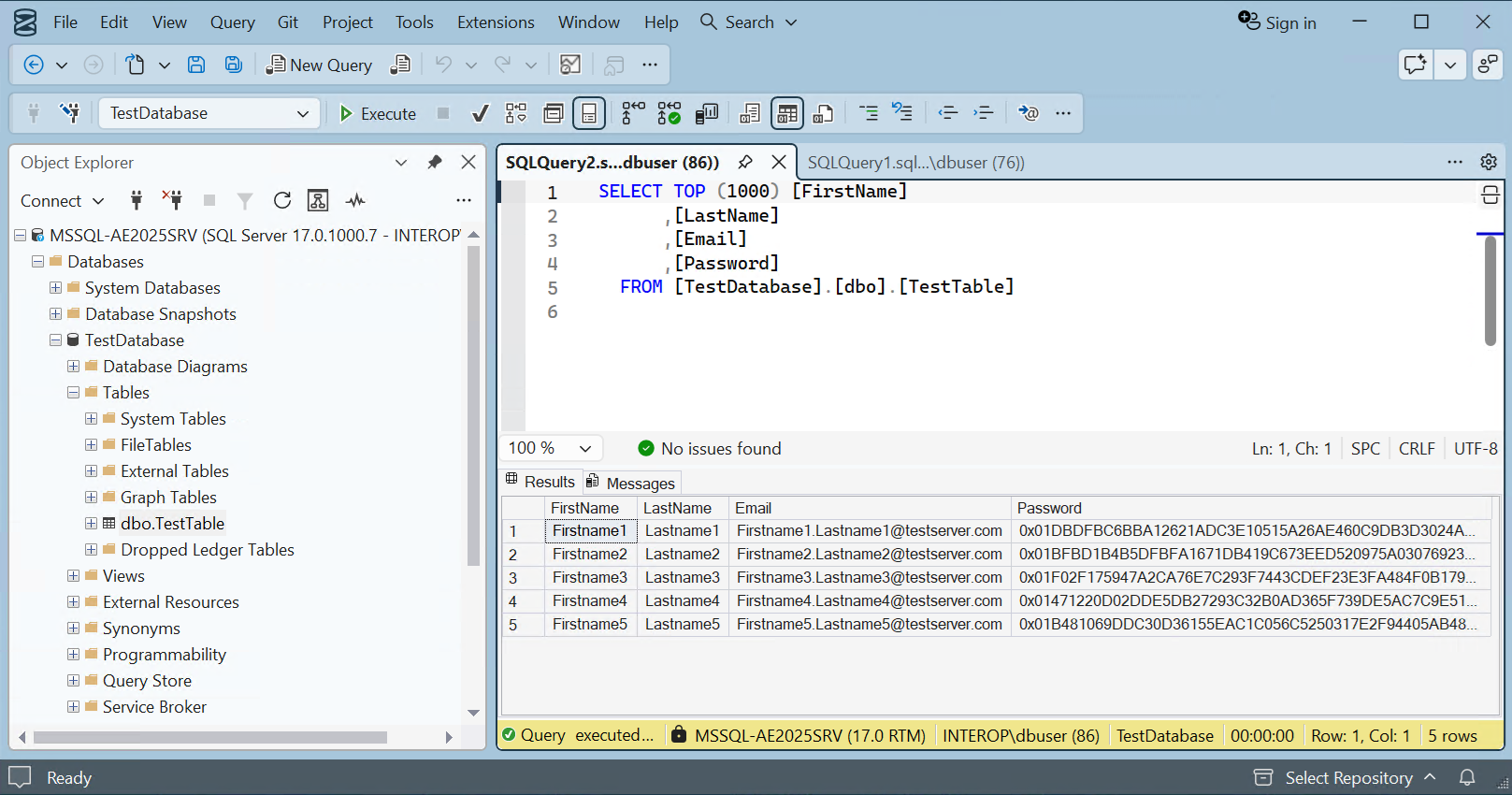
Right-click dbo.Table and select Select Top 1000 Rows. The column that was chosen for encryption now appears as ciphertext, that is, as an encrypted value.
-
Reconnect to the SQL server instance with Column Encryption Setting=Enabled.
-
Present the OCS, select the HSM, and enter the passphrase.
-
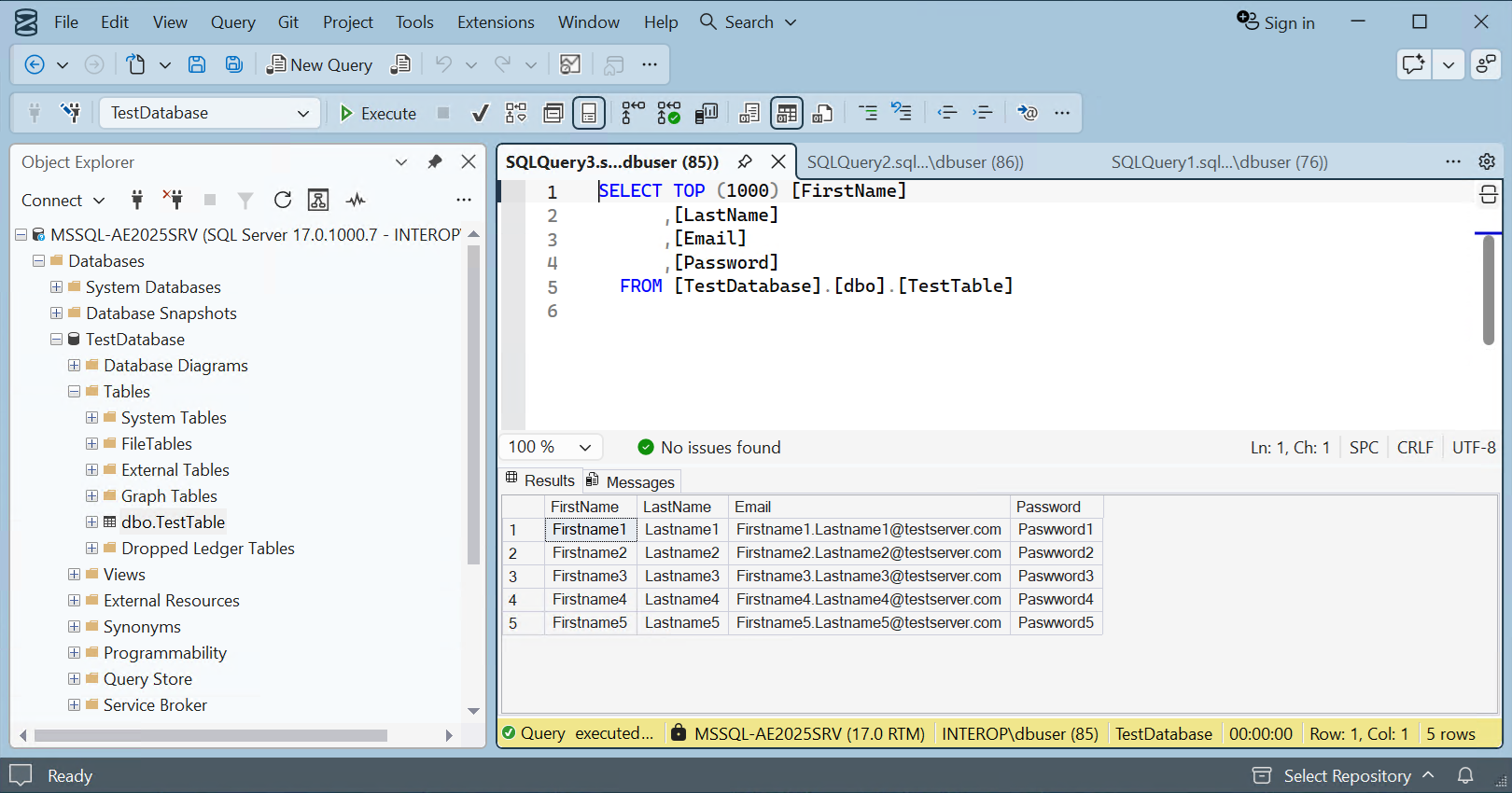
Right-click dbo.Table and select Select Top 1000 Rows. The column that was chosen for encryption is now being decrypted by Always Encrypted with the key protected by the nShield HSM.
Remove column encryption
-
In the Object Explorer, expand Databases > TestDatabase > Tables > dbo.TestTable.
-
Right-select dbo.TestTable and select Always Encrypted Wizard….
-
In the Introduction window, select Next.
-
In the Column Selection window, for Encryption Type select Plaintext, then select Next.
-
In the Column Assessment window, select Next.
-
In the Master Key Configuration window, select Next.
-
In the In-Place Encryption Settings window, select Next.
-
In the Run Settings window, select Next.
-
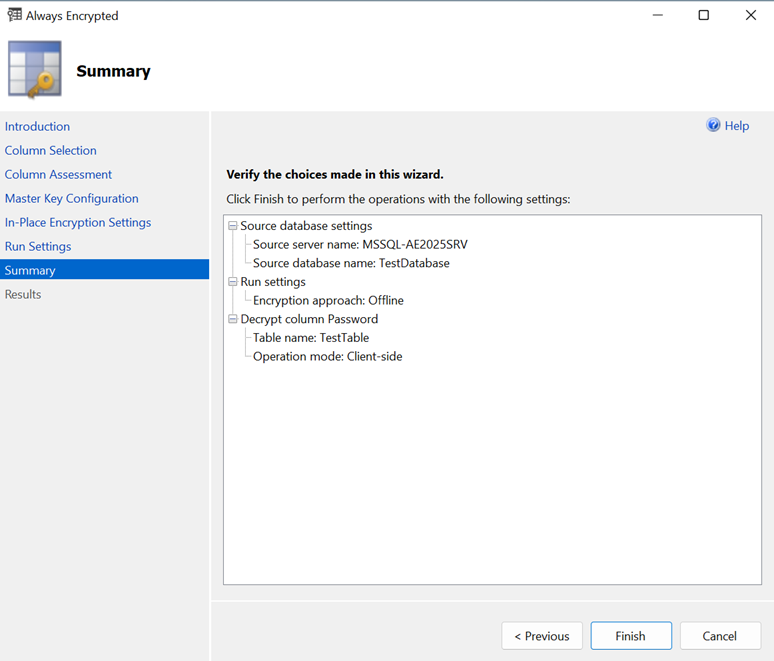
In the Summary window, verify the configuration choices, then select Finish.
-
Present the OCS, select the HSM, and enter the passphrase.
-
Check that Passed appears in the Details column of the Results window.
The column has been decrypted in the SQL server. To view the plaintext data stored on the SQL Server instance, reconnect to the server with Column Encryption Setting=Disabled. For instructions, see View an encrypted column. -
Select Close.