Configure computers and accounts
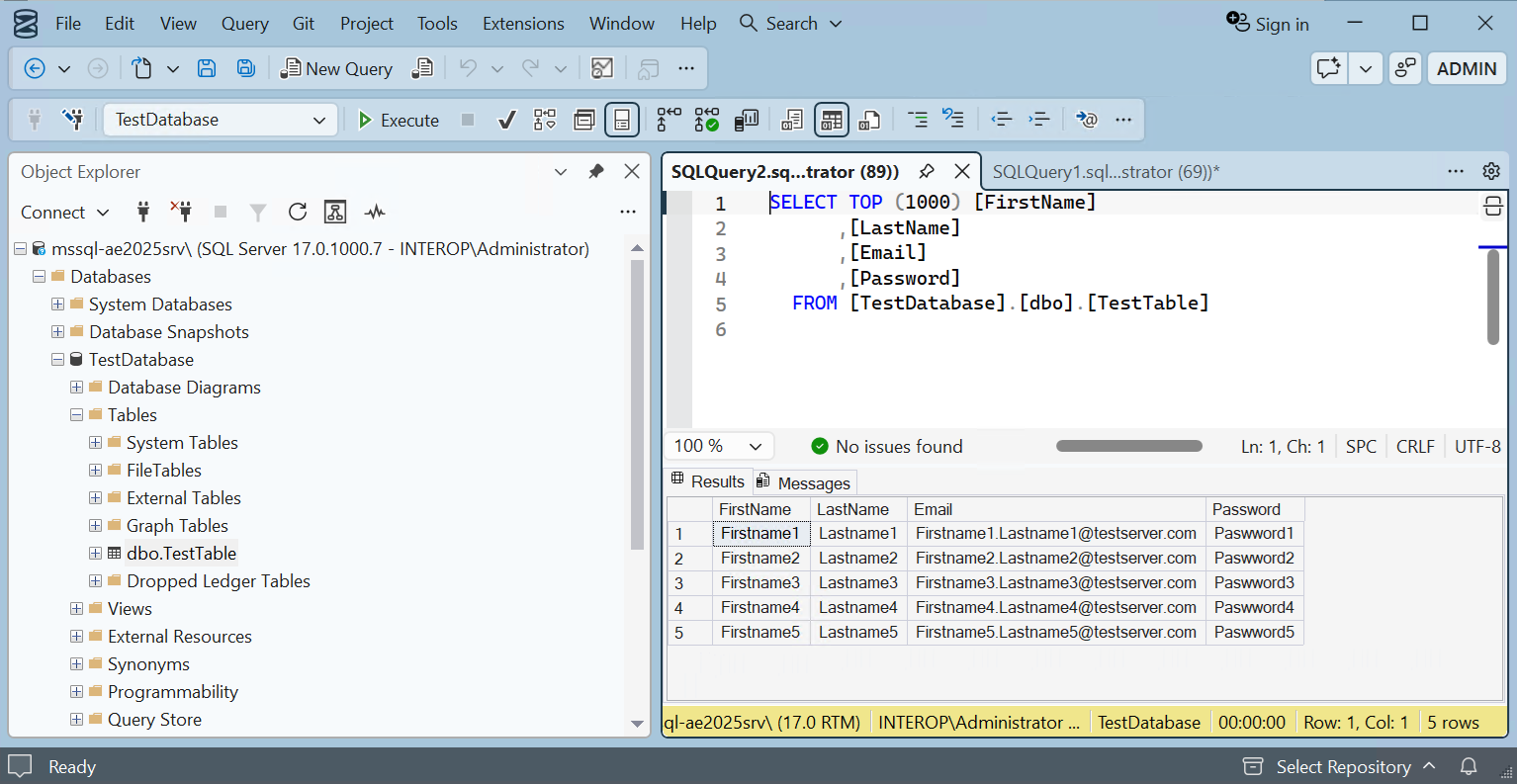
For this integration, the Microsoft SQL Server Database Engine was deployed on a remote Windows server, and a Windows PC served as the client. Both systems were joined to the same Windows domain, and Windows authentication was used for additional security. A test database was created to demonstrate data encryption.
Create domain accounts
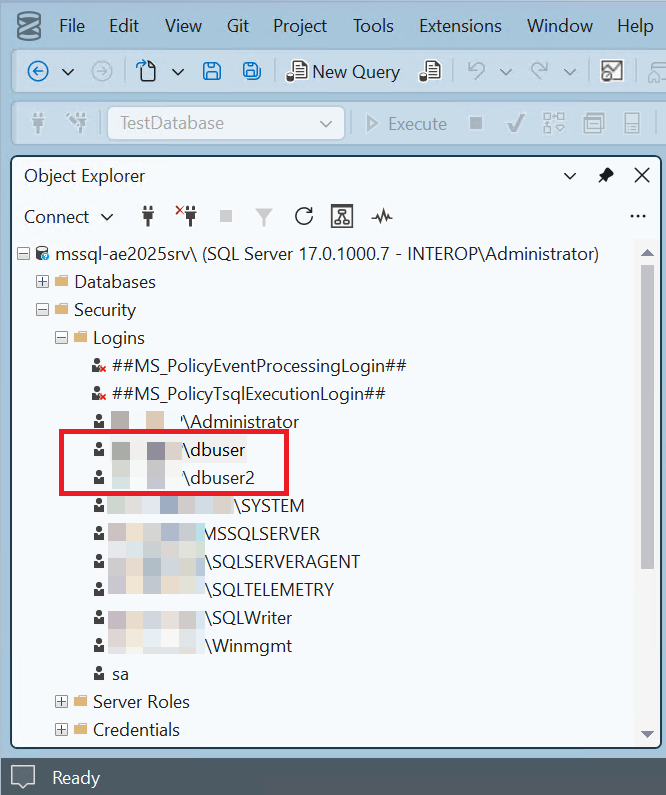
Create two Windows domain accounts. For example:
-
<domain>\dbuser
-
<domain>\dbuser2
Allow domain accounts to remote login
-
In the Windows PC (client), enter advance settings in the search box and select View advanced system settings.
-
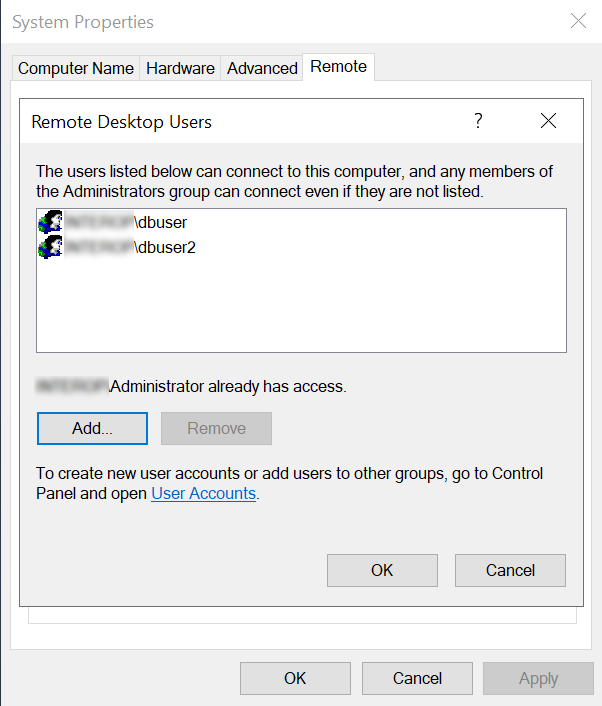
Select the Remote tab in the System Properties dialog. Then select Select Users….
-
Add the following users:
-
<domain>\dbuser -
<domain>\dbuser2
-
Install the SQL database engine in remote Windows server
-
Install the SQL engine in the remote Windows server.
-
Open the firewall ports 1433, 1434, 445, and 49170 for access by the SQL database engine, SQL browser, and Active Directory for domain account authorization.