Post-Quantum Support for Key Generation
The Cryptographic API (CAPI) and KMIP Vaults now support creating quantum-safe cryptographic objects and using quantum operations for signing and verifying. This chapter provides an overview of how to provision a CAPI vault, enable HSM protection, and generate post-quantum keys using the Cryptographic Security Platform Key Management Vault interface.
For more information about CAPI Vaults and their functions, see the Entrust Cryptographic Security Platform Key Management Vault for Cryptographic APIs
For more information about KMIP Vaults and their functions, including encrypting servers with vSphere and the post-quantum support they offer, see the Entrust Cryptographic Security Platform Key Management Vault for KMIP
Prerequisites
Before setting up a CAPI vault and provisioning a key, ensure the following tasks are completed:
-
The Entrust Key Management Vault server has been deployed and configured. For details, see Install and configure the Entrust Key Management Vault server.
-
Entrust Cryptographic Security Platform Compliance Manager has been deployed and configured.
-
The Entrust nShield HSM has been deployed and configured.
The following steps use Entrust HSM firmware that supports post-quantum operations.
CAPI Vault creation and setup
To create a new CAPI vault:
-
Log into the Vault Manager web user interface of the Key Management Vault using an account with Security Admin privileges.
-
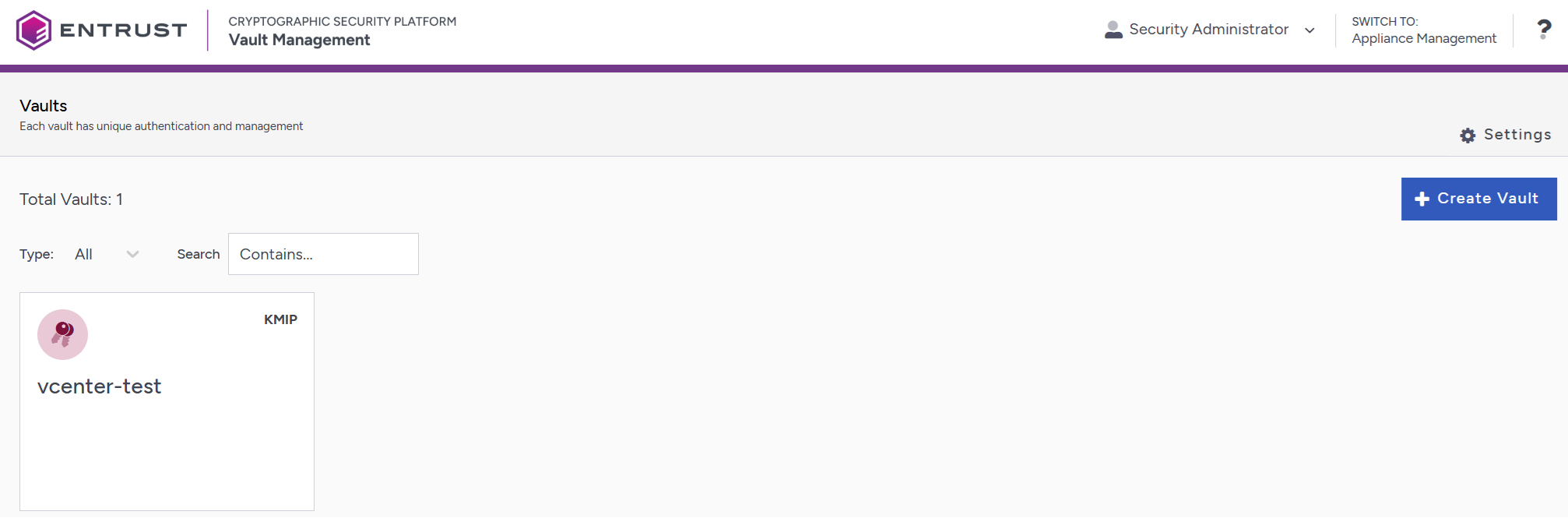
Select Create Vault.
-
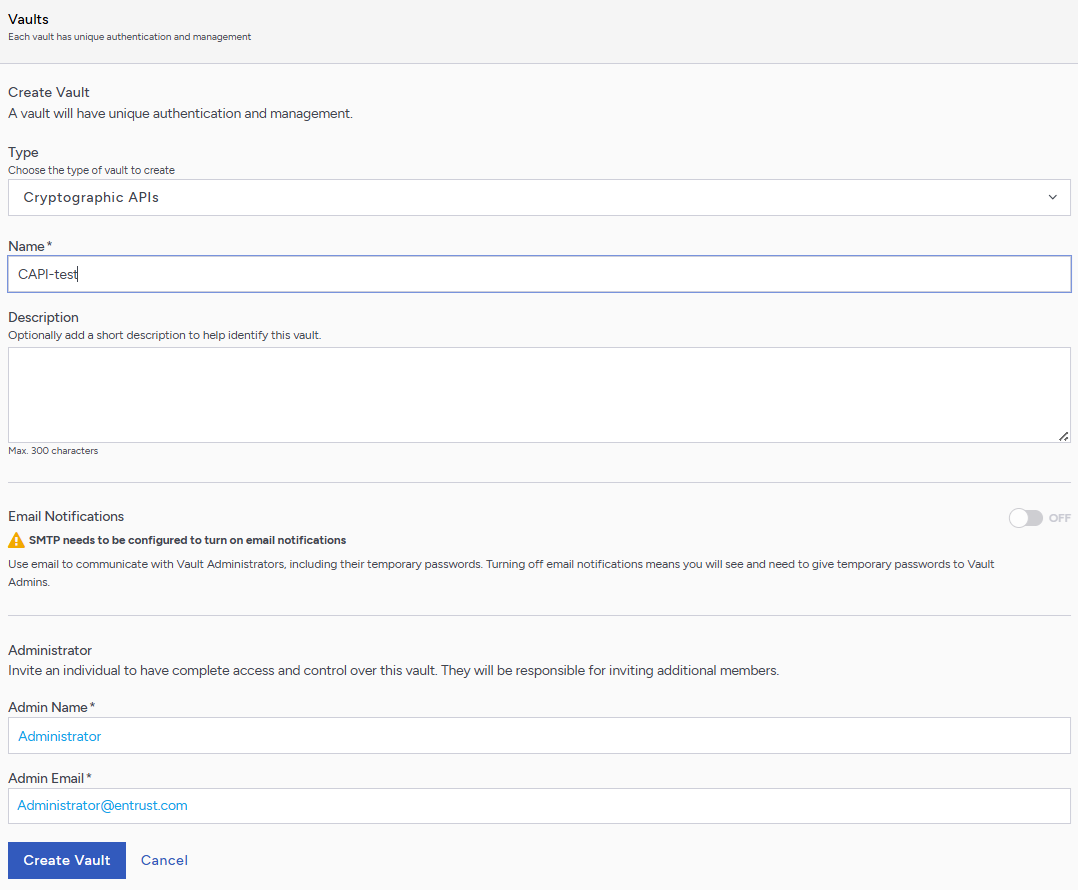
Complete the vault creation form as follows:
-
Set Type to Cryptographic APIs.
-
Provide a Vault Name in the Name field, and add a Description if required.
-
Enter an Admin Name and Admin Email. The Admin Email is the login username.
-
If required, enable Email Notifications.
-
-
After creation, navigate to the vault URL. Log in using the Administrator Email and temporary password, and set a new password when prompted.
-
When prompted, select Continue to enable HSM support. This redirects you to CAPI Vault Settings. You only need to do this the first time you log in.
-
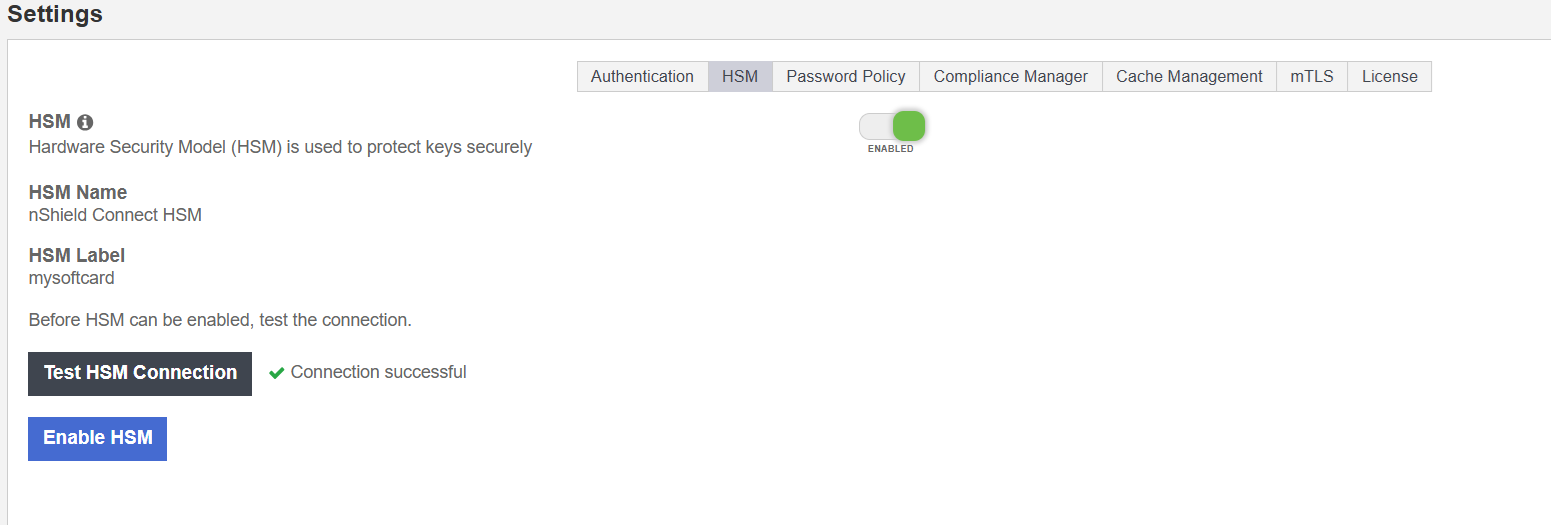
Navigate to Settings > HSM and complete the following steps:
-
Click the HSM slider to enable the use of a HSM by the vault.
-
Select Test HSM Connection and confirm the connection is successful.
-
Click Enable HSM to finalize configuration.
Once enabled, the vault UI updates to reflect active HSM status.
-
To validate the CAPI vault, you must upload a license through the Cryptographic Security Platform Compliance Manager. For information about Key Management Vault license status and synchronization, see the Entrust License Page online documentation.
Creating a Post-Quantum Key
-
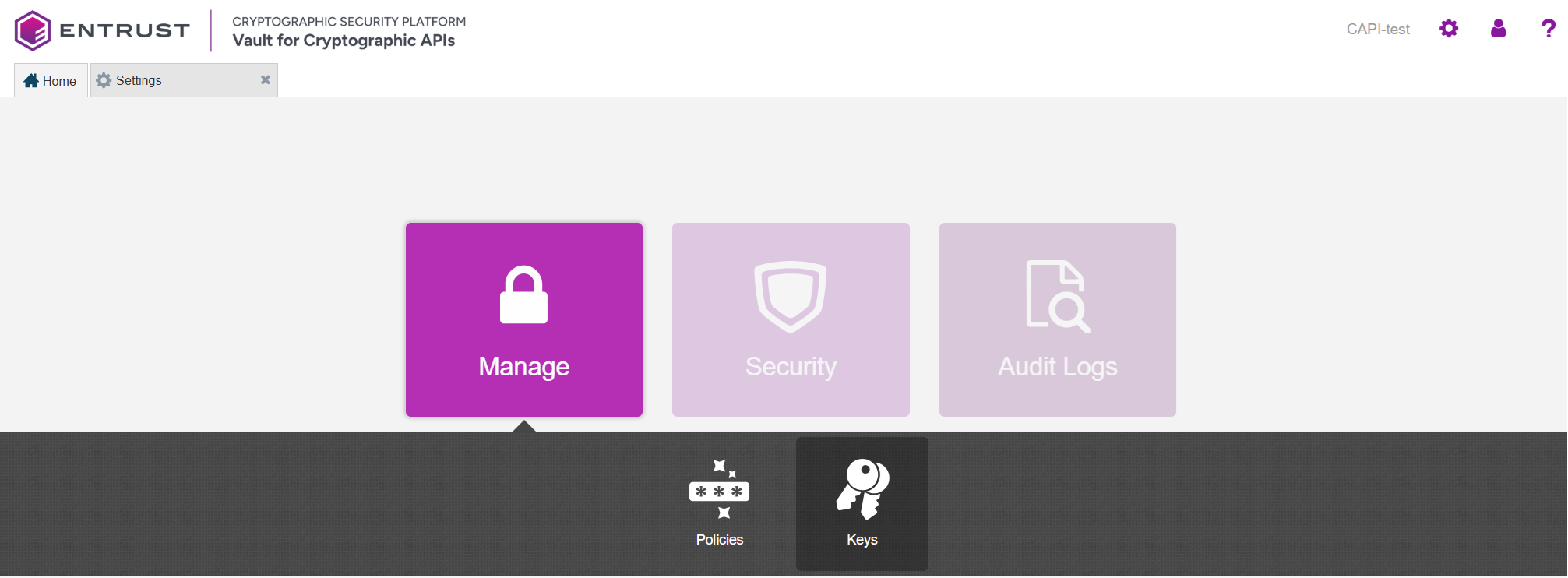
From the CAPI vault home page, go to Manage > Keys.
-
On the Keys tab, select the + icon to create a new key.

-
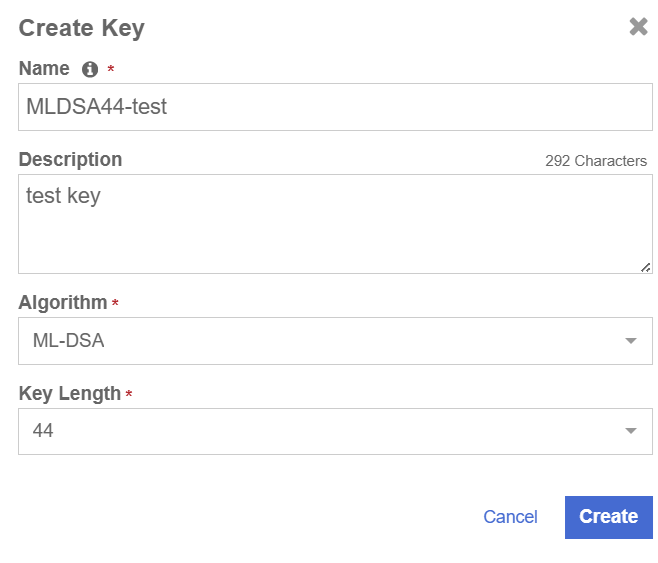
Provide a Name and Description.
-
In the Algorithm menu, choose a post-quantum algorithm:
-
ML-DSA or SLH-DSA (Note: ML-KEM is not supported at the time of authoring this document.)
-
Choose a Key Length of 44, 65, or 87.
-
-
-
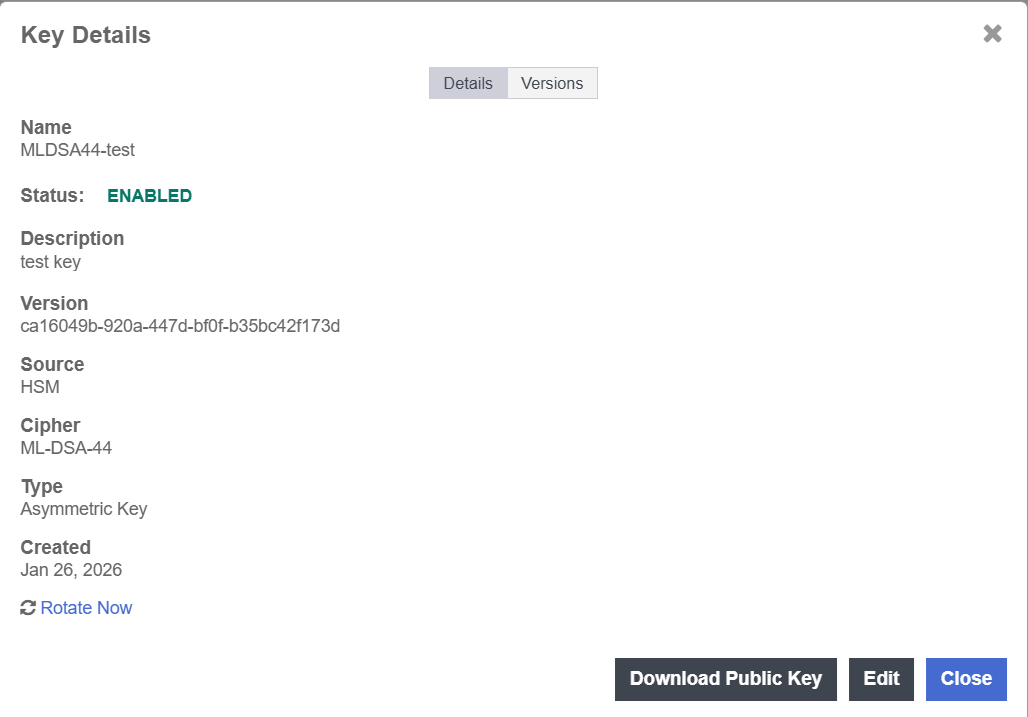
After creation, open the key details and note the Version string. This is part of the verification process.
Verifying Post-Quantum Key HSM Protection
To confirm the key is stored and protected by the HSM:
-
Log into the Key Management Vault Appliance Manager web user interface using an account with Security Admin privileges.
-
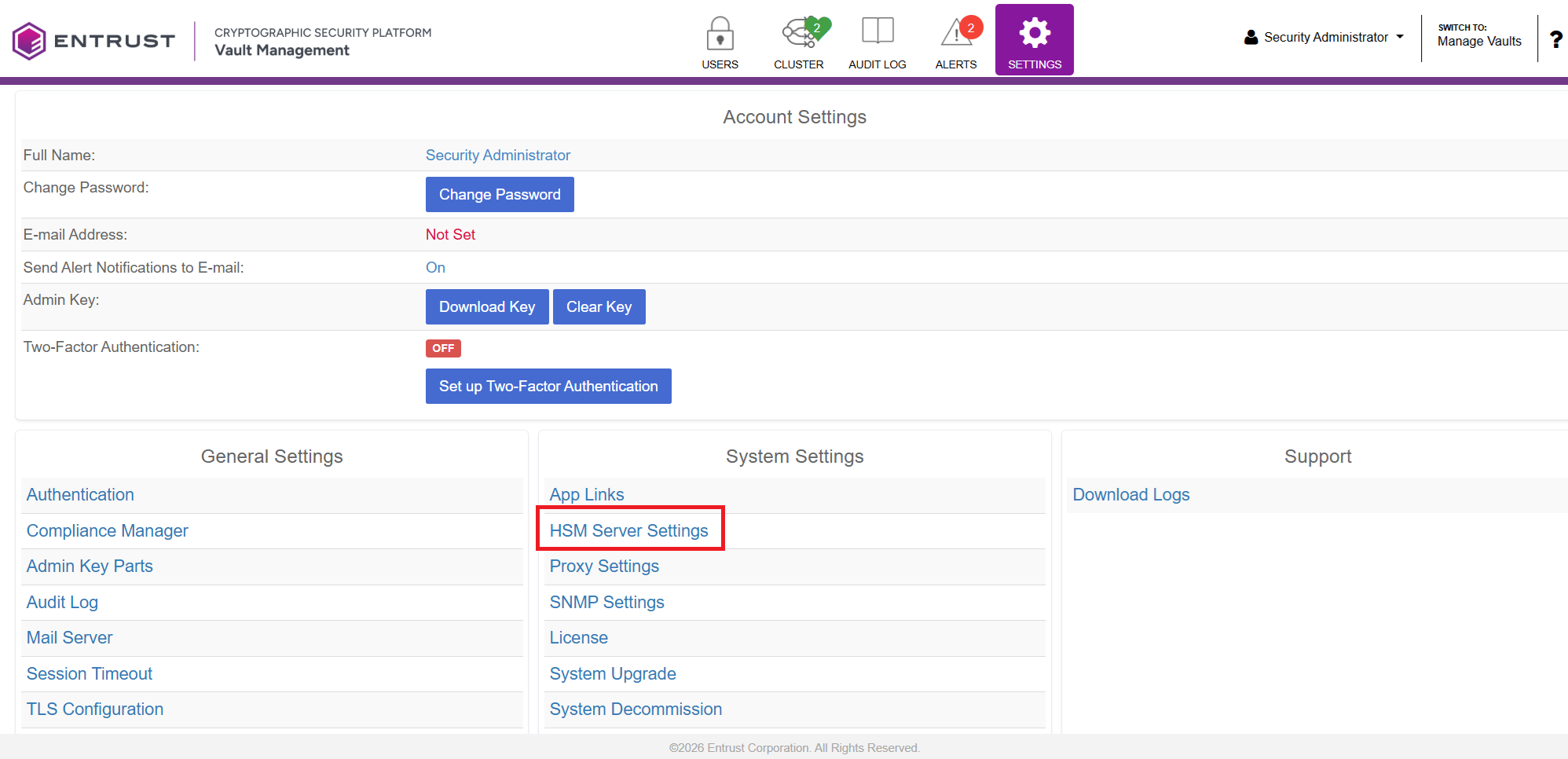
Navigate to Settings > HSM Server Settings.
-
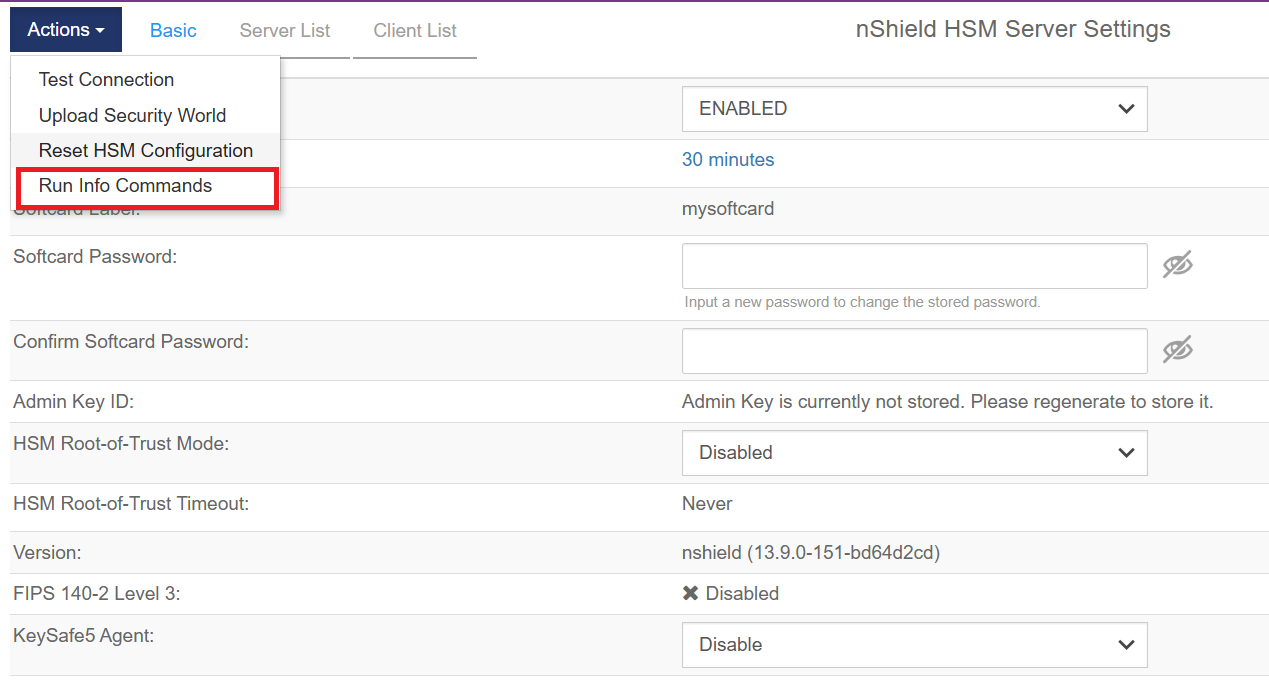
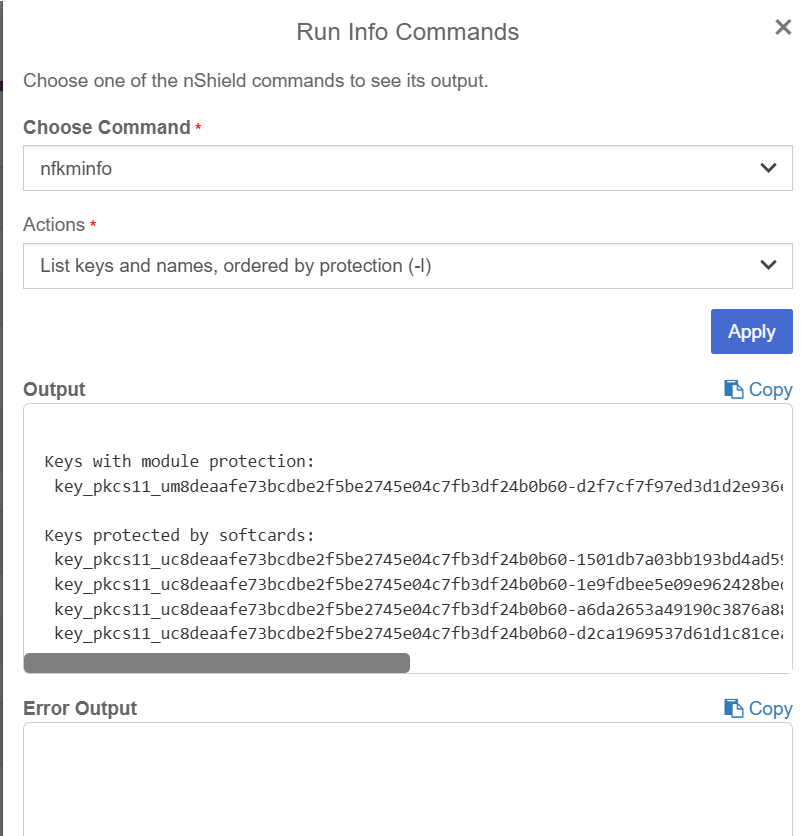
Open Actions > Run Info Commands.
-
Select the following parameters:
-
Command: nfkminfo
-
Action: List keys and names, ordered by protection (-l)
-
-
-
Apply the command and review the output.
You should see your post-quantum key listed under the appropriate protection category (for example: softcard-protected).
-
Verify that the key’s Version matches the version shown in the CAPI vault.